
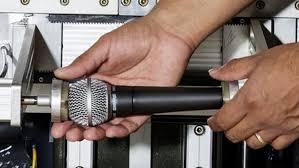
How to Test Your Microphone: A Step-by-step Guide
Are you struggling to record audio messages or have trouble hearing others on Skype? It might be time to test your microphone! In this article, we’ll guide you through the process of checking and troubleshooting your microphone on various devices.
Understanding Microphones
Before we dive into the steps, let’s quickly understand how microphones work. A microphone is a device that converts sound waves into electrical signals, which are then sent to a computer or other device for recording or playback. When you speak into a microphone, it captures your voice and sends it as an audio signal to the connected device.
Testing Your Microphone on Windows
If you’re using a Windows-based computer, testing your microphone is relatively straightforward. Follow these steps:
- Open Settings: Click on the Start button and select “Settings.”
- Go to Sound: In the Settings window, click on “System” and then “Sound.”
- Select Input Device: In the Sound window, click on the “Input” tab and select your microphone from the list of available devices.
- Test Your Microphone: Click on the “Test your microphone” button and speak into the microphone. You should see a level meter rise as you speak.
Troubleshooting Windows Microphone Issues
If your microphone isn’t working correctly, here are some troubleshooting steps to try:
- Check that your microphone is not disabled in Device Manager.
- Ensure that your microphone is properly connected to your computer.
- Update your audio drivers to the latest version.
- Try using a different microphone or recording software.
Testing Your Microphone on Mac
If you’re using a Mac, testing your microphone is also relatively straightforward. Follow these steps:
- Open System Preferences: Click on the Apple menu and select “System Preferences.”
- Go to Sound: In the System Preferences window, click on “Sound” and then “Input.”
- Select Your Microphone: Select your microphone from the list of available devices.
- Test Your Microphone: Speak into the microphone and check that the level meter rises as you speak.
Troubleshooting Mac Microphone Issues
If your microphone isn’t working correctly on a Mac, here are some troubleshooting steps to try:
- Check that your microphone is not disabled in System Preferences.
- Ensure that your microphone is properly connected to your Mac.
- Update your audio drivers to the latest version.
- Try using a different microphone or recording software.
Testing Your Microphone on Skype
If you’re having trouble with your microphone on Skype, follow these steps:
- Open Skype: Launch Skype and sign in to your account.
- Go to Settings: Click on the gear icon in the top right corner of the window and select “Settings.”
- Select Audio Device: In the Settings window, click on “Audio settings” and select your microphone from the list of available devices.
- Test Your Microphone: Speak into the microphone and check that the level meter rises as you speak.
Troubleshooting Skype Microphone Issues
If your microphone isn’t working correctly on Skype, here are some troubleshooting steps to try:
- Check that your microphone is not disabled in Device Manager (Windows) or System Preferences (Mac).
- Ensure that your microphone is properly connected to your device.
- Update your audio drivers to the latest version.
- Try using a different microphone or recording software.
Testing Your Microphone on Android Devices
If you’re using an Android device, testing your microphone is also relatively straightforward. Follow these steps:
- Open Google Voice Recorder: Launch the Google Voice Recorder app and select “Settings.”
- Select Audio Device: In the Settings window, select your microphone from the list of available devices.
- Test Your Microphone: Speak into the microphone and check that the level meter rises as you speak.
Troubleshooting Android Microphone Issues
If your microphone isn’t working correctly on an Android device, here are some troubleshooting steps to try:
- Check that your microphone is not disabled in Settings.
- Ensure that your microphone is properly connected to your device.
- Update your audio drivers to the latest version.
- Try using a different microphone or recording software.
Testing Your Microphone on Ios Devices
If you’re using an iOS device, testing your microphone is also relatively straightforward. Follow these steps:
- Open Voice Memos: Launch the Voice Memos app and select “Settings.”
- Select Audio Device: In the Settings window, select your microphone from the list of available devices.
- Test Your Microphone: Speak into the microphone and check that the level meter rises as you speak.
Troubleshooting Ios Microphone Issues
If your microphone isn’t working correctly on an iOS device, here are some troubleshooting steps to try:
- Check that your microphone is not disabled in Settings.
- Ensure that your microphone is properly connected to your device.
- Update your audio drivers to the latest version.
- Try using a different microphone or recording software.
Conclusion
Testing and troubleshooting your microphone can be a straightforward process, but it’s essential to follow these steps to ensure that your device is working correctly. By following this guide, you should be able to identify and resolve any issues with your microphone, ensuring that you can record high-quality audio messages and enjoy seamless videoconferences.
Faqs
Q: How do I test my microphone on Windows?
A: Open Settings, go to Sound, select Input Device, and click on “Test your microphone.”
Q: Why is my microphone not working on Skype?
A: Check that your microphone is not disabled in Device Manager or System Preferences. Ensure that your microphone is properly connected to your device.
Q: How do I test my microphone on Android devices?
A: Open Google Voice Recorder, select Settings, and choose your microphone from the list of available devices.
Q: Why is my microphone not working on iOS devices?
A: Check that your microphone is not disabled in Settings. Ensure that your microphone is properly connected to your device.
Q: How do I troubleshoot microphone issues on Windows?
A: Update your audio drivers, check that your microphone is not disabled in Device Manager, and try using a different microphone or recording software.
Q: How do I troubleshoot microphone issues on Mac?
A: Update your audio drivers, check that your microphone is not disabled in System Preferences, and try using a different microphone or recording software.
Q: Can I use my phone’s microphone to record audio messages on Windows?
A: Yes, you can use the built-in microphone on your phone to record audio messages on Windows.
Q: How do I update my audio drivers on Windows?
A: Go to Device Manager, right-click on the audio device, and select “Update driver.”


