
How to Transfer Rubrica Android on Other Devices
Are you tired of switching between devices and losing your contacts? Look no further! In this article, we will guide you through the process of transferring your Rubrica Android to other devices, including smartphones, tablets, and PCs.
Table of Contents
- How to Transfer Rubrica Android on Google
- How to Transfer Rubrica Android on Another Smartphone
- How to Transfer Rubrica Among Android Devices
- How to Transfer Rubrica Android on iPhone
- How to Transfer Rubrica Android on PC
- How to Transfer Rubrica of Android to Windows
- How to Transfer Rubrica of Android to Mac
How to Transfer Rubrica Android on Google
Transferring your Rubrica Android to Google is a straightforward process. First, ensure that the synchronisation of contacts with your Google account is active on your device.
- Open the menu of Settings on your Android device.
- Select the voice Users and Account.
- Tap on the dicitura Google.
- Ensure that the levetta relative to Contacts is active.
If you don’t have a Google account associated with your device, you can create one by following these steps:
- Open the menu of Settings on your Android device.
- Select the voice Users and Account.
- Tap on the pulsante Add Account.
- Follow the procedure guided to create a new account.
After completing these operations, actuate the synchronisation of your Google account.
How to Transfer Rubrica Android on Another Smartphone
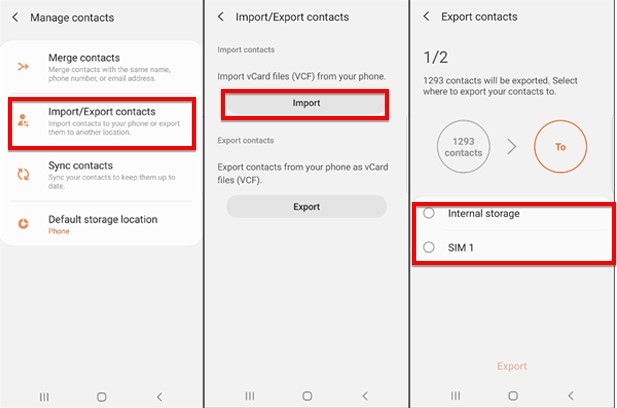
Transferring your Rubrica Android to another smartphone is a simple process that can be done using two methods: Synchronising with your Google account or exporting manually using rows vCard.
- Method 1: Synchronising With Google Account
- Ensure that the synchronisation of contacts with your Google account is active on your device.
- On the new smartphone, go to Settings and add a new account (Google).
- Follow the procedure guided to access your account and ensure that Contacts is enabled.
- Method 2: Exporting Manually Using Rows Vcard
- Open the app Contacts on your Android device.
- Tap on the icon ⋮ and select the voices Mater/Matter > Export > Export in file (or choose the option to export to an SD card).
- A notice will appear asking you to save the vCard file. Accept and save it.
To import the contacts on the new smartphone, open the app Contacts, tap on the icon ⋮, select Mater/Matter > Import > Import in file (or choose the option to import from an SD card), and select the saved vCard file.
How to Transfer Rubrica Among Android Devices
Transferring your Rubrica among Android devices is a straightforward process that can be done using two methods: Synchronising with your Google account or exporting manually using rows vCard.
- Method 1: Synchronising With Google Account
- Ensure that the synchronisation of contacts with your Google account is active on your device.
- On the new smartphone, go to Settings and add a new account (Google).
- Follow the procedure guided to access your account and ensure that Contacts is enabled.
- Method 2: Exporting Manually Using Rows Vcard
- Open the app Contacts on your Android device.
- Tap on the icon ⋮ and select the voices Mater/Matter > Export > Export in file (or choose the option to export to an SD card).
- A notice will appear asking you to save the vCard file. Accept and save it.
To import the contacts on the new smartphone, open the app Contacts, tap on the icon ⋮, select Mater/Matter > Import > Import in file (or choose the option to import from an SD card), and select the saved vCard file.
How to Transfer Rubrica Android on Iphone
Transferring your Rubrica Android to iPhone is a simple process that can be done using two methods: Synchronising with your Google account or exporting manually using rows vCard.
- Method 1: Synchronising With Google Account
- Ensure that the synchronisation of contacts with your Google account is active on your device.
- On the iPhone, go to Settings and add a new account (Google).
- Follow the procedure guided to access your account and ensure that Contacts is enabled.
- Method 2: Exporting Manually Using Rows Vcard
- Open the app Contacts on your Android device.
- Tap on the icon ⋮ and select the voices Mater/Matter > Export > Export in file (or choose the option to export to an SD card).
- A notice will appear asking you to save the vCard file. Accept and save it.
To import the contacts on the iPhone, open the app Contacts, tap on the icon ⋮, select Mater/Matter > Import > Import in file (or choose the option to import from an SD card), and select the saved vCard file.
How to Transfer Rubrica Android on PC
Transferring your Rubrica Android to a PC is a straightforward process that can be done using two methods: Synchronising with your Google account or exporting manually using rows vCard.
- Method 1: Synchronising With Google Account
- Ensure that the synchronisation of contacts with your Google account is active on your device.
- On the PC, go to Start and open the Settings app.
- Select the voice Account > Put electronic and account.
- Follow the procedure guided to add a new account (Google) and ensure that Contacts is enabled.
- Method 2: Exporting Manually Using Rows Vcard
- Open the app Contacts on your Android device.
- Tap on the icon ⋮ and select the voices Mater/Matter > Export > Export in file (or choose the option to export to an SD card).
- A notice will appear asking you to save the vCard file. Accept and save it.
To import the contacts on the PC, open the app Contacts, tap on the icon ⋮, select Mater/Matter > Import > Import in file (or choose the option to import from an SD card), and select the saved vCard file.
How to Transfer Rubrica of Android to Windows
Transferring your Rubrica Android to a PC running Windows 10 is a straightforward process that can be done using two methods: Synchronising with your Google account or exporting manually using rows vCard.
- Method 1: Synchronising With Google Account
- Ensure that the synchronisation of contacts with your Google account is active on your device.
- On the PC, go to Start and open the Settings app.
- Select the voice Account > Put electronic and account.
- Follow the procedure guided to add a new account (Google) and ensure that Contacts is enabled.
- Method 2: Exporting Manually Using Rows Vcard
- Open the app Contacts on your Android device.
- Tap on the icon ⋮ and select the voices Mater/Matter > Export > Export in file (or choose the option to export to an SD card).
- A notice will appear asking you to save the vCard file. Accept and save it.
To import the contacts on the PC, open the app Contacts, tap on the icon ⋮, select Mater/Matter > Import > Import in file (or choose the option to import from an SD card), and select the saved vCard file.
How to Transfer Rubrica of Android to Mac
Transferring your Rubrica Android to a Mac is a straightforward process that can be done using two methods: Synchronising with your Google account or exporting manually using rows vCard.
- Method 1: Synchronising With Google Account
- Ensure that the synchronisation of contacts with your Google account is active on your device.
- On the Mac, go to the menu bar and select System Preferences.
- Select the voice Internet Accounts > Google.
- Follow the procedure guided to access your account and ensure that Contacts is enabled.
- Method 2: Exporting Manually Using Rows Vcard
- Open the app Contacts on your Android device.
- Tap on the icon ⋮ and select the voices Mater/Matter > Export > Export in file (or choose the option to export to an SD card).
- A notice will appear asking you to save the vCard file. Accept and save it.
To import the contacts on the Mac, open the app Contacts, tap on the icon ⋮, select Mater/Matter > Import > Import in file (or choose the option to import from an SD card), and select the saved vCard file.
Conclusion
Transferring your Rubrica Android to other devices is a straightforward process that can be done using two methods: Synchronising with your Google account or exporting manually using rows vCard. Whether you’re switching between smartphones, tablets, PCs, or Macs, following these steps will ensure that all your contacts are safely transferred and accessible on your new device.


