
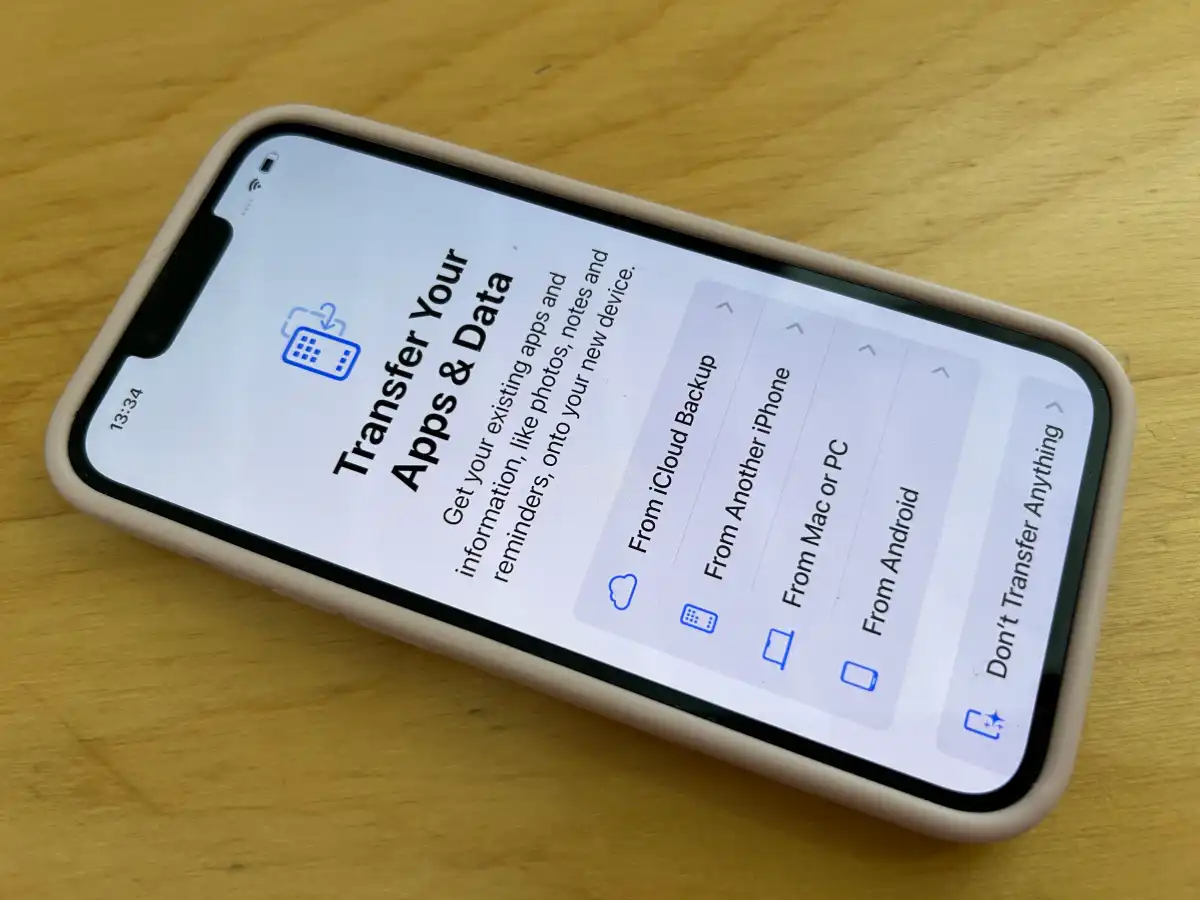
How to Transfer Apps From Old Iphone to New Iphone: A Step-by-step Guide
Are you planning to upgrade to a new iPhone but worried about transferring your favorite apps? Look no further! In this article, we will guide you through the process of transferring apps from your old iPhone to your new one using various methods. From direct transfer to iCloud backup and AirDrop, we’ve got you covered.
Why Transfer Apps in The First Place?
Transferring apps from your old iPhone to your new one is a great way to preserve your app collection and settings. You won’t have to reinstall all your favorite apps or set them up again on your new device. Plus, transferring apps ensures that you don’t miss any important notifications or updates.
Method 1: Direct Transfer
The direct transfer method is the easiest and fastest way to transfer apps from your old iPhone to your new one. Here’s how it works:
- Make sure both iPhones are running the same iOS version.
- Go to Settings on your old iPhone and select “Start” at the top of the screen.
- Choose the option to restore data from an iCloud backup or a device.
- Select the new iPhone as the device to transfer data from.
- Enter the code displayed on the new iPhone to complete the transfer process.
That’s it! Your new iPhone will now contain all the apps and data from your old one, including settings and preferences.
Method 2: Icloud Backup
If you can’t use the direct transfer method due to compatibility issues or other reasons, don’t worry. You can still transfer your apps using an iCloud backup.
- Go to Settings on your old iPhone and select “iCloud” > “Backup”.
- Make sure that iCloud backup is enabled and set to backup all data.
- Wait for the backup process to complete.
- Set up your new iPhone and go to “Settings” > “Transfer or Restore” > “Restore from an iCloud Backup”.
- Enter the code displayed on your old iPhone to access the backup.
Method 3: Airdrop
AirDrop is another convenient way to transfer apps between iPhones. Here’s how it works:
- Make sure both devices have AirDrop enabled and are running iOS 17 or later.
- Open the app you want to share on one device.
- Tap “Share” and select “AirDrop”.
- Choose the receiving device and follow the prompts to complete the transfer.
Method 4: Transfer Apps From a Backup
If you’ve created a backup using iTunes or Finder, you can restore your apps from that backup. Here’s how:
- Connect your new iPhone to a computer with iTunes or Finder.
- Select “Restore” from the backup file.
- Wait for the restoration process to complete.
Tips And Tricks
To ensure a smooth transfer process, make sure both iPhones are running the same iOS version. Also, be aware that some apps might not transfer correctly due to compatibility issues.
If you’re having trouble transferring apps using any of these methods, consult our guide on troubleshooting common errors.
Conclusion
Transferring apps from your old iPhone to your new one is a relatively straightforward process. By following the steps outlined in this article, you can ensure that your favorite apps and settings are preserved on your new device. Remember to take necessary precautions to protect your data during the transfer process.
Faqs
Q: Can I transfer apps directly without using iCloud or AirDrop?
A: Yes, you can use the direct transfer method as long as both devices have the same iOS version.
Q: How do I transfer a single app from my old iPhone to my new one?
A: You can use AirDrop to transfer a single app between iPhones.
Q: What if I want to keep my original ID Apple account and settings on my new device?
A: You can’t transfer your original ID Apple account directly. However, you can set up your new device with the same ID Apple account and restore apps from an iCloud backup.
Q: Can I use a computer or Mac to transfer apps between iPhones?
A: Yes, you can use iTunes or Finder to transfer apps from a backup file on your computer or Mac.
Q: What if my new iPhone is running an older iOS version than my old one?
A: You might encounter compatibility issues when transferring apps. Try updating your new device to the latest iOS version or using an iCloud backup.
Q: Can I restore apps from an iTunes backup created on a Windows PC?
A: Yes, you can transfer apps from an iTunes backup created on a Windows PC, but only if both devices have the same iOS version.
How to Transfer Apps From Old Iphone to New Iphone: Key Takeaways
- Use the direct transfer method for a seamless app transfer experience.
- Create an iCloud backup and restore apps on your new device for added security.
- Utilize AirDrop to transfer single apps between iPhones.
- Be aware of compatibility issues when transferring apps between devices with different iOS versions.
Stay tuned for more tech-related articles and guides from our expert team!


