
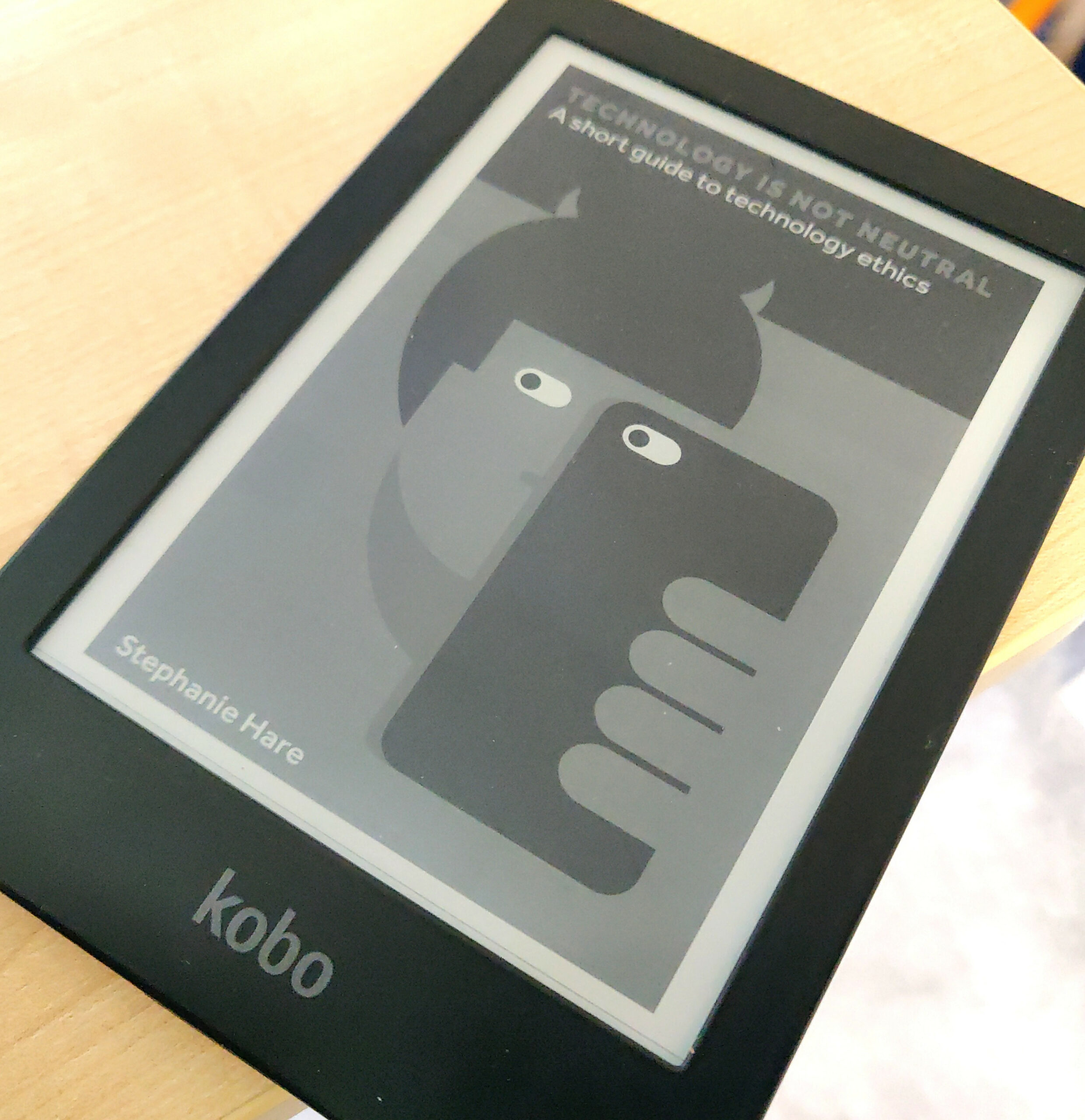
Transferring Books From Kobo Reader to Pc: A Step-by-step Guide
Are you a bookworm who loves reading on their Kobo e-reader, but also wants to access your library on your computer? Look no further! In this article, we’ll guide you through the process of transferring books from your Kobo reader to your PC, making it easy to read and manage your digital collection.
Why Transfer Books From Kobo Reader to Pc?
Before we dive into the steps, let’s explore why you might want to transfer your books from your Kobo reader to your PC. Here are a few reasons:
- Convenience: Having access to your entire library on your computer means you can read and manage your books without having to physically switch between devices.
- Space-saving: If you have a large collection of e-books, transferring them to your PC can help free up storage space on your Kobo reader.
- Sharing: With your books stored on your PC, you can easily share them with friends or family members who might be interested in reading the same titles.
Step 1: Create a Kobo Account
To transfer books from your Kobo reader to your PC, you’ll need to create a Kobo account. Don’t worry; it’s free and easy!
- Go to the Kobo Store website and click on the “Create a Free Account” button.
- Fill out the registration form with your email address, password, and other required information.
- Click on the “Continue” button to complete the sign-up process.
Step 2: Install Kobo on Your PC
Now that you have a Kobo account, it’s time to install the Kobo desktop app on your computer.
- Download the Kobo Desktop software from the official website.
- Follow the installation prompts to install the software on your PC.
- Once installed, launch the Kobo Desktop app and sign in with your Kobo account credentials.
Step 3: Transfer Books From Your Kobo Reader
With your Kobo account linked to your PC, it’s time to transfer books from your Kobo reader to your computer.
- Connect your Kobo reader to your PC using a USB cable.
- Open the Kobo Desktop app on your PC and click on the “My Books” tab.
- Select the books you want to transfer from your Kobo reader by clicking on the checkboxes next to each title.
- Click on the “Sync” button to sync your Kobo reader with your PC.
Step 4: Access Your Transferred Books
Once you’ve transferred your books from your Kobo reader, you can access them directly within the Kobo Desktop app.
- Launch the Kobo Desktop app and sign in with your Kobo account credentials.
- Click on the “My Books” tab to view a list of all the books you’ve transferred.
- You can now read and manage your e-books using the Kobo Desktop app.
Conclusion
Transferring books from your Kobo reader to your PC is a straightforward process that can be completed in just a few steps. By following this guide, you’ll be able to access your entire library on your computer, making it easier than ever to read and manage your digital collection.
Frequently Asked Questions (FAQs)
Here are some frequently asked questions about transferring books from Kobo reader to PC:
- Q: Can I Transfer Books Directly From my Kobo Reader to my PC Without Using The Kobo Desktop App?
A: No, you’ll need to use the Kobo Desktop app to sync your Kobo reader with your PC. - Q: How do I Remove a Book From my Kobo Reader After Transferring it to my Pc?
A: You can remove a book from your Kobo reader by deleting it from the “My Books” tab within the Kobo Desktop app. - Q: Can I Share my Transferred Books With Friends or Family Members?
A: Yes, you can easily share your transferred books with others using the Kobo Desktop app.


