
How to Transfer Contacts From Iphone to Iphone: A Step-by-step Guide
Are you tired of manually transferring contacts from your old iPhone to your new one? Look no further! In this article, we will guide you through the simple process of transferring contacts from your old iPhone to your new one using various methods.
Method 1: Transferring Contacts With Icloud
Transferring contacts using iCloud is a seamless and effortless process. Here’s how:
- Make sure both iPhones are connected to the same Wi-Fi network.
- Go to Settings > [Your Name] > iCloud on your old iPhone.
- Scroll down and select “Contacts” to ensure it’s enabled.
- On your new iPhone, go to Settings > [Your Name] > iCloud.
- Ensure that the contact sync is enabled for both devices.
Method 2: Transferring Contacts Without Icloud
If you don’t want to use iCloud or have exhausted its storage capacity, don’t worry! You can still transfer contacts using various apps and methods.
- Using The App “Contacts”: With iOS 16 and later versions, you can easily export and import contacts using the built-in app “Contacts”. Export your contacts as a vCard file (.Vcf), share it via AirDrop or email, and then import it on your new iPhone.
- Using Gmail: If you have a Google account associated with both iPhones, your contacts will be automatically synchronized. Add your Google account to both devices and enable contact sync for seamless syncing.
- Using Outlook And Other Cloud Services: You can also transfer contacts using other cloud services like Outlook, Microsoft Exchange, or Yahoo.
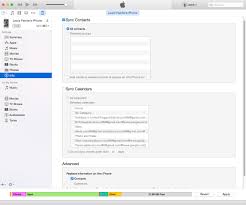
Method 3: Transferring Contacts With Itunes
If you have a backup of your old iPhone on iTunes or Finder, you can restore it to your new iPhone. Here’s how:
- Ensure that both devices are connected to the same Wi-Fi network.
- On your old iPhone, go to Settings > General > Transfer or Reset iPhone and select “Restore from This Backup”.
- Connect your old iPhone to your computer using a Lightning cable.
- Open iTunes or Finder on your computer and follow the prompts to restore your device.
- When prompted, select the most recent backup.
Method 4: Transferring Contacts With Bluetooth (AirDrop)
Transferring contacts via AirDrop is a convenient method that doesn’t require an internet connection. Here’s how:
- Open the “Contacts” app on both devices.
- Select the contact you want to transfer and tap “Share Contact”.
- On your new iPhone, enable AirDrop by going to Settings > General > AirDrop.
- Ensure that AirDrop is set to “Everyone” or “Recents” for 10 minutes.
Method 5: Transferring Contacts With Bluetooth (NameDrop)
If you have iOS 17 or later versions on both devices, you can use the NameDrop feature to transfer contacts. Here’s how:
- Open the “Contacts” app on your old iPhone.
- Select the contact you want to transfer and tap “Share Contact”.
- Approach your new iPhone to initiate the transfer using NameDrop.
Conclusion
Transferring contacts from one iPhone to another is a straightforward process that can be completed in just a few steps. Whether you choose to use iCloud, apps like Contacts or Gmail, iTunes, Bluetooth (AirDrop), or Bluetooth (NameDrop), we’ve got you covered. Make sure to follow these simple methods and enjoy seamless contact syncing between your devices.
Frequently Asked Questions
- Can I Transfer Contacts From Iphone to Iphone Without Using Icloud?
Yes, you can use various apps like Contacts, Gmail, Outlook, Microsoft Exchange, or Yahoo to transfer contacts without relying on iCloud.
- How do I Export Contacts as a Vcard File (.Vcf)?
To export contacts as a vCard file, open the “Contacts” app on your iPhone and select all contacts by tapping on “Lists > All Contacts”. Then, tap on “Export” and choose where to save the file.
- Can I Transfer Contacts From One Iphone to Another Using Bluetooth?
Yes, you can use AirDrop or NameDrop (if available) to transfer contacts between devices without relying on an internet connection.
- How do I Restore my Iphone From a Backup Created in Itunes or Finder?
Connect your old iPhone to your computer using a Lightning cable and open iTunes or Finder on your computer. Follow the prompts to restore your device from the latest backup.
- What if I Don’t Have Access to Icloud or Other Cloud Services? Can I Still Transfer Contacts?
Yes, you can use various apps like Contacts, Gmail, Outlook, Microsoft Exchange, or Yahoo to transfer contacts even without using iCloud or other cloud services.
- Can I Transfer Contacts From Iphone to Android Device?
Unfortunately, transferring contacts directly between an iPhone and an Android device is not possible due to compatibility issues. However, you can export your contacts as a vCard file (.Vcf) and then import them on your new Android device.
- How do I Transfer Contacts Using Namedrop?
To use NameDrop, ensure that both devices have iOS 17 or later versions installed. Open the “Contacts” app on your old iPhone, select the contact you want to transfer, tap “Share Contact”, and approach your new iPhone to initiate the transfer.
- Can I Transfer Contacts Between Multiple Devices at Once?
Yes, if you have multiple iPhones connected to the same iCloud account or using other cloud services like Gmail, Outlook, or Yahoo, your contacts will be automatically synchronized across all devices.


