
How to Transfer Data Between Two Android Smartphones
Are you tired of searching for ways to transfer data from one Android smartphone to another? Look no further! In this comprehensive guide, we will walk you through the easiest and most efficient methods to share files, contacts, and other essential data between two Android devices.
Table 1: Top Methods to Transfer Data Between Two Android Smartphones
| Method | Description |
|---|---|
| Use WhatsApp’s built-in feature to send files, photos, and videos to another device. | |
| Telegram | Utilize Telegram’s Messages saved feature to transfer data between two devices. |
| Messenger | Share files and media with Facebook Messenger. |
| Bluetooth | Transfer data wirelessly using Bluetooth technology. |
| Cloud Services | Use cloud services like Google Drive, OneDrive, or Dropbox to share files. |
Table 2: Additional Methods to Consider
| Method | Description |
|---|---|
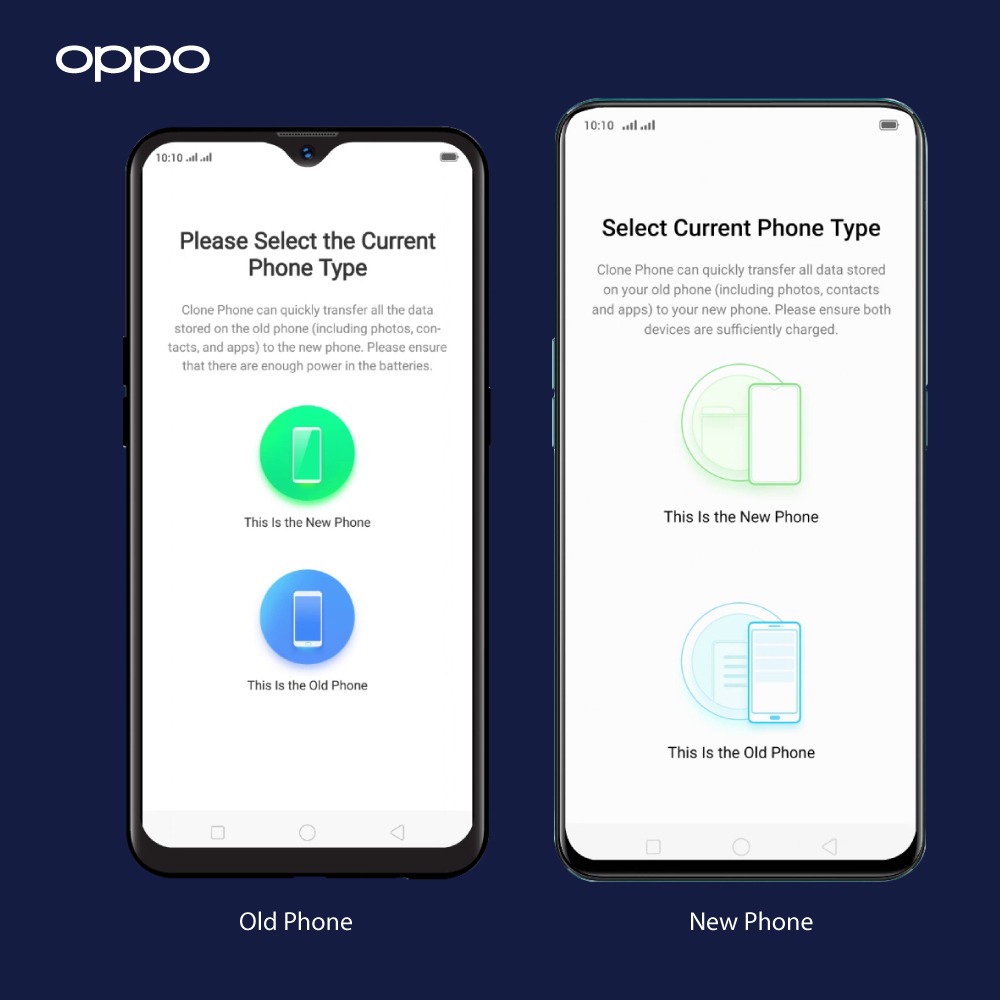
| Phone Clone (HUAWEI) | Utilize the Phone Clone app to transfer data from an old device to a new one. |
| Microsd Card | Transfer data by inserting a microSD card into both devices. |
| PC Transfer | Use a computer to transfer files between two Android devices. |
| Backup | Take a backup of your old device’s data and restore it on the new device. |
Method 1: Whatsapp
WhatsApp is one of the most popular messaging apps, and for good reason. Its user-friendly interface makes it easy to share files, photos, and videos with others. To transfer data between two Android smartphones using WhatsApp:
- Open WhatsApp on both devices.
- Ensure both devices are connected to the internet.
- Select the contact you want to send the file to.
- Tap the paperclip icon in the chat window.
- Choose the type of content you want to share (document, photo, video, or audio).
- Send the file to the recipient’s WhatsApp account.
Method 2: Telegram
Telegram is another popular messaging app that offers a feature called Messages saved. This allows users to save and forward files between devices. To transfer data using Telegram:
- Open Telegram on both devices.
- Ensure both devices are connected to the internet.
- Select the contact you want to send the file to.
- Tap the paperclip icon in the chat window.
- Choose the type of content you want to share (image, video, file, or audio).
- Send the file to the recipient’s Telegram account.
Method 3: Messenger
Facebook Messenger is a popular messaging app that allows users to share files and media with others. To transfer data using Messenger:
- Open Messenger on both devices.
- Ensure both devices are connected to the internet.
- Select the contact you want to send the file to.
- Tap the paperclip icon in the chat window.
- Choose the type of content you want to share (image, video, or audio).
- Send the file to the recipient’s Messenger account.
Method 4: Bluetooth
Bluetooth is a wireless technology that allows devices to transfer data over short distances. To transfer data using Bluetooth:
- Ensure both devices have Bluetooth enabled.
- Pair the devices by scanning for nearby devices and selecting the one you want to connect to.
- Open the Gallery or Files app on one device and select the file you want to share.
- Tap the Share button and choose Bluetooth as the sharing method.
- Select the recipient’s device from the list of paired devices.
Method 5: Cloud Services
Cloud services like Google Drive, OneDrive, or Dropbox allow users to store and share files online. To transfer data using cloud services:
- Ensure both devices have access to the same cloud account.
- Upload the file you want to share to the cloud service.
- Open the cloud app on the other device and sign in with your account credentials.
- Access the shared file from within the cloud app.
Method 6: Phone Clone (HUAWEI)
Phone Clone is a feature provided by HUAWEI that allows users to transfer data from an old device to a new one. To use Phone Clone:
- Ensure both devices are running the latest software.
- Open the Phone Clone app on the new device and select the option to transfer data from an old device.
- Scan the QR code on the old device with the camera on the new device.
- Follow the prompts to complete the data transfer process.
Method 7: Microsd Card
Transferring data using a microSD card involves inserting the card into both devices and copying the files. To use this method:
- Ensure both devices have a microSD card slot.
- Insert the microSD card into one device and copy the files you want to share.
- Remove the microSD card from the first device and insert it into the second device.
- Copy the files from the microSD card to the new device.
Method 8: PC Transfer
Transferring data using a computer involves connecting both devices to the same computer and copying the files. To use this method:
- Ensure both devices have USB cables and can be connected to the same computer.
- Connect both devices to the computer via USB.
- Open the File Explorer app on the computer and select the device you want to transfer data from.
- Copy the files you want to share from the old device to a folder on the computer.
- Access the shared files from within the computer’s file system.
Method 9: Backup
Taking a backup of your old device’s data involves using a backup app or service to copy essential data like contacts, photos, and apps. To use this method:
- Open the backup app or service on both devices.
- Select the type of data you want to back up (contacts, photos, etc.).
- Save the backed-up data to a cloud account or local storage.
- Transfer the backed-up data to the new device and restore it.
Method 10: Samsung Smart Switch
Samsung Smart Switch is an official app that allows users to transfer data from one Samsung device to another. To use this method:
- Ensure both devices are running the latest software.
- Open the Smart Switch app on the new device and select the option to transfer data from an old device.
- Scan the QR code on the old device with the camera on the new device.
- Follow the prompts to complete the data transfer process.
In conclusion, transferring data between two Android smartphones is easier than you think! With these 10 methods, you can share files, contacts, and other essential data without any hassle. Remember to choose the method that best suits your needs, and always follow the instructions carefully to avoid any errors or complications.
Frequently Asked Questions (FAQs)
- Q: Can I Transfer Data From an Iphone to an Android Device?
A: Yes, you can use cloud services like Google Drive or Dropbox to transfer data between devices. - Q: How do I Transfer a Backup of my Old Device’s Data to The New Device?
A: Use a backup app or service to copy essential data and then restore it on the new device. - Q: Can I Use Bluetooth to Transfer Large Files Between Devices?
A: Yes, but keep in mind that Bluetooth has limited range and may not be suitable for transferring large files. - Q: What if my Old Device is no Longer Functional?
A: Use a cloud service or PC transfer method to retrieve your backed-up data from the old device. - Q: Can I Use Multiple Methods to Transfer Data Between Devices?
A: Yes, you can combine different methods to achieve your goal, such as using WhatsApp and Bluetooth together.
Conclusion
Transferring data between two Android smartphones is a straightforward process that requires minimal effort and technical expertise. By choosing the right method for your needs, you can share files, contacts, and other essential data with ease. Remember to always follow the instructions carefully and consider combining different methods to achieve your goal. Happy transferring!


