
How to Transfer Data From One Iphone to Another: A Step-by-step Guide
Are you looking to upgrade your iPhone or transfer data from an old device to a new one? Look no further! In this article, we’ll show you how to transfer data from one iPhone to another using various methods. Whether you’re upgrading to the latest model or switching to a different iPhone, our guide will walk you through each step.
Why Transfer Data From One Iphone to Another?
Before we dive into the process, let’s talk about why transferring data is essential. When you upgrade your iPhone or transfer data from an old device, you’ll want to ensure that all your important files, contacts, and apps are preserved. This way, you can pick up where you left off without losing any valuable information.
Method 1: Transfer Data Using The Start Up Process
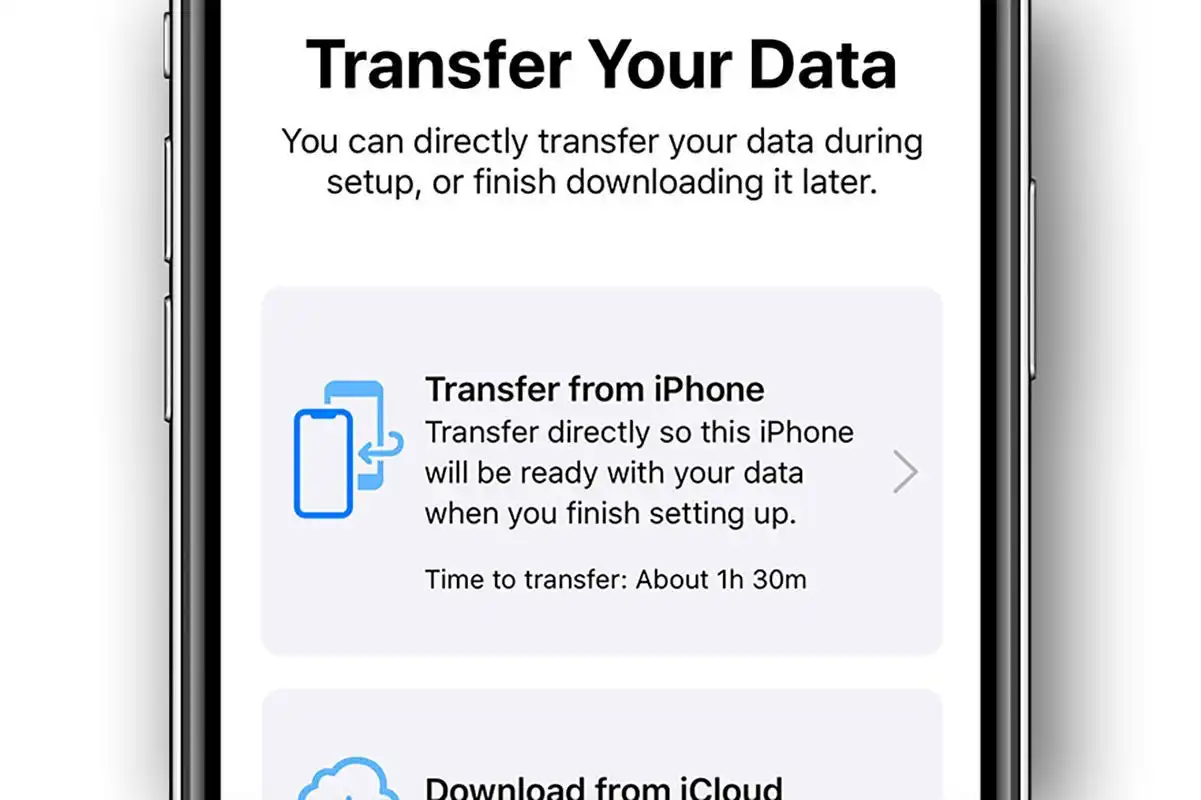
If you’re transferring data between two iPhones, one of which is brand new or has been reset, you can use the start-up process to transfer your data wirelessly. Here’s how:
Step 1: Set up Your New Iphone
First, set up your new iPhone by following the on-screen instructions. Make sure to choose “Restore from iTunes or iCloud Backup” when prompted.
Step 2: Put Your Old Iphone in Setup Mode
On your old iPhone, go to Settings > [Your Name] > General > Transfer or Reset iPhone and select “Transfer”. This will put your old iPhone in setup mode.
Step 3: Select The Option to Transfer Data From Your Old Iphone
When prompted, choose the option to transfer data from your old iPhone. This will initiate the transfer process wirelessly.
Method 2: Use Icloud Backup to Transfer Data
If you don’t have access to your old iPhone or prefer to use iCloud backup, here’s an alternative method:
Step 1: Create a New Icloud Backup on Your Old Iphone
On your old iPhone, go to Settings > [Your Name] > iCloud > iCloud Backup and tap “Back Up Now” to create a new iCloud backup.
Step 2: Set up Your New Iphone
Set up your new iPhone by following the on-screen instructions. Make sure to choose “Restore from iTunes or iCloud Backup” when prompted.
Step 3: Restore Your Data From Icloud Backup
Sign in with your Apple ID and password, then select the backup you created earlier. Follow the on-screen instructions to restore your data from iCloud backup.
Method 3: Use Itunes or Finder to Transfer Data
If you’re using a Mac or PC, you can use iTunes or Finder to transfer data between iPhones. Here’s how:
Step 1: Connect Your Old Iphone to Your Computer
Connect your old iPhone to your computer using a USB cable and launch iTunes (for Windows) or Finder (for macOS).
Step 2: Create a Backup of Your Old Iphone
Select your old iPhone from the top-left corner of iTunes or Finder, then click on “Back Up Now” to create a backup.
Step 3: Restore Data From The Backup
Connect your new iPhone to your computer and launch iTunes or Finder. Select your new iPhone from the top-left corner and click on “Restore Backup.” Choose the backup you created earlier, and follow the on-screen instructions to restore your data.
Method 4: Use Airdrop to Transfer Files
If you want to transfer specific files, such as photos or videos, between iPhones, you can use AirDrop. Here’s how:
Step 1: Ensure Bluetooth is Enabled on Both Devices
Make sure both devices have Bluetooth enabled and are within range of each other.
Open the app that contains the files you want to share, such as Photos or Videos.
Tap the share icon on your old iPhone, then select AirDrop from the list of available sharing options.
Step 4: Select Your New Iphone
Choose your new iPhone from the list of nearby devices. The files will be transferred wirelessly.
Method 5: Use Send Anywhere to Transfer Files
If you’re unable to use AirDrop or prefer a different method, you can use an app called Send Anywhere. Here’s how:
Step 1: Download And Install Send Anywhere on Both Devices
Download and install the Send Anywhere app on both devices.
Step 2: Open The App on Your Old Iphone
Open the Send Anywhere app on your old iPhone, then select the files you want to transfer.
Step 3: Select Your New Iphone
Choose your new iPhone from the list of nearby devices. The files will be transferred wirelessly.
Conclusion
Transferring data between iPhones is a relatively straightforward process, and there are various methods you can use depending on your needs. Whether you’re upgrading to a new iPhone or transferring data from an old device, our guide has walked you through each step. Remember to create backups of your important files and contacts to ensure they’re safe in case something goes wrong.
Frequently Asked Questions
- Q: How Long Does it Take to Transfer Data Between Iphones?
A: The time it takes to transfer data depends on the method used, the amount of data being transferred, and the speed of your internet connection. - Q: Can I Transfer Data From an Iphone to a Different Type of Device?
A: Yes, you can transfer data from an iPhone to other devices such as iPads, iPods, or even Android smartphones using various methods. - Q: What Happens if my Old Iphone is Damaged And Cannot be Used?
A: If your old iPhone is damaged and cannot be used, you can use iCloud backup or iTunes/Finder to transfer data from the backup. - Q: Can I Transfer Specific Files Instead of Transferring Everything?
A: Yes, you can transfer specific files using AirDrop or Send Anywhere apps. - Q: Is it Possible to Transfer Data Without Internet Access?
A: No, most methods require an internet connection to transfer data between devices. - Q: Can I Transfer Data From an Iphone With Ios 16 or Later?
A: Yes, you can transfer data from iPhones running on iOS 16 or later using the built-in backup and restore feature.
I hope this article has been helpful in answering your questions about transferring data from one iPhone to another.


