
How to Transfer Data From Iphone to Pc: A Step-by-step Guide
Are you tired of cluttering your iPhone with unnecessary files and photos? Do you want to free up space on your device but still keep all your important data safe? Look no further! In this article, we’ll show you how to transfer data from your iPhone to your PC using various methods.
Why Transfer Data From Iphone to Pc?
Transferring data from your iPhone to your PC can be beneficial in several ways. Firstly, it helps you free up space on your device, which can improve its performance and make it run smoother. Secondly, it allows you to access your important files and photos on a larger screen, making it easier to edit or share them with others.
Methods For Transferring Data From Iphone to PC
There are several methods you can use to transfer data from your iPhone to your PC. Here are some of the most popular ones:
Method 1: Using Itunes
If you have iTunes installed on your PC, you can use it to transfer data from your iPhone to your computer. To do this:
- Connect your iPhone to your PC using a USB cable.
- Open iTunes and select your iPhone from the top left corner of the window.
- Click on the “Summary” tab and scroll down to the “Files” section.
- Select the files you want to transfer and click “Import”.
- Choose a location on your PC to save the files.
Method 2: Using Icloud Drive
If you have iCloud Drive enabled on your iPhone, you can use it to transfer data from your device to your PC. To do this:
- Connect your iPhone to your PC using a USB cable.
- Open iCloud Drive on your PC and select the files you want to transfer.
- Choose a location on your PC to save the files.
Method 3: Using Google Drive
If you have Google Drive enabled on your iPhone, you can use it to transfer data from your device to your PC. To do this:
- Connect your iPhone to your PC using a USB cable.
- Open Google Drive on your PC and select the files you want to transfer.
- Choose a location on your PC to save the files.
Method 4: Using Airdrop
If you have an Apple device, such as a Mac or iPad, you can use AirDrop to transfer data from your iPhone to your PC. To do this:
- Connect your iPhone and PC using a USB cable.
- Open AirDrop on your iPhone and select the files you want to transfer.
- Choose a location on your PC to save the files.
Method 5: Using Snapdrop
If you don’t have any of the above methods available, you can use Snapdrop to transfer data from your iPhone to your PC. To do this:
- Connect your iPhone and PC using a USB cable.
- Open Snapdrop on your iPhone and select the files you want to transfer.
- Choose a location on your PC to save the files.
How to Transfer Photos And Videos From Iphone to PC
Transferring photos and videos from your iPhone to your PC is relatively straightforward. Here are some of the most popular methods:
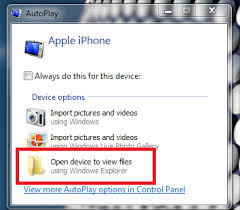
Method 1: Using Windows Explorer
If you have Windows 10 or later installed on your PC, you can use Windows Explorer to transfer photos and videos from your iPhone to your computer. To do this:
- Connect your iPhone to your PC using a USB cable.
- Open Windows Explorer and select the files you want to transfer.
- Choose a location on your PC to save the files.
Method 2: Using Icloud Photos
If you have iCloud Photos enabled on your iPhone, you can use it to transfer photos and videos from your device to your PC. To do this:
- Connect your iPhone to your PC using a USB cable.
- Open iCloud Photos on your PC and select the files you want to transfer.
- Choose a location on your PC to save the files.
Method 3: Using Google Photos
If you have Google Photos enabled on your iPhone, you can use it to transfer photos and videos from your device to your PC. To do this:
- Connect your iPhone to your PC using a USB cable.
- Open Google Photos on your PC and select the files you want to transfer.
- Choose a location on your PC to save the files.
How to Transfer Contacts From Iphone to PC
Transferring contacts from your iPhone to your PC is relatively straightforward. Here are some of the most popular methods:
Method 1: Using Icloud
If you have iCloud enabled on your iPhone, you can use it to transfer contacts from your device to your PC. To do this:
- Connect your iPhone to your PC using a USB cable.
- Open iCloud on your PC and select the contacts you want to transfer.
- Choose a location on your PC to save the contacts.
Method 2: Using Google Contacts
If you have Google Contacts enabled on your iPhone, you can use it to transfer contacts from your device to your PC. To do this:
- Connect your iPhone to your PC using a USB cable.
- Open Google Contacts on your PC and select the contacts you want to transfer.
- Choose a location on your PC to save the contacts.
Conclusion
Transferring data from your iPhone to your PC can be done in various ways, depending on your device and preferences. Whether you use iTunes, iCloud Drive, Google Drive, AirDrop, or Snapdrop, the process is relatively straightforward and can help you free up space on your device while keeping all your important files and photos safe.
Faqs
- Q: How do I Transfer Data From my Iphone to my Pc?
A: You can use various methods such as iTunes, iCloud Drive, Google Drive, AirDrop, or Snapdrop. - Q: Can I Transfer Data From my Iphone to my Mac?
A: Yes, you can use AirDrop or iCloud Drive to transfer data from your iPhone to your Mac. - Q: How do I Transfer Photos And Videos From my Iphone to my Pc?
A: You can use Windows Explorer, iCloud Photos, or Google Photos to transfer photos and videos from your iPhone to your PC. - Q: Can I Transfer Contacts From my Iphone to my Pc?
A: Yes, you can use iCloud or Google Contacts to transfer contacts from your iPhone to your PC. - Q: What Are The Benefits of Transferring Data From my Iphone to my Pc?
A: Transferring data from your iPhone to your PC can help you free up space on your device while keeping all your important files and photos safe. - Q: Are There Any Risks Associated With Transferring Data From my Iphone to my Pc?
A: No, there are no significant risks associated with transferring data from your iPhone to your PC using the methods mentioned above. - Q: Can I Transfer Data From a Broken Iphone to my Pc?
A: Yes, you can use iCloud or Apple’s Recovery Mode to recover data from a broken iPhone and transfer it to your PC. - Q: How Long Does it Take to Transfer Data From my Iphone to my Pc?
A: The time it takes to transfer data from your iPhone to your PC depends on the method used, the amount of data being transferred, and the speed of your internet connection.


