
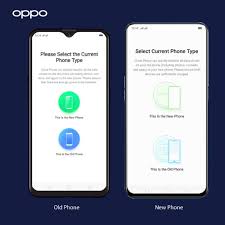
Transferring Data From One Phone to Another: A Step-by-step Guide
Are you tired of losing your precious data when switching phones? Look no further! In this comprehensive guide, we’ll walk you through the process of transferring data from one phone to another, including contacts, photos, music, and more.
Why Transferring Data is Important
Before we dive into the nitty-gritty details, let’s talk about why transferring data is essential. When you switch phones, it can be frustrating to lose all your contacts, photos, and other important data. By transferring data from one phone to another, you can ensure that you don’t miss out on any crucial information.
Method 1: Transferring Data Using Google Drive
One of the easiest ways to transfer data is by using Google Drive. Here’s how:
- Download the Google Drive app on your old phone.
- Sign in with your Google account credentials.
- Click on the “Backup” button and select the data you want to transfer (contacts, calendars, photos, etc.).
- Wait for the backup process to complete.
- On your new phone, download the Google Drive app and sign in with the same Google account credentials.
- The synchronized data will be automatically transferred to your new phone.
Method 2: Using Samsung Smart Switch
If you’re switching from a Samsung phone to another Android device, you can use Samsung’s Smart Switch feature. Here’s how:
- Download the Smart Switch app on your old phone.
- Connect both phones using a cable or Wi-Fi.
- Select the data you want to transfer (contacts, messages, apps, photos, etc.).
- Wait for the transfer process to complete.
Method 3: Using Wondershare Mobiletrans
Another popular method is by using Wondershare MobileTrans software. Here’s how:
- Download and install the MobileTrans software on your computer.
- Connect both phones to the computer using a cable or Wi-Fi.
- Select the data you want to transfer (contacts, messages, photos, etc.).
- Wait for the transfer process to complete.
Method 4: Transferring Specific Data
If you only want to transfer specific data like contacts, photos, or music, you can use various apps and methods. Here are a few options:
- For contacts and calendars, you can use Google’s synchronization feature.
- For photos, you can use Google Photos or Send Anywhere app.
- For music, you can use Spotify, Apple Music, or Amazon Music.
Method 5: Transferring Data Using Easeus Mobimover
EaseUS MobiMover is another software that allows you to transfer data from one phone to another. Here’s how:
- Download and install the EaseUS MobiMover software on your computer.
- Connect both phones to the computer using a cable or Wi-Fi.
- Select the data you want to transfer (contacts, messages, photos, etc.).
- Wait for the transfer process to complete.
Conclusion
Transferring data from one phone to another can be a daunting task, but with these methods and apps, it’s easier than ever. Whether you’re switching phones or simply want to back up your data, we hope this guide has been helpful. Remember to always save your data regularly to avoid losing any important information.
Frequently Asked Questions (FAQs)
Q: What is the best method for transferring data from one phone to another?
A: The best method depends on your specific needs and preferences. However, using Google Drive or Samsung Smart Switch are popular options.
Q: Can I transfer data from an iPhone to a Samsung phone?
A: Yes, you can use Wondershare MobileTrans software or EaseUS MobiMover software to transfer data from an iPhone to a Samsung phone.
Q: How do I transfer photos and music from one phone to another?
A: You can use Google Photos or Send Anywhere app for photos and Spotify, Apple Music, or Amazon Music for music.
Q: Can I transfer contacts and calendars from one phone to another?
A: Yes, you can use Google’s synchronization feature for contacts and calendars.
Q: How long does the data transfer process take?
A: The time it takes for the transfer process to complete depends on the amount of data being transferred. It can take anywhere from a few minutes to several hours.
Call-to-action
We hope this guide has been helpful in transferring your data from one phone to another. Remember to always save your data regularly to avoid losing any important information. If you have any further questions or need assistance, don’t hesitate to reach out to us!


