
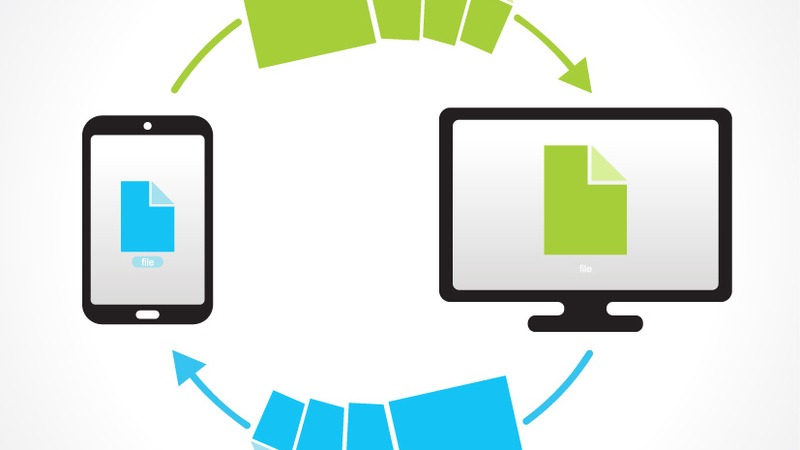
Transfer Rows From PC to Phone: A Step-by-step Guide
Are you tired of carrying around a heavy laptop or dealing with slow transfer speeds? Look no further! In this article, we’ll show you how to transfer rows from your PC to your phone using various methods.
Why Transfer Rows From PC to Phone?
Transferring rows from your PC to your phone can be incredibly useful for several reasons:
- Convenience: With your rows stored on your phone, you can access them anywhere, anytime.
- Space-saving: Transferring rows from your PC to your phone frees up space on your computer, making it easier to manage files and data.
- Collaboration: If you need to share rows with someone else, transferring them to a cloud storage service or email can be much simpler.
Method 1: Using Nearby Share
Nearby Share is a feature that allows you to transfer rows between devices without the need for cables or internet connectivity. Here’s how to use it:
- Enable Nearby Share on Your PC: Go to Settings > Devices > Bluetooth & other devices, and toggle “Bluetooth” on.
- Enable Nearby Share on Your Phone: Go to Settings > Devices > Connection preferences > Nearby Share, and toggle it on.
- Share Rows Between Devices: Open the Nearby Share app on your PC, select the rows you want to transfer, and follow the prompts.
Method 2: Using Bluetooth
If you have a computer with Bluetooth capabilities, you can use this method to transfer rows between devices. Here’s how:
- Enable Bluetooth on Your Computer: Go to Settings > Devices > Bluetooth & other devices, and toggle “Bluetooth” on.
- Enable Bluetooth on Your Phone: Go to Settings > Devices > Connection preferences > Bluetooth, and toggle it on.
- Transfer Rows Using Bluetooth: Open the file transfer app on your phone, select the rows you want to transfer, and follow the prompts.
Method 3: Using Wi-fi
You can also use a service like Send Anywhere to transfer rows between devices using Wi-Fi. Here’s how:
- Download And Install Send Anywhere: Go to the Send Anywhere website, download the app, and install it on your PC.
- Transfer Rows Using Send Anywhere: Open the Send Anywhere app on your PC, select the rows you want to transfer, and follow the prompts.
Method 4: Using Cloud Storage
If you prefer to use cloud storage services like OneDrive, iCloud Drive, or Google Drive, here’s how to transfer rows between devices:
- Upload Rows to Cloud Storage: Go to the cloud storage service website, log in to your account, and upload the rows you want to transfer.
- Download Rows on Your Phone: Open the cloud storage app on your phone, select the rows you want to download, and follow the prompts.
Method 5: Using Usb Cable
If you prefer to use a USB cable to transfer rows between devices, here’s how:
- Connect Devices With Usb Cable: Connect your PC and phone using a USB cable.
- Transfer Rows Using File Explorer: Open File Explorer on your PC, select the rows you want to transfer, and follow the prompts.
Conclusion
Transferring rows from your PC to your phone can be a convenient way to access your data anywhere. With these methods, you can choose the one that best suits your needs. Whether you prefer using Nearby Share, Bluetooth, Wi-Fi, cloud storage, or a USB cable, we’ve got you covered.
Frequently Asked Questions
Here are some frequently asked questions related to transferring rows from PC to phone:
- Q: Can I Transfer Rows From my PC to my Phone Without Using Cables?
A: Yes, you can use Nearby Share, Bluetooth, or Wi-Fi to transfer rows between devices. - Q: Which Method is The Fastest For Transferring Rows?
A: The fastest method will depend on your internet connection speed and the size of the files being transferred. However, using a USB cable is generally the fastest option. - Q: Can I Use Cloud Storage Services to Transfer Rows Between Devices?
A: Yes, you can use cloud storage services like OneDrive, iCloud Drive, or Google Drive to transfer rows between devices.
Conclusion
Transferring rows from PC to phone has never been easier. With these methods, you can choose the one that best suits your needs. Whether you prefer using Nearby Share, Bluetooth, Wi-Fi, cloud storage, or a USB cable, we’ve got you covered.


