
Transferring Files From Your Tablet to a Usb Drive: A Step-by-step Guide
Are you tired of running out of storage space on your tablet? Do you want to transfer files from your device to a USB drive for safekeeping or sharing with others? Look no further! In this article, we’ll guide you through the process of transferring files from your Android, iPad, or Windows tablet to a USB drive.
Why Transfer Files to a Usb Drive?
Transferring files from your tablet to a USB drive is an excellent way to free up space on your device and have a backup of important data. A USB drive is also a great way to share files with others, as it’s easy to plug into any computer or device.
Step 1: Prepare Your Tablet And Usb Drive
Before transferring files from your tablet to a USB drive, make sure you have:
- The latest version of the operating system on your tablet
- A USB drive that is compatible with your tablet (see below for more information)
- A cable or adapter to connect your tablet to the USB drive (if necessary)
Step 2: Connect Your Tablet And Usb Drive
To transfer files from your tablet to a USB drive, you’ll need to connect them first. Here’s how:
- For Android Tablets: Use a USB-C cable or an OTG adapter to connect your tablet to the USB drive.
- For Ipad Tablets: Use a Lightning-to-USB adapter (see below for more information)
- For Windows Tablets: Use a standard USB cable
Step 3: Prepare Your Usb Drive
Before transferring files, make sure your USB drive is prepared:
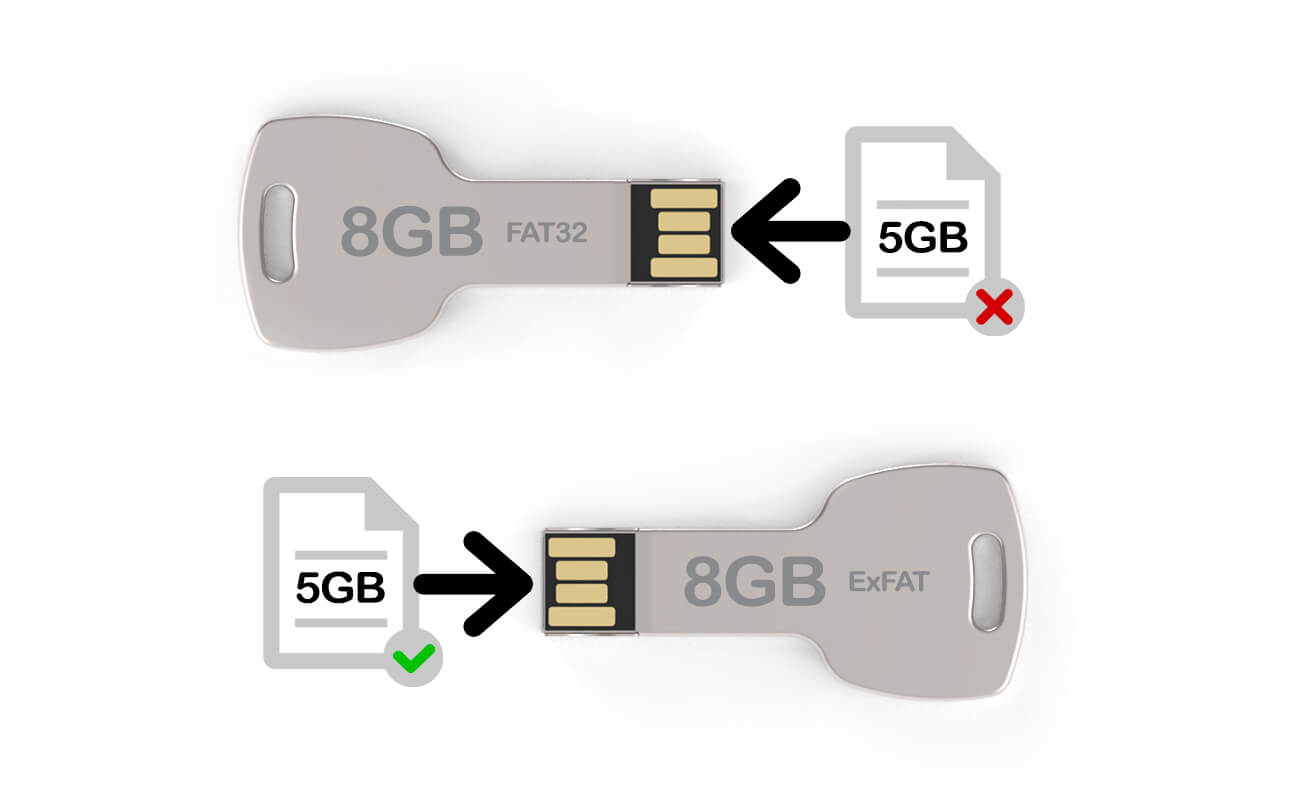
- Format Your Usb Drive in Fat32 or Exfat: This will ensure that your tablet can read and write to the drive.
- Use a Compatible Adapter: If your tablet has a micro-USB port, you’ll need an OTG adapter.
Step 4: Transfer Files
Now it’s time to transfer files from your tablet to the USB drive. Here’s how:
- For Android Tablets: Use the File Manager app (or Google Drive) to select the files you want to transfer and copy them to the USB drive.
- For Ipad Tablets: Use the Files app to select the files you want to transfer and copy them to the USB drive.
- For Windows Tablets: Use the File Explorer app to select the files you want to transfer and copy them to the USB drive.
Step 5: Verify Your Transfer
Once the transfer is complete, verify that all your files have been successfully transferred by checking the contents of the USB drive.
Tips And Variations
Here are some additional tips and variations to keep in mind:
- Use a Usb-c Adapter: If you’re using an iPad with a Lightning port, consider purchasing a USB-C adapter for easier file transfers.
- Use a Cloud Service: Consider transferring your files to a cloud service like Google Drive or Dropbox for easier access and sharing.
- Format Your Usb Drive in Exfat: If you have trouble reading or writing to the USB drive from your tablet, try formatting it in exFAT.
Conclusion
Transferring files from your tablet to a USB drive is a straightforward process that requires some basic preparation. By following these steps and tips, you can ensure a successful transfer of your important files.
Faqs
Here are some frequently asked questions about transferring files from your tablet to a USB drive:
Q: What type of adapter do I need for my iPad?
A: You’ll need a Lightning-to-USB adapter or a USB-C adapter (depending on the model of your iPad).
Q: Can I transfer files from my tablet to a computer?
A: Yes, you can use the File Explorer app on Windows to select the files you want to transfer and copy them to a USB drive.
Q: What is the best file system for transferring files?
A: FAT32 or exFAT are good options as they’re widely supported by most devices.
Q: Can I use a cloud service instead of a USB drive?
A: Yes, you can consider transferring your files to a cloud service like Google Drive or Dropbox for easier access and sharing.
Q: How do I format my USB drive in FAT32 or exFAT?
A: You’ll need to connect the USB drive to your computer, open File Explorer, right-click on the drive, and select “Format” with the desired file system.
Q: Can I transfer files from multiple tablets at once?
A: Yes, you can use a multi-device transfer software like AirDrop or Snapdrop to transfer files between multiple devices.


