
Transferring Music From Itunes to Iphone: A Step-by-step Guide
Are you tired of dealing with complex procedures when transferring music from your PC to your iPhone? Look no further! In this article, we will guide you through a simple and efficient process to transfer your favorite tunes from iTunes to your iPhone.
Understanding The Basics
Before we dive into the step-by-step guide, let’s understand the basics. If you have a subscription to Apple Music, you can always rely on iTunes to synchronize your music library across all your devices associated with your ID. However, if you want to transfer specific songs or albums without synchronizing them, this article will provide you with an alternative solution.
Transferring Music Using Itunes
To transfer music from iTunes to your iPhone, follow these simple steps:
Step 1: Initiate Itunes And Add Music Files
Open iTunes on your PC and add the music files you want to transfer by dragging them into the program’s window. If you’re unsure about this process, refer to our guide on adding songs to iTunes.
Step 2: Connect Your Iphone to Your Pc
Connect your iPhone to your PC using a Lightning cable and wait for it to be recognized by iTunes. If this is your first time performing this operation, you may need to authorize access to the iPhone.
Step 3: Select Music Synchronization Option
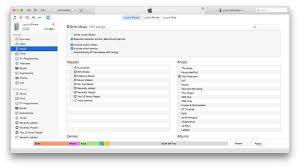
Go to the iPhone icon in the top left corner of iTunes and select “Music” from the menu. Then, click on the “Sync” option and choose “All Music Library” to transfer all your music files or select specific playlists, artists, albums, and genres.
Step 4: Confirm Synchronization
Click on the “Apply” button to confirm synchronization. Wait for the process to complete, and your iPhone will be populated with the transferred music files.
Transferring Music Without Syncing Using Apple Music App
If you have an active subscription to Apple Music, you can also transfer music from iTunes to your iPhone using the Apple Music app on your device. To do this:
- Open the Settings app on your iPhone and select “Music.”
- Turn off the toggle for “iCloud Music Library” to disable synchronization.
- Go back to iTunes on your PC and follow the same steps as above to transfer music files.
Alternative Solutions Using Third-party Apps
If you want to avoid syncing or using a cable, consider these alternative solutions:
Step 1: Disable Icloud Music Library
Go to Settings > Music on your iPhone and disable iCloud Music Library. This will allow you to manually manage your music library without synchronization.
Step 2: Use Third-party Apps
Explore third-party apps like iMazing, which can help transfer music from iTunes to your iPhone wirelessly or using a cable. These apps may offer additional features, such as wireless sharing and file management.
Transferring Music Wirelessly
To transfer music wirelessly without a cable:
- Connect your iPhone to the same Wi-Fi network as your PC.
- Open iTunes on your PC and select the iPhone icon in the top left corner.
- Go to Options > Synchronize this iPhone over Wi-Fi.
- Click Apply, and your iPhone will automatically synchronize with your music library without needing a cable.
Conclusion
Transferring music from iTunes to your iPhone doesn’t have to be a complicated process. By following these simple steps or exploring alternative solutions using third-party apps, you can enjoy your favorite tunes on the go without any hassle.
Faqs:
- Q: Can I transfer music from my PC to my iPhone without syncing?
A: Yes, by disabling iCloud Music Library on your iPhone and using third-party apps like iMazing or exploring alternative solutions. - Q: What if I have a subscription to Apple Music?
A: You can still use iTunes to synchronize your music library across all devices associated with your ID. - Q: Can I transfer specific songs or albums without synchronizing them?
A: Yes, by selecting the “All Music Library” option in iTunes and choosing specific playlists, artists, albums, and genres. - Q: What if I want to transfer music wirelessly without a cable?
A: Connect your iPhone to the same Wi-Fi network as your PC, open iTunes, select the iPhone icon, go to Options > Synchronize this iPhone over Wi-Fi, and click Apply. - Q: Are there any alternative solutions using third-party apps?
A: Yes, consider using iMazing or other file management and sharing apps on your iPhone. - Q: Can I transfer music without a cable using iTunes?
A: Yes, by following the steps outlined in this article. - Q: What if I’m using an older version of macOS?
A: If you’re using macOS 10.15 Catalina or later, use the Finder instead of iTunes to manage your iPhone’s backup and transfer music files. - Q: Can I use third-party apps to transfer music from my PC to my iPhone without a cable?
A: Yes, consider exploring alternative solutions using apps like iMazing or other file management and sharing tools on your iPhone.
We hope this article has provided you with the necessary guidance to easily transfer music from iTunes to your iPhone. Happy listening!


