
How to Transfer Music From PC to Iphone
Are you looking for a hassle-free way to transfer your favorite music from your PC to your new iPhone? Look no further! In this article, we will guide you through the easiest methods to transfer music from PC to iPhone using various software and streaming services.
Method 1: Transferring Music With Itunes
ITunes is a popular software developed by Apple that allows you to manage your music library, create playlists, and even sync your music with your iOS devices. Here’s how to use iTunes to transfer music from PC to iPhone:
- Download And Install Itunes: If you haven’t already, download and install the latest version of iTunes on your PC.
- Connect Your Iphone: Connect your iPhone to your PC using a Lightning cable.
- Authorize The Connection: Authorize the connection between your iPhone and PC by clicking “Authorise” on both devices.
- Select Music Synchronization: In the iTunes menu, click on the “iPhone” icon and select “Music” from the sidebar. Then, click on the checkbox next to “Synchronise music”.
- Choose Your Music: Select the music you want to transfer by checking the boxes next to each song or album.
- Apply Changes: Click on the “Apply” button to start transferring your music.
Method 2: Transferring Music Without Itunes
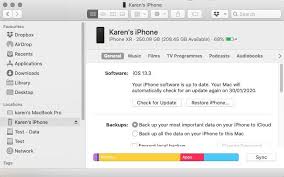
If you use macOS Catalina or a later version, you can’t use iTunes anymore. Instead, use the Finder to transfer music from PC to iPhone:
- Connect Your Iphone: Connect your iPhone to your PC using a Lightning cable.
- Select Music Synchronization: In the Finder menu, click on the “iPhone” icon and select “Music”.
- Choose Your Music: Select the music you want to transfer by checking the boxes next to each song or album.
- Apply Changes: Click on the “Apply” button to start transferring your music.
Method 3: Transferring Music Without Cable
You can also transfer music from PC to iPhone using streaming services like Apple Music and Spotify:
- Sign Up For a Streaming Service: Sign up for a streaming service, such as Apple Music or Spotify.
- Sync Your Music Library: Sync your music library with the streaming service on both your PC and iPhone.
- Access Your Music: Access your music library on your iPhone by opening the Apple Music or Spotify app.
Method 4: Transferring Music Using Imazing
IMazing is a software that allows you to transfer files between your iOS devices and PC. Here’s how to use iMazing to transfer music from PC to iPhone:
- Download And Install Imazing: Download and install the latest version of iMazing on your PC.
- Connect Your Iphone: Connect your iPhone to your PC using a Lightning cable.
- Select Music Transfer: In the iMazing menu, select “Music” from the sidebar.
- Choose Your Music: Select the music you want to transfer by checking the boxes next to each song or album.
- Apply Changes: Click on the “Apply” button to start transferring your music.
Conclusion
Transferring music from PC to iPhone is a straightforward process using various software and streaming services. Whether you choose to use iTunes, Finder, Apple Music, Spotify, or iMazing, you’ll be able to enjoy your favorite tunes on your new iPhone in no time!
Frequently Asked Questions (FAQs)
- Q: Can I Transfer Music From PC to Iphone Without Using a Cable?
A: Yes, you can use streaming services like Apple Music and Spotify to sync your music library between your PC and iPhone. - Q: How do I Get Itunes on my Pc?
A: You can download and install the latest version of iTunes from the official Apple website. - Q: Can I Transfer Music Using Imazing if I Have Macos Catalina or Later?
A: No, you cannot use iMazing with macOS Catalina or later versions. - Q: Will my Iphone Sync Automatically After Connecting it to my Pc?
A: Yes, your iPhone will sync automatically once connected to your PC using the correct software and settings. - Q: Can I Transfer Music From Spotify to Apple Music?
A: No, you cannot directly transfer music from Spotify to Apple Music. However, you can use a streaming service like Amazon Music or Google Play Music that allows you to sync your music library across different platforms. - Q: How do I Cancel my Subscription to Apple Music or Spotify?
A: You can cancel your subscription by following the instructions provided on the respective app’s settings menu. - Q: Can I Transfer Music From an Older Iphone Model to a Newer One?
A: Yes, you can use software like iMazing to transfer music and other files between different iOS devices.
Bonus Tip: Make sure to always back up your music library before attempting any transfers or updates to avoid losing important files!


