
How to Transfer Photos From Iphone to Samsung: A Step-by-step Guide
Are you tired of switching between smartphones, only to lose your cherished memories? Look no further! In this article, we’ll show you how to transfer photos from your iPhone to your new Samsung smartphone using various methods.
Why Transfer Photos From Iphone to Samsung?
Before we dive into the nitty-gritty details, let’s understand why transferring photos is essential. With a new phone comes a fresh start, but it also means losing access to your precious memories. By transferring your photos, you’ll be able to keep your cherished moments safe and accessible on your new device.
Method 1: Using Smart Switch
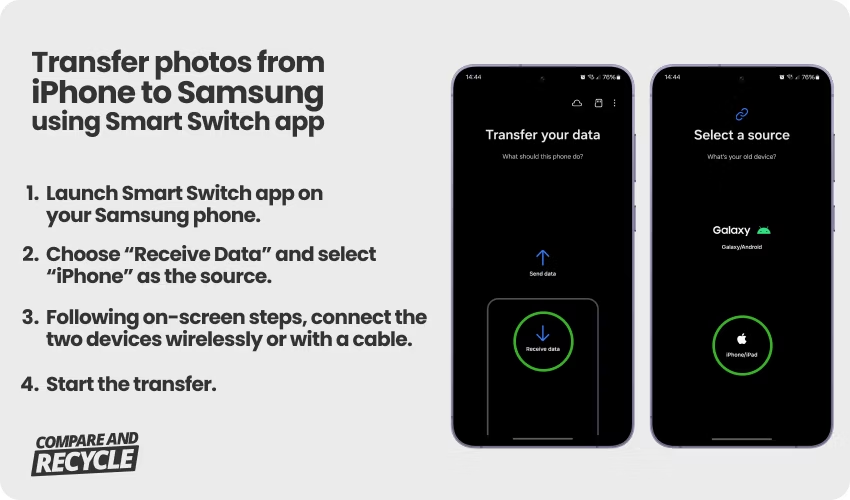
The first method we’ll explore is using Samsung’s Smart Switch app. This app allows you to transfer data from one phone to another seamlessly. Here’s how:
- Download The Smart Switch App: Get the Smart Switch app from the App Store or Google Play Store.
- Initiate The Transfer Process: Open the app and follow the on-screen instructions to initiate the transfer process.
- Choose The Method: Select the transfer method – wireless or wired.
- Select The Device: Choose your iPhone as the source device.
- Log in to Icloud: Log in to your iCloud account to access your photos.
- Transfer Photos: The app will transfer all your photos from your iPhone to your Samsung smartphone.
Method 2: Using Google Photos
Another method is using Google Photos, a cloud-based storage service that allows you to store and share photos across devices. Here’s how:
- Download The Google Photos App: Get the Google Photos app on both your iPhone and Samsung smartphones.
- Log in to The Same Account: Log in to the same Google account on both phones.
- Backup Photos: Enable backup for all your photos on your iPhone by going to Settings > [Your name] > iCloud > Photo Library.
- Sync Photos: The app will sync all your photos from your iPhone to your Samsung smartphone.
Method 3: Using Send Anywhere
Send Anywhere is a third-party app that allows you to transfer files wirelessly between devices. Here’s how:
- Download The Send Anywhere App: Get the Send Anywhere app on both your iPhone and Samsung smartphones.
- Initiate The Transfer Process: Open the app and follow the on-screen instructions to initiate the transfer process.
- Choose The Method: Select the wireless transfer method.
- Enter The Code: Enter the 6-digit code displayed on your iPhone on your Samsung smartphone.
Method 4: Using Cloud Storage Services
You can also use cloud storage services like Dropbox, Google Drive, or Microsoft OneDrive to transfer photos from your iPhone to your Samsung smartphone. Here’s how:
- Download The Cloud Storage App: Get the cloud storage app on both your iPhone and Samsung smartphones.
- Log in to The Same Account: Log in to the same account on both phones.
- Upload Photos: Upload all your photos from your iPhone to the cloud storage service.
- Access Photos: Access the uploaded photos on your Samsung smartphone.
Method 5: Using a Computer
If you prefer using a computer, you can transfer photos from your iPhone to your Samsung smartphone using a USB cable or Wi-Fi. Here’s how:
- Connect Your Iphone to The Computer: Connect your iPhone to the computer using a USB cable.
- Transfer Photos: Transfer all your photos from your iPhone to the computer.
- Copy Photos: Copy the transferred photos to your Samsung smartphone.
Conclusion
Transferring photos from your iPhone to your Samsung smartphone is easier than you think! With these five methods, you can ensure that your cherished memories are safe and accessible on your new device.
Frequently Asked Questions (FAQs)
- Q: Can I Transfer Photos Wirelessly?
A: Yes, you can use Smart Switch, Send Anywhere, or cloud storage services to transfer photos wirelessly. - Q: Do I Need a Computer to Transfer Photos?
A: No, you don’t need a computer to transfer photos. You can use a USB cable or Wi-Fi directly on your phones. - Q: How do I Backup my Iphone Photos?
A: Go to Settings > [Your name] > iCloud > Photo Library and enable backup for all your photos. - Q: Can I Transfer Videos as Well?
A: Yes, you can transfer videos using any of the methods mentioned above. - Q: Is There a Limit on The Number of Photos I Can Transfer?
A: No, there is no limit on the number of photos you can transfer using these methods.
Conclusion
Transferring photos from your iPhone to your Samsung smartphone is now easier than ever! With these five methods, you can ensure that your cherished memories are safe and accessible on your new device.


