
How to Transfer Photos From PC to Iphone
Are you tired of storing your precious memories on your computer or hard drive, only to have them scattered across multiple devices? Look no further! In this article, we’ll show you how to transfer photos from your PC to your iPhone in a few simple steps.
Why Transfer Photos From PC to Iphone?
Transferring photos from your PC to your iPhone is a great way to keep all your memories in one place. With the rise of smartphone cameras, it’s easier than ever to capture life’s precious moments. However, with more and more people switching to smartphones, it can be frustrating to have to scroll through multiple devices to find that perfect shot.
Method 1: Using Itunes
If you’re using a Windows or macOS computer and want to transfer photos from your PC to your iPhone without any hassle, the easiest way is to use iTunes. Here’s how:
Step 1: Connect Your Iphone to Your Computer
Connect your iPhone to your computer using a USB cable. Make sure it’s properly connected before proceeding.
Step 2: Launch Itunes
Launch iTunes on your computer and select your iPhone from the top left corner of the screen.
Step 3: Select Photos in Itunes
Select “Photos” from the left-hand menu, then click on “Synchronise Photos”.
Step 4: Choose Folders to Sync
Choose the folders you want to sync with your iPhone. You can select individual folders or entire albums.
Step 5: Click Apply And Wait
Click “Apply” and wait for the photos to transfer from your PC to your iPhone. This process may take a few minutes, depending on the number of photos you’re transferring.
Method 2: Using Easeus Mobimover
If you want to transfer photos without using iTunes, EaseUS MobiMover is an excellent alternative. Here’s how:
Step 1: Download And Install Easeus Mobimover
Download and install EaseUS MobiMover on your computer.
Step 2: Connect Your Iphone to Your Computer
Connect your iPhone to your computer using a USB cable.
Step 3: Select Photos in Easeus Mobimover
Select the photos you want to transfer from your PC to your iPhone. You can choose individual photos or entire folders.
Step 4: Click Transfer
Click “Transfer” and wait for the photos to be transferred from your PC to your iPhone.
Method 3: Using Airdrop (Mac Only)
If you’re using a Mac, you can use AirDrop to transfer photos from your PC to your iPhone wirelessly. Here’s how:
Step 1: Open Finder on Your Mac
Open the Finder app on your Mac and select “AirDrop” from the left-hand menu.
Step 2: Select Photos in Finder
Select the photos you want to transfer from your PC to your iPhone.
Step 3: Drag And Drop Photos
Drag and drop the selected photos onto your iPhone’s icon.
Method 4: Using Snapdrop (Windows, Mac)
SnapDrop is another great alternative that allows you to transfer photos wirelessly without any hassle. Here’s how:
Step 1: Open Snapdrop on Both Devices
Open SnapDrop on both your PC and iPhone.
Step 2: Select Photos in Snapdrop
Select the photos you want to transfer from your PC to your iPhone.
Step 3: Tap Save on Your Iphone
Tap “Save” on your iPhone to receive the transferred photos.
Method 5: Using Icloud
Finally, if you’re already using iCloud, you can use it to transfer photos from your PC to your iPhone. Here’s how:
Step 1: Open Settings on Your Iphone
Open the Settings app on your iPhone and select “iCloud”.
Step 2: Select Photos in Icloud
Select “Photos” and toggle the switch next to it to enable photo synchronisation.
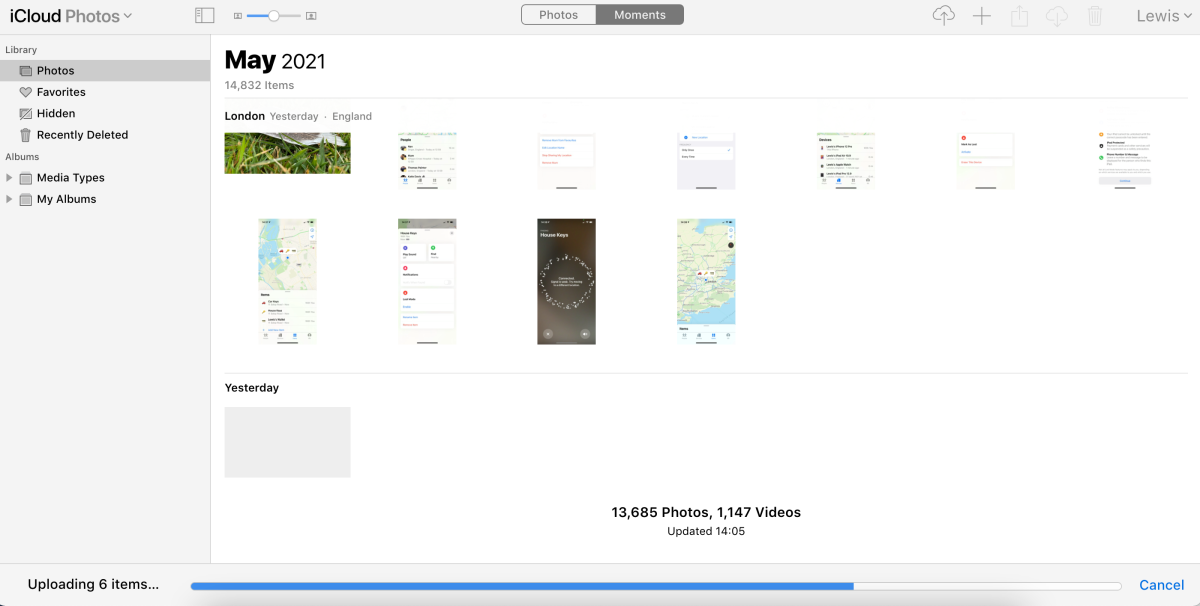
Step 3: Go to Icloud Website on Your Pc
Go to the iCloud website on your PC and sign in with your Apple ID.
Step 4: Upload Photos
Upload the photos you want to transfer from your PC to your iPhone.
Step 5: Wait For Synchronisation
Wait for the photos to be synchronised between your PC and iPhone.
Conclusion
Transferring photos from your PC to your iPhone is easier than ever. Whether you use iTunes, EaseUS MobiMover, AirDrop, SnapDrop, or iCloud, there’s a method that suits your needs. With these simple steps, you can keep all your memories in one place and enjoy the convenience of having them on your iPhone.
Faqs
-
Q: What if I Don’t Have Itunes Installed?
A: You can use EaseUS MobiMover or SnapDrop to transfer photos without using iTunes. -
Q: Can I Transfer Videos From my PC to my Iphone?
A: Yes, all the methods mentioned above support video transfer as well. -
Q: How Long Does it Take to Transfer Photos From my PC to my Iphone?
A: The transfer time depends on the number of photos and your internet connection speed. -
Q: Can I Use Airdrop to Transfer Files Other Than Photos?
A: Yes, AirDrop supports file transfer of all types, not just photos. -
Q: Is Snapdrop a Paid Service?
A: No, SnapDrop is free to use with limitations. The Pro version requires a subscription. -
Q: Can I Use Icloud on Windows 11?
A: Yes, iCloud is supported on Windows 11 and can be accessed through the Photos app. -
Q: How do I Enable Photo Synchronisation in Icloud?
A: Go to Settings > iCloud > Photos and toggle the switch next to it to enable photo synchronisation. -
Q: Can I Transfer Photos From my PC to my Iphone Without Any Software or Apps?
A: No, using AirDrop, SnapDrop, or iCloud requires installing an app or service on your device.


