
How to Transfer Photos From Xiaomi to Pc: A Step-by-step Guide
Are you tired of running out of storage space on your Xiaomi smartphone? Do you want to access your photos from anywhere, including your computer? Look no further! In this article, we will guide you through the process of transferring photos from your Xiaomi smartphone to your PC, using various methods.
Method 1: Using File Explorer (Windows)
If you’re a Windows user, you can use File Explorer to transfer photos from your Xiaomi smartphone. Here’s how:
- Connect your smartphone to your computer using a USB cable.
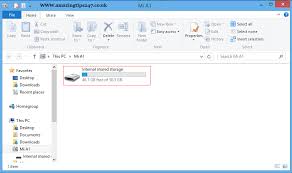
- Open File Explorer on your computer and click on the “This PC” or “Computer” icon.
- Click on the name of your smartphone in the list of devices connected to your computer.
- You will see a folder called “Internal Storage” or “SD Card”, depending on whether you have an SD card inserted into your phone.
- Open this folder and select the photos you want to transfer by checking the boxes next to each photo.
- Click on the “Copy” button or press Ctrl+C to copy the selected photos.
- Go back to File Explorer on your computer and click on the folder where you want to save the transferred photos.
- Right-click inside this folder and select “Paste” or press Ctrl+V to paste the copied photos.
Method 2: Using Google Photos (Windows)
Google Photos is a popular service that allows you to store, organize, and share your photos across all devices. Here’s how to transfer photos from your Xiaomi smartphone to your computer using Google Photos:
- Install Google Photos on your Windows computer if you haven’t already.
- Connect your smartphone to your computer using a USB cable.
- Open File Explorer on your computer and click on the “This PC” or “Computer” icon.
- Click on the name of your smartphone in the list of devices connected to your computer.
- Select the photos you want to transfer by checking the boxes next to each photo.
- Right-click on the selected photos and select “Copy” or press Ctrl+C.
- Go back to Google Photos on your computer and click on the “+” button to add new photos.
- Paste the copied photos into Google Photos by clicking on the “Paste” button.
Method 3: Using Nearby Share (Windows)
Nearby Share is a feature in Windows that allows you to share files between devices using Wi-Fi or Bluetooth. Here’s how to transfer photos from your Xiaomi smartphone to your computer using Nearby Share:
- Make sure your smartphone and computer are connected to the same Wi-Fi network.
- Enable Nearby Share on both devices by going to Settings > Devices > Bluetooth & other devices, then toggle “Nearby Share” to On.
- Select the photos you want to transfer by checking the boxes next to each photo on your smartphone.
- Click on the “Share” button and select “Bluetooth” as the sharing method.
- On your computer, click on the Nearby Share icon in the taskbar and select the device you want to share with (your smartphone).
- Confirm that you want to transfer the photos.
Method 4: Using Bluetooth (Windows)
If you don’t have a USB cable handy or prefer to use Bluetooth, here’s how:
- Enable Bluetooth on both your smartphone and computer by going to Settings > Devices > Bluetooth & other devices.
- Connect your smartphone to your computer using Bluetooth.
- Open File Explorer on your computer and click on the “This PC” or “Computer” icon.
- Click on the name of your smartphone in the list of devices connected to your computer.
- Select the photos you want to transfer by checking the boxes next to each photo.
- Right-click on the selected photos and select “Copy” or press Ctrl+C.
- Go back to File Explorer on your computer and click on the folder where you want to save the transferred photos.
- Right-click inside this folder and select “Paste” or press Ctrl+V to paste the copied photos.
Method 5: Using Snapdrop (Windows)
Snapdrop is a service that allows you to transfer files between devices using Wi-Fi. Here’s how:
- Open a web browser on your smartphone and navigate to snapdrop.Net.
- Click on the “Share” button on the top-right corner of the page.
- Select the photos you want to transfer by checking the boxes next to each photo.
- Click on the “Copy” button to copy the selected photos.
- On your computer, open a web browser and navigate to snapdrop.Net.
- Paste the copied photos into Snapdrop by clicking on the “Paste” button.
Method 6: Using Onedrive (Windows)
OneDrive is a cloud storage service provided by Microsoft that allows you to store, organize, and share your files across all devices. Here’s how to transfer photos from your Xiaomi smartphone to your computer using OneDrive:
- Install OneDrive on your Windows computer if you haven’t already.
- Connect your smartphone to your computer using a USB cable.
- Open File Explorer on your computer and click on the “This PC” or “Computer” icon.
- Click on the name of your smartphone in the list of devices connected to your computer.
- Select the photos you want to transfer by checking the boxes next to each photo.
- Right-click on the selected photos and select “Copy” or press Ctrl+C.
- Go back to OneDrive on your computer and click on the “+” button to add new files.
- Paste the copied photos into OneDrive by clicking on the “Paste” button.
Method 7: Using Dropbox (Windows)
Dropbox is a cloud storage service that allows you to store, organize, and share your files across all devices. Here’s how to transfer photos from your Xiaomi smartphone to your computer using Dropbox:
- Install Dropbox on your Windows computer if you haven’t already.
- Connect your smartphone to your computer using a USB cable.
- Open File Explorer on your computer and click on the “This PC” or “Computer” icon.
- Click on the name of your smartphone in the list of devices connected to your computer.
- Select the photos you want to transfer by checking the boxes next to each photo.
- Right-click on the selected photos and select “Copy” or press Ctrl+C.
- Go back to Dropbox on your computer and click on the “+” button to add new files.
- Paste the copied photos into Dropbox by clicking on the “Paste” button.
Method 8: Using Android Transfer (Mac)
If you’re a Mac user, you can use Android Transfer to transfer photos from your Xiaomi smartphone to your computer. Here’s how:
- Install Android Transfer on your Mac computer if you haven’t already.
- Connect your smartphone to your computer using a USB cable.
- Open Android Transfer on your Mac and select the device you want to transfer files from (your smartphone).
- Select the photos you want to transfer by checking the boxes next to each photo.
- Click on the “Copy” button to copy the selected photos.
- Go back to File Explorer on your computer and click on the folder where you want to save the transferred photos.
- Right-click inside this folder and select “Paste” or press Ctrl+V to paste the copied photos.
Method 9: Using Macdroid (Mac)
MacDroid is an app that allows you to transfer files from your Xiaomi smartphone to your Mac computer using Wi-Fi. Here’s how:
- Install MacDroid on your Mac computer if you haven’t already.
- Connect your smartphone to your computer using a USB cable.
- Open MacDroid on your Mac and select the device you want to transfer files from (your smartphone).
- Select the photos you want to transfer by checking the boxes next to each photo.
- Click on the “Copy” button to copy the selected photos.
- Go back to File Explorer on your computer and click on the folder where you want to save the transferred photos.
- Right-click inside this folder and select “Paste” or press Ctrl+V to paste the copied photos.
Conclusion
Transferring photos from your Xiaomi smartphone to your PC is a straightforward process that can be completed using various methods, including File Explorer, Google Photos, Nearby Share, Bluetooth, Snapdrop, OneDrive, Dropbox, Android Transfer, and MacDroid. Each method has its own advantages and disadvantages, so choose the one that best suits your needs.
Frequently Asked Questions (FAQs)
- Q: Can I transfer photos from my Xiaomi smartphone to my PC using a USB cable?
A: Yes, you can use File Explorer or Android Transfer to transfer photos using a USB cable. - Q: Do I need to install any software on my computer to transfer photos from my Xiaomi smartphone?
A: No, you don’t need to install any software on your computer to transfer photos using Nearby Share, Bluetooth, Snapdrop, OneDrive, Dropbox, or Android Transfer. - Q: Can I use Google Photos to transfer photos from my Xiaomi smartphone to my PC?
A: Yes, you can use Google Photos to transfer photos using the desktop app or web interface. - Q: How do I enable Nearby Share on my computer and smartphone?
A: To enable Nearby Share on your computer, go to Settings > Devices > Bluetooth & other devices, then toggle “Nearby Share” to On. On your smartphone, go to Settings > System > Bluetooth, Wi-Fi & other settings. - Q: Can I use Snapdrop to transfer photos from my Xiaomi smartphone to my PC?
A: Yes, you can use Snapdrop to transfer files between devices using Wi-Fi.
I hope this article has provided you with a clear understanding of the various methods for transferring photos from your Xiaomi smartphone to your PC.


