
Transferring Videos From PC to Iphone: A Step-by-step Guide
Are you tired of dealing with outdated video files on your computer? Do you want to transfer them seamlessly to your iPhone? Look no further! This article will guide you through the process, providing you with various methods to transfer videos from your PC to your iPhone.
Method 1: Using Itunes
Transferring videos using iTunes is a straightforward process. Here’s how:
Step-by-step Guide
- Install and set up iTunes on your PC.
- Connect your iPhone to the computer using a Lightning cable.
- Open iTunes and click on the iPhone icon in the top left corner.
- Select “Sync Photos” and choose the folder containing your videos.
- Click “Apply” to start the synchronization process.
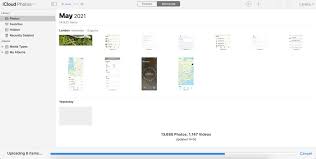
Icloud Photo
If you have an iCloud account, you can also use iCloud Photo to transfer your videos directly to your iPhone. Here’s how:
- Open Settings on your iPhone.
- Tap on your name and select “iCloud.”
- Choose “Photo” and toggle the switch to enable syncing.
Method 2: Using Vlc For PC And Iphone
VLC is a popular media player that can also be used to transfer videos between devices. Here’s how:
- Install VLC on both your PC and iPhone.
- Open VLC on your PC and select the video you want to transfer.
- Drag and drop the video into the VLC window on your PC.
- On your iPhone, open the VLC app and navigate to the “Share” tab.
- Select “Wi-Fi” as the sharing method and enter the IP address of your PC.
- Open a web browser on your PC and enter the IP address to access the shared video.
Method 3: Using Imazing
IMazing is a software that allows you to transfer files between devices without using iTunes. Here’s how:
- Download and install iMazing on your PC.
- Connect your iPhone to the computer using a Lightning cable.
- Open iMazing and select the video you want to transfer.
- Drag and drop the video into the iMazing window.
Method 4: Using Airdrop
If you’re using a Mac, you can use AirDrop to transfer files between devices wirelessly. Here’s how:
- Make sure both your PC and iPhone are connected to the same Wi-Fi network.
- Open AirDrop on your Mac and select the video you want to transfer.
- Drag and drop the video into the AirDrop window.
Sharedrop is a web-based service that allows you to share files between devices. Here’s how:
- Open a web browser on your PC and visit the Sharedrop website.
- Click on the “Got it” button to start the sharing process.
- On your iPhone, open the Sharedrop app and navigate to the shared video.
These methods provide you with various options to transfer videos from your PC to your iPhone. Choose the one that suits your needs best!
Frequently Asked Questions (FAQs)
- Q: Can I Transfer Videos Using Bluetooth?
A: Unfortunately, no. Apple devices do not support Bluetooth file transfer. - Q: How Long Does it Take to Transfer Videos Using Itunes?
A: The time taken to transfer videos using iTunes depends on the size of the files and the speed of your internet connection. - Q: Can I Use Imazing to Transfer Photos as Well?
A: Yes, iMazing can be used to transfer both videos and photos between devices. - Q: Is it Possible to Transfer Videos Wirelessly Using Airdrop?
A: No, AirDrop requires a physical connection to transfer files wirelessly. - Q: Can I Use Sharedrop to Transfer Large Video Files?
A: Yes, Sharedrop supports transferring large file sizes.
Conclusion
Transferring videos from your PC to your iPhone has never been easier! With these methods, you can enjoy seamless video playback on your mobile device. Whether you choose to use iTunes, VLC, iMazing, AirDrop, or Sharedrop, each method provides a unique solution for transferring files between devices.


