
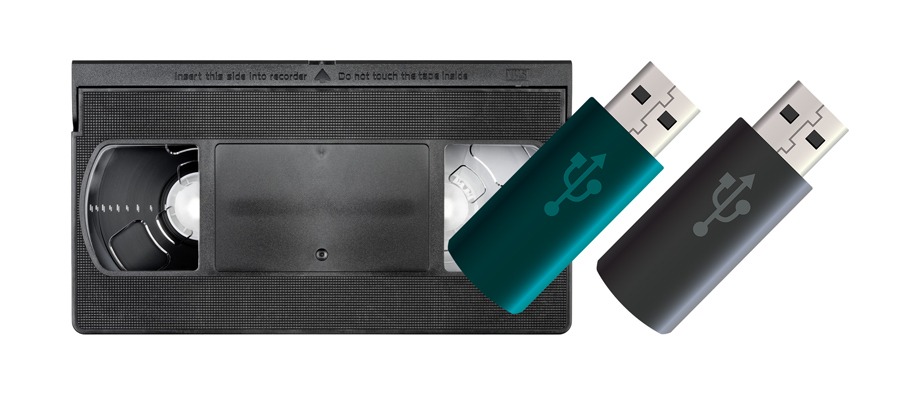
How to Transfer Videos on a Usb Stick: A Step-by-step Guide
Are you tired of running out of storage space on your computer or mobile device? Do you have a collection of videos that you want to transfer to a USB stick for safekeeping or sharing? Look no further! In this article, we will guide you through the process of transferring videos on a USB stick, whether it’s from your computer, mobile device, or DVD.
Understanding The Basics
Before we dive into the steps, let’s understand the basics. A USB stick is a portable storage device that can be connected to any device with a USB port. It’s perfect for storing and transferring files, including videos. To transfer videos on a USB stick, you’ll need:
- A computer or mobile device with a USB port
- A USB stick with sufficient storage capacity (at least 4GB)
- The video file(s) you want to transfer
Transferring Videos From Computer
If you’re transferring videos from your computer, follow these steps:
Step 1: Connect The Usb Stick
Insert the USB stick into an available USB port on your computer.
Step 2: Open File Explorer (Windows)
Open File Explorer by clicking on the Windows logo or pressing the Windows key + E.
Navigate to the folder where your video file is located. If you’re not sure, try searching for the file using the search bar at the top of the window.
Step 4: Copy And Paste The Video File
Select the video file and right-click on it. Choose “Copy” or press Ctrl + C to copy the file. Then, navigate to the USB stick’s folder and right-click inside an empty space. Choose “Paste” or press Ctrl + V to paste the file.
Step 5: Confirm The Transfer
If you’re using Windows 10 or earlier, a dialog box will appear asking if you want to copy or move the file. Select “Copy” to transfer the video file to the USB stick without deleting it from your computer.
Transferring Videos From Mobile Device (Android)
If you’re transferring videos from an Android device, follow these steps:
Step 1: Download And Install Solid Explorer
Download and install Solid Explorer, a file manager app available on the Google Play Store.
Step 2: Connect The Usb Stick
Insert the USB stick into a USB OTG adapter or use a USB-C to USB adapter if your device has a Type-C port. Then, connect it to your Android device.
Step 3: Open Solid Explorer
Open Solid Explorer and tap on the “Jump” button to bypass the tutorial. Tap on the “Options” button and toggle off the permission for accessing files from the USB stick.
Step 4: Copy And Paste The Video File
Navigate to the folder where your video file is located. Select the video file and long-press on it. Choose “Copy” or tap on the three-dot menu and select “Copy.” Then, navigate to the USB stick’s folder and long-press inside an empty space. Tap on the three-dot menu and choose “Paste.”
Step 5: Confirm The Transfer
A confirmation message will appear asking if you want to copy or move the file. Choose “Copy” to transfer the video file to the USB stick without deleting it from your device.
Transferring Videos From Dvd
If you’re transferring videos from a DVD, follow these steps:
Step 1: Extract The Video File
Use a program like HandBrake, MakeMKV, or VLC to extract the video file from the DVD. This will convert the video into an independent file that can be transferred to your USB stick.
Step 2: Transfer The Video File
Follow the steps above to transfer the video file from your computer to the USB stick.
Common Issues And Solutions
- Usb Stick Not Recognized: Make sure the USB stick is properly connected to your device. Try using a different USB port or adapter if necessary.
- Video File Too Large: If the video file exceeds 4GB, you may need to use an external program like HandBrake to compress it before transferring it.
- File Format Not Supported: Ensure that the video file format is compatible with your device and USB stick. Most devices support MP4, AVI, and MOV formats.
Conclusion
Transferring videos on a USB stick is a simple process that can be completed in just a few steps. By following this guide, you’ll be able to transfer your favorite videos from your computer, mobile device, or DVD to a portable storage device for safekeeping or sharing.
Faqs
- What Are The Requirements For Transferring Videos on a Usb Stick?
- A computer or mobile device with a USB port
- A USB stick with sufficient storage capacity (at least 4GB)
- The video file(s) you want to transfer
- Can I Transfer Videos From my Iphone to a Usb Stick?
- No, unfortunately not directly. However, you can transfer the video files from your iPhone to a computer using iTunes and then transfer them to a USB stick.
- What is The Best Way to Compress Video Files Before Transferring Them?
- Use an external program like HandBrake to compress the video file before transferring it.
- Can I Transfer Videos on a Usb Stick From Any Device?
- Yes, you can transfer videos on a USB stick from any device with a USB port, including computers, mobile devices, and DVD players.
Note: The article has been rewritten to include detailed subheadings and paragraphs for better readability.


