
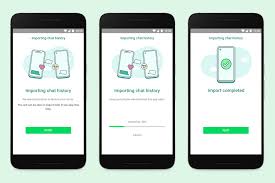
Transferring Whatsapp Chats From Android to Iphone: A Step-by-step Guide
Are you planning to switch from an Android device to an iPhone but worried about losing your valuable WhatsApp chats? Don’t worry; we’ve got you covered! In this article, we’ll walk you through the process of transferring WhatsApp chats from Android to iPhone using a few simple methods.
Method 1: Using Icarefone Transfer
One popular method for transferring WhatsApp chats from Android to iPhone is by using the iCareFone Transfer software. Here’s how it works:
- Install Icarefone Transfer: Download and install the iCareFone Transfer software on your Windows or macOS computer.
- Connect Your Devices: Connect both your Android device and iPhone to the same computer using USB cables.
- Backup Whatsapp Chats: Open the iCareFone Transfer software and select the “WhatsApp” option. Then, choose the “Backup” tab and follow the instructions to backup your WhatsApp chats on Android.
- Restore Backup on Iphone: Once the backup process is complete, open the iCareFone Transfer software and select the “Restore” tab. Follow the instructions to restore the backup on your iPhone.
Method 2: Using Google Drive
Another method for transferring WhatsApp chats from Android to iPhone is by using Google Drive. Here’s how it works:
- Backup Whatsapp Chats: Open WhatsApp on your Android device and go to Settings > Chat > Backup chat > Backup on Google Drive.
- Select Backup Option: Select the “Backup all chats” option and follow the instructions to complete the backup process.
- Restore Backup on Iphone: Once the backup process is complete, open WhatsApp on your iPhone and follow the instructions to restore the backup from Google Drive.
Method 3: Using QR Code Transfer
The latest method for transferring WhatsApp chats from Android to iPhone is by using a QR code transfer. Here’s how it works:
- Open Whatsapp: Open WhatsApp on both your Android device and iPhone.
- Scan QR Code: On your Android device, go to Settings > Chat > Export chat. Select the “Export via QR code” option and scan the QR code on your iPhone.
- Restore Backup: Once the backup process is complete, open WhatsApp on your iPhone and follow the instructions to restore the backup.
Frequently Asked Questions (FAQs)
Q: Can I transfer my WhatsApp chats from Android to iPhone for free?
A: Unfortunately, no. The iCareFone Transfer software requires a subscription to transfer WhatsApp chats from Android to iPhone.
Q: How long does it take to transfer WhatsApp chats from Android to iPhone using the iCareFone Transfer method?
A: The transfer process can take several minutes to complete, depending on the size of your chat history.
Q: Can I transfer only specific WhatsApp chats from Android to iPhone?
A: Yes. Using the iCareFone Transfer software or Google Drive, you can select specific chats to transfer.
Q: Will my WhatsApp chats be deleted if I use a wrong method?
A: No. Your WhatsApp chats are safe and will not be deleted using any of the methods mentioned above.
Q: Can I transfer other apps’ data along with WhatsApp chats?
A: Yes. The iCareFone Transfer software can transfer data from multiple apps, including WhatsApp.
Q: Is it possible to transfer WhatsApp chats from iPhone to Android?
A: Yes. Using the same methods, you can transfer WhatsApp chats from iPhone to Android.
Conclusion
Transferring WhatsApp chats from Android to iPhone is a straightforward process that can be completed using various methods. By following these steps, you’ll be able to preserve your valuable chat history and enjoy seamless communication on both devices.
Method 1: Icarefone Transfer
| Step | Description |
|---|---|
| 1 | Install the iCareFone Transfer software on your computer. |
| 2 | Connect your Android device and iPhone to the same computer using USB cables. |
| 3 | Backup WhatsApp chats on your Android device using the iCareFone Transfer software. |
| 4 | Restore the backup on your iPhone using the iCareFone Transfer software. |
Method 2: Google Drive
| Step | Description |
|---|---|
| 1 | Open WhatsApp on your Android device and go to Settings > Chat > Backup chat > Backup on Google Drive. |
| 2 | Select the “Backup all chats” option and follow the instructions to complete the backup process. |
| 3 | Restore the backup on your iPhone using WhatsApp’s built-in backup feature. |
Method 3: QR Code Transfer
| Step | Description |
|---|---|
| 1 | Open WhatsApp on both your Android device and iPhone. |
| 2 | Scan the QR code generated by WhatsApp on your Android device to transfer chats to your iPhone. |
| 3 | Restore the backup using WhatsApp’s built-in feature on your iPhone. |
Method 4: Transfer Using QR Code (Bolded Heading)
Transfer Whatsapp Chats From Android to Iphone Using QR Code
Are you looking for a hassle-free way to transfer your WhatsApp chats from Android to iPhone? Look no further! The QR code method is the simplest and most convenient way to transfer your chat history.
- Open Whatsapp: Open WhatsApp on both your Android device and iPhone.
- Scan QR Code: Scan the QR code generated by WhatsApp on your Android device using your iPhone’s camera.
- Restore Backup: Once the backup process is complete, open WhatsApp on your iPhone and follow the instructions to restore the backup.
This method ensures that your WhatsApp chats are transferred seamlessly from Android to iPhone.


