
Transferring Whatsapp From Iphone to Android: A Step-by-step Guide
Are you tired of switching between your iPhone and Android devices? Do you want to transfer all your WhatsApp data, including chats, media, and more, to your new Android phone? Look no further! In this article, we’ll guide you through the process of transferring WhatsApp from your iPhone to your Android device.
Why Transfer Whatsapp Data?
Transferring WhatsApp data is essential if you want to preserve your conversations, media files, and other important information. Losing access to your WhatsApp chats can be frustrating, especially if they contain sensitive or important information.
Method 1: Using The Official Whatsapp Migration Feature
In recent years, WhatsApp has introduced a native migration feature that allows users to transfer their chat history, messages, and media files from an iPhone to an Android device. This feature is available on select devices, including Samsung Galaxy series and Google Pixel phones.
To use this method:
- Ensure your iPhone and Android device are connected to the same Wi-Fi network.
- Open WhatsApp on your iPhone and go to Settings > Chats > Chat Transfer.
- Follow the prompts to set up the transfer process.
- On your Android device, open WhatsApp and follow the setup instructions.
- Wait for the transfer process to complete.
Method 2: Using Third-party Apps
If you can’t use the official migration feature or prefer a more manual approach, there are third-party apps available that can help you transfer WhatsApp data from an iPhone to an Android device.
One popular option is Wondershare MobileTrans. This app allows you to transfer WhatsApp chats, media files, and other data from your iPhone to your Android device without losing any information.
To use this method:
- Download and install Wondershare MobileTrans on your computer.
- Connect your iPhone and Android devices to the computer using a USB cable.
- Launch Wondershare MobileTrans and select WhatsApp as the transfer option.
- Follow the prompts to set up the transfer process.
- Wait for the transfer process to complete.
Method 3: Manual Backup And Restore
If you prefer a more manual approach, you can create a backup of your WhatsApp data on your iPhone using iTunes or Finder. Then, extract the chat history and media files from the backup using iBackup Viewer.
To use this method:
- Create a backup of your WhatsApp data on your iPhone using iTunes or Finder.
- Extract the chat history and media files from the backup using iBackup Viewer.
- Transfer the extracted data to your Android device.
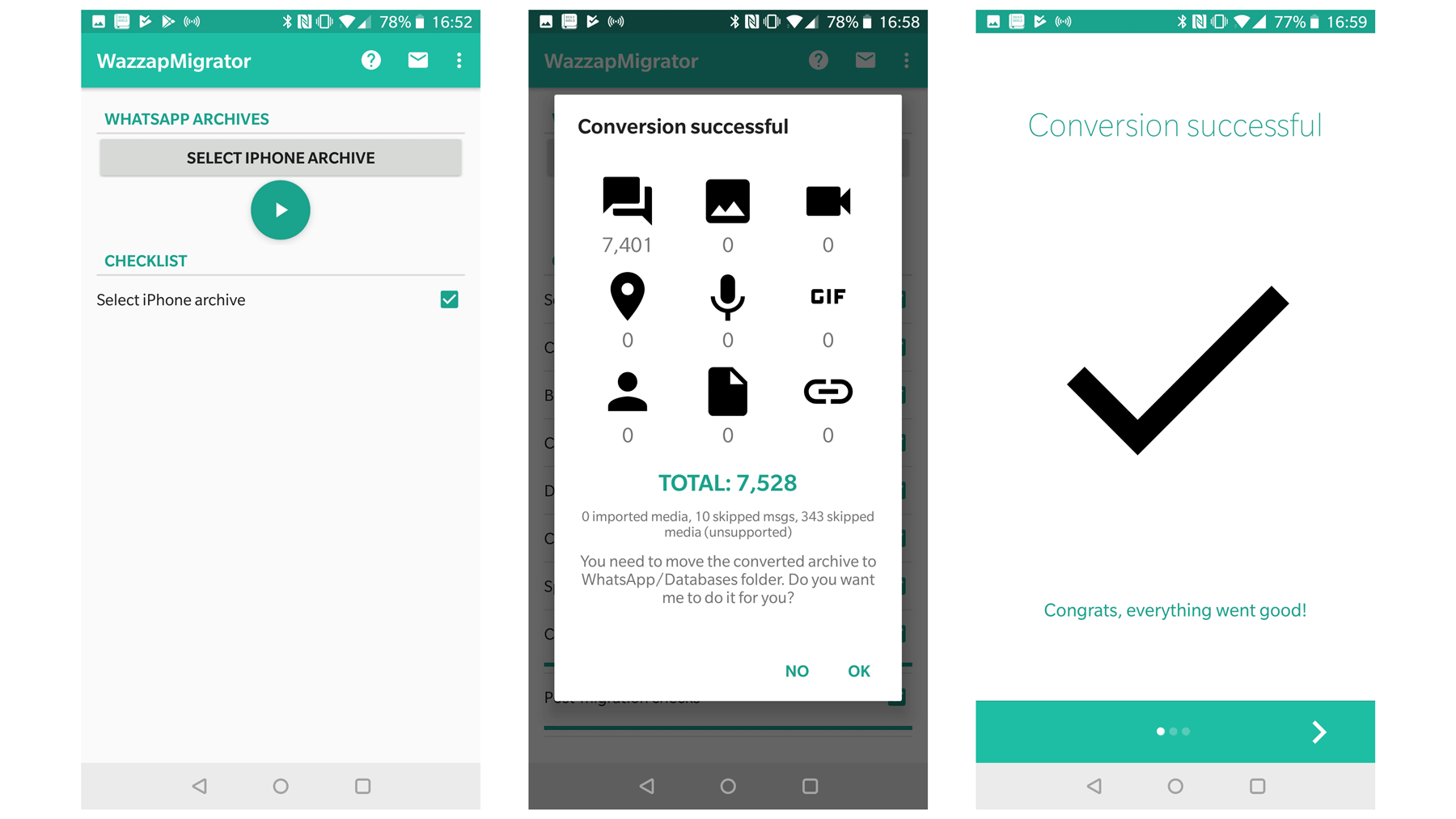
- Install WazzapMigrator on your Android device.
- Follow the setup instructions to restore the WhatsApp data.
Tips And Precautions
Before transferring WhatsApp data, make sure you have:
- A stable internet connection
- Enough storage space on both devices
- The latest version of WhatsApp installed on both devices
Also, be aware that transferring WhatsApp data may not work seamlessly due to technical issues or compatibility problems. If you encounter any issues during the transfer process, don’t hesitate to seek help from a qualified professional.
Conclusion
Transferring WhatsApp data from an iPhone to an Android device can seem daunting, but with the right tools and guidance, it’s a manageable task. Whether you choose to use the official migration feature or a third-party app, make sure to follow the instructions carefully to avoid any potential issues.
If you have any further questions or concerns, don’t hesitate to reach out to us. We’re here to help!
Frequently Asked Questions (FAQs)
- Can I Transfer Whatsapp Data From an Iphone to an Android Device Without Losing Any Information?
Yes, using the official migration feature or a third-party app like Wondershare MobileTrans can ensure that your WhatsApp data is transferred seamlessly.
- How Long Does it Take to Transfer Whatsapp Data?
The transfer process typically takes several minutes to complete, depending on the size of your chat history and media files.
- Can I Transfer Whatsapp Data if I Don’t Have an Internet Connection?
No, transferring WhatsApp data requires a stable internet connection. Make sure you’re connected to a reliable network before initiating the transfer process.
- Will my Whatsapp Account be Linked Between Devices?
Yes, your WhatsApp account will remain linked across both devices. You won’t need to re-register or create a new account on your Android device.
- Can I Use This Method to Transfer Data From an Android Device to an Iphone?
No, the methods outlined in this article are specifically for transferring data from an iPhone to an Android device.
- Are There Any Potential Risks Involved in Using Third-party Apps Like Wondershare Mobiletrans?
While Wondershare MobileTrans is a reputable app, it’s essential to be aware of potential security risks associated with using third-party software. Make sure you download the app from a trusted source and follow the instructions carefully.
- Can I Transfer Whatsapp Data Manually Without Using Any Apps or Tools?
Yes, you can create a backup of your WhatsApp data on your iPhone using iTunes or Finder and then extract the chat history and media files to transfer them to your Android device.


