
How to Transfer Whatsapp Messages From One Phone to Another: A Step-by-step Guide
Are you switching phones or looking to transfer your WhatsApp conversations to a new device? Look no further! In this article, we’ll guide you through the process of transferring WhatsApp messages from one phone to another, whether it’s from Android to iOS or vice versa.
Understanding Whatsapp’s Backup System
Before we dive into the step-by-step instructions, let’s understand how WhatsApp’s backup system works. WhatsApp automatically creates a backup of your conversations on Google Drive every day (or weekly/monthly, depending on your settings). This means that you can restore your chats from any point in time.
Transferring Whatsapp Messages From Android to Ios
If you’re switching from an Android device to an iPhone, here’s how to transfer your WhatsApp messages:
- Create a Backup on Google Drive: Go to Settings > Chat > Backup of the chat and select “Execute backup” to create a new backup.
- Download Whatsapp on The New Iphone: Download and install WhatsApp on your new iPhone.
- Restore The Backup From Google Drive: Open WhatsApp, tap on the three dots in the top-right corner, and select “Settings.” Tap on “Chat,” then “Backup of the chat,” and finally “Restore.”
- Verify Your Number And Password: Follow the prompts to verify your phone number and password.
Transferring Whatsapp Messages From Ios to Android
If you’re switching from an iPhone to an Android device, here’s how to transfer your WhatsApp messages:
- Create a Backup on Icloud: Go to Settings > [Your Name] > iCloud > iCloud Backup and select “Back Up Now” to create a new backup.
- Download Whatsapp on The New Android Device: Download and install WhatsApp on your new Android device.
- Restore The Backup From Icloud: Open WhatsApp, tap on the three dots in the top-right corner, and select “Settings.” Tap on “Chat,” then “Backup of the chat,” and finally “Restore.”
- Verify Your Number And Password: Follow the prompts to verify your phone number and password.
Transferring Whatsapp Messages Using Wondershare Dr.Fone
If you’re having trouble transferring your WhatsApp messages, you can use a third-party app like Wondershare dr.Fone. This app allows you to transfer data from one device to another, including WhatsApp messages.
- Download Dr.Fone: Download and install dr.Fone on your computer.
- Connect Both Devices: Connect both your old and new devices to the computer using a USB cable.
- Transfer Whatsapp Messages: Select “WhatsApp” as the app you want to transfer, and follow the prompts to complete the process.
Transferring Whatsapp Messages With QR Code
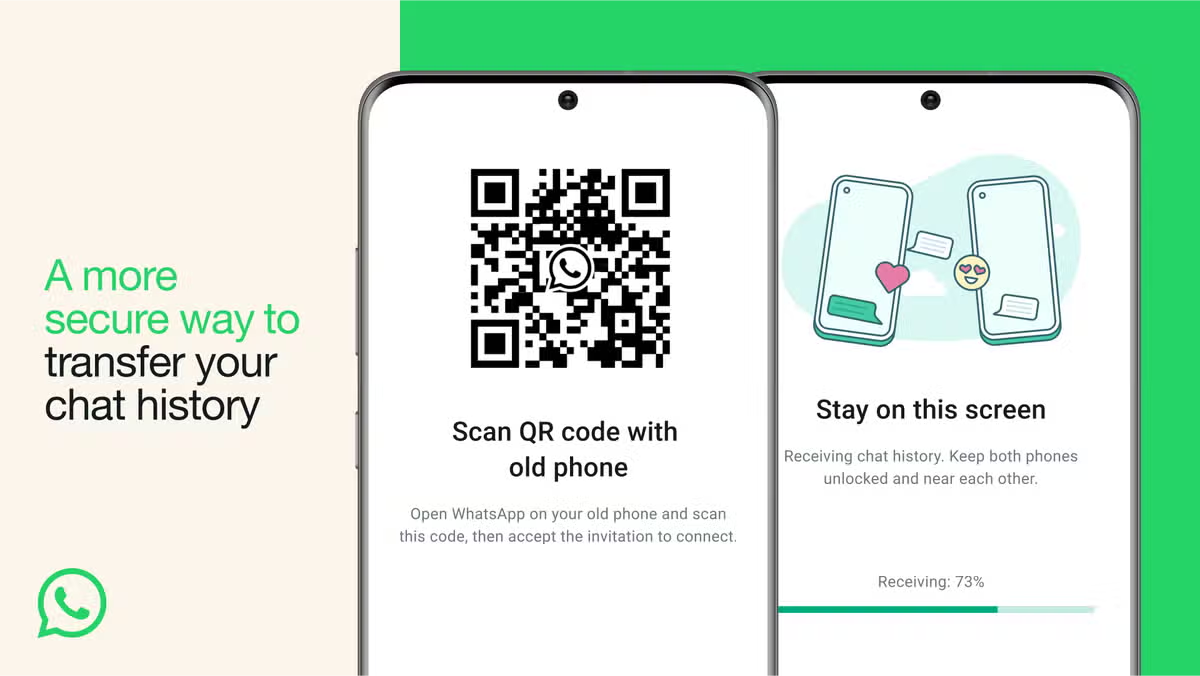
In mid-2023, WhatsApp introduced a feature that allows you to transfer your chats using a QR code. Here’s how it works:
- Generate a QR Code: On the old phone, go to WhatsApp > Settings > Chat > Backup of the chat and select “QR code.”
- Scan The QR Code on The New Phone: Open WhatsApp on the new phone, tap on the three dots in the top-right corner, and select “Settings.” Tap on “Chat,” then “Backup of the chat,” and finally “Restore using QR code.”
Conclusion
Transferring WhatsApp messages from one phone to another is a straightforward process. Whether you’re switching from Android to iOS or vice versa, following these steps will ensure that your conversations are safely transferred to your new device.
Frequently Asked Questions (FAQs)
- Q: How do I Create a Backup of my Whatsapp Chats?
A: Go to Settings > Chat > Backup of the chat and select “Execute backup.” - Q: Can I Transfer my Whatsapp Messages From an Iphone to an Android Device Using Dr.Fone?
A: Yes, you can use Wondershare dr.Fone to transfer your WhatsApp messages from an iPhone to an Android device. - Q: How do I Restore a Backup of my Whatsapp Chats?
A: Go to Settings > Chat > Backup of the chat and select “Restore.” - Q: Can I Transfer my Whatsapp Messages Using a QR Code?
A: Yes, WhatsApp introduced a feature that allows you to transfer your chats using a QR code in mid-2023. - Q: How do I Use Wondershare Dr.Fone to Transfer my Whatsapp Messages?
A: Download and install dr.Fone on your computer, connect both devices, select “WhatsApp” as the app you want to transfer, and follow the prompts to complete the process. - Q: Can I Transfer my Whatsapp Messages From an Android Device to an Iphone Using Dr.Fone?
A: Yes, you can use Wondershare dr.Fone to transfer your WhatsApp messages from an Android device to an iPhone. - Q: How do I Create a Backup of my Whatsapp Chats on Google Drive?
A: Go to Settings > Chat > Backup of the chat and select “Execute backup.” - Q: Can I Restore a Backup of my Whatsapp Chats on Icloud?
A: Yes, you can restore a backup of your WhatsApp chats on iCloud by going to Settings > [Your Name] > iCloud > iCloud Backup and selecting “Back Up Now.”


