
Transforming a File Csv in Excel: A Step-by-step Guide
Are you tired of dealing with files in the CSV format, only to find that they don’t open properly in Excel? Look no further! In this article, we’ll show you how to transform a file CSV into an Excel file (XLS) using various software and online tools.
Why Transform a File Csv in Excel?
Transforming a file CSV in Excel allows you to view and edit the data in a more organized and user-friendly format. This is especially useful when working with large datasets or when you need to perform complex calculations on your data.
Software Solutions For Transforming a File Csv in Excel
- Microsoft Excel (Windows, Macos, Online)
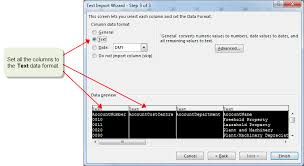
The first solution we recommend is using Microsoft Excel itself. If you have an Excel file open, you can simply import the CSV file by going to “File” > “Open” and selecting the CSV file. Once opened, Excel will automatically convert the file into a format that you can work with.
- Libreoffice (Windows, Macos, Linux)
Another alternative is LibreOffice, a free and open-source office suite. To transform a file CSV in LibreOffice, simply go to “File” > “Open” and select the CSV file. The software will automatically convert it into an Excel-compatible format.
- Apple Numbers (macOS, Online, Ios, Ipados)
If you’re using a Mac or have an Apple device, you can use Apple Numbers to transform a file CSV in Excel. To do this, go to “File” > “Open” and select the CSV file. Once opened, Numbers will automatically convert it into a format that you can work with.
Online Solutions For Transforming a File Csv in Excel
- Google Sheets (Online)
You can also use Google Sheets to transform a file CSV in Excel. To do this, go to the Google Sheets website and create a new spreadsheet. Then, click on “File” > “Import” and select the CSV file you want to import. Once imported, Google Sheets will automatically convert it into an Excel-compatible format.
- Convertio (Online)
Another online solution is Convertio, which allows you to transform a file CSV in Excel with ease. Simply upload your CSV file to the website, select the output format as XLS, and click “Convert”. The converted file will be saved on your computer.
Other Solutions For Transforming a File Csv in Excel
If none of the above solutions work for you, don’t worry! There are other online tools available that can help you transform a file CSV in Excel. Some popular options include:
- Online Converter Free (Online)
- ZamZar (Online)
Conclusion
Transforming a file CSV in Excel doesn’t have to be difficult or time-consuming. With the software and online solutions outlined above, you can easily convert your CSV files into XLS format and start working with them in no time.
Frequently Asked Questions (FAQs)
Q: What is the best way to transform a file CSV in Excel?
A: The best way is to use Microsoft Excel itself or LibreOffice, which are both designed specifically for this purpose.
Q: Can I use online tools to transform a file CSV in Excel?
A: Yes! Online tools like Google Sheets, Convertio, and ZamZar can also be used to transform a file CSV in Excel.
Q: What is the difference between Microsoft Excel and LibreOffice?
A: Microsoft Excel is a commercial software suite that offers advanced features and compatibility with various file formats. LibreOffice is a free and open-source alternative that also supports a wide range of file formats.
Key Takeaways
- Transforming a file CSV in Excel allows you to view and edit the data in a more organized format.
- Microsoft Excel, LibreOffice, Apple Numbers, and Google Sheets are software solutions for transforming a file CSV in Excel.
- Online tools like Convertio and ZamZar can also be used to transform a file CSV in Excel.
- There are other online solutions available that can help you transform a file CSV in Excel.


