
Transforming Your Vodafone Station Into a Wi-fi Repeater: A Step-by-step Guide
Are you looking for a way to extend your internet coverage without breaking the bank? Look no further! In this article, we’ll show you how to transform your Vodafone Station into a reliable Wi-Fi repeater. This simple and effective solution will allow you to enjoy seamless internet connectivity throughout your home or office.
Why Transform Your Vodafone Station Into a Repeater?
Before we dive into the steps, let’s quickly discuss why transforming your Vodafone Station into a repeater is a great idea:
- Easy Installation: With this method, you don’t need to purchase additional hardware or hire a professional. Simply follow our step-by-step guide, and you’ll be up and running in no time.
- Cost-effective: Instead of buying a separate Wi-Fi extender or repeater, you can repurpose your existing Vodafone Station.
- Improved Coverage: By transforming your Vodafone Station into a repeater, you’ll enjoy better internet connectivity throughout your home or office.
Prerequisites
Before we begin, make sure you have the following:
- A Vodafone Station (preferably one of the newer models)
- An Ethernet cable (Cat 7 or higher recommended)
- A computer or device connected to the same network as the Vodafone Station
Step-by-step Instructions
Follow these simple steps to transform your Vodafone Station into a reliable Wi-Fi repeater:
Step 1: Connect The Vodafone Station to Your Router
Connect the Ethernet cable from your router to the Vodafone Station. Ensure that both devices are turned on and functioning properly.
Step 2: Configure The Vodafone Station
Open a web browser and navigate to the Vodafone Station’s IP address (usually http://Vodafone.Station or 192.168.1.1). Log in with your administrator credentials, if prompted.
Step 3: Set Up The Repeater Mode
Access the Vodafone Station’s settings by clicking on “Expert Modality” and selecting “Modem Settings.” Then, click on “Generic Modem” and confirm that you want to change the mode. The device will restart in repeater mode.
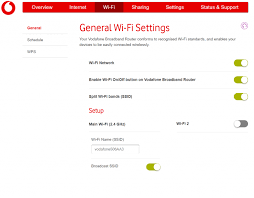
Step 4: Configure The Wi-fi Settings
Access the Vodafone Station’s settings again, and go to the “Wi-Fi” section. Set up a new network name (SSID) and password. This will be used for the extended Wi-Fi network.
Step 5: Update The Router’s IP Address
To avoid conflicts with your router’s IP address, update the Vodafone Station’s IP address by going to “IPv4 Settings.” Change the last three digits of the IP address to something unique (e.G., 192.168.2.1). Save the changes.
Step 6: Connect Your Devices
Connect your devices to the new Wi-Fi network using the SSID and password you created in Step 4.
Step 7: Test Your Connection
Verify that your devices can connect to the extended Wi-Fi network without any issues.
Tips And Variations
- To further improve coverage, consider placing the Vodafone Station in a central location.
- If you have multiple floors or large areas to cover, consider using additional Ethernet cables and repeaters.
- Be aware that this method may affect your router’s original performance. Monitor its functionality after making these changes.
Conclusion
Transforming your Vodafone Station into a Wi-Fi repeater is a simple and cost-effective solution for extending your internet coverage. By following our step-by-step guide, you’ll enjoy seamless connectivity throughout your home or office. Remember to update your router’s IP address to avoid conflicts, and test your connection to ensure everything is working smoothly.
Frequently Asked Questions (FAQs)
- Q: Can I Transform my Old Vodafone Station Into a Repeater?
A: Yes, but newer models are recommended for better performance. - Q: Will This Method Affect my Router’s Original Functionality?
A: It may cause minor changes to your router’s performance. Monitor its functionality after making these changes. - Q: Can I Use This Setup For Multiple Floors or Large Areas?
A: Yes, consider using additional Ethernet cables and repeaters for improved coverage. - Q: What if I Encounter Issues With my Connection?
A: Restart the Vodafone Station and router, then reconfigure the settings as needed.
Additional Resources
For more information on setting up your Vodafone Station or troubleshooting common issues, visit our Vodafone Station Guide or contact our support team.


