
Are you tired of spending hours researching and translating foreign texts? Look no further! In this article, we will explore the easiest ways to translate automatically using various software and services.
Why Use Automatic Translation?
Automatic translation can save you time and effort when dealing with foreign languages. Whether you’re a student, researcher, or business professional, being able to understand and communicate in multiple languages is essential. With automatic translation, you can:
- Quickly grasp the meaning of foreign texts
- Communicate effectively with people from diverse linguistic backgrounds
- Stay up-to-date with global news and trends
Software For Automatic Translation
Here are some top software options for automatic translation:
1. Microsoft Translator
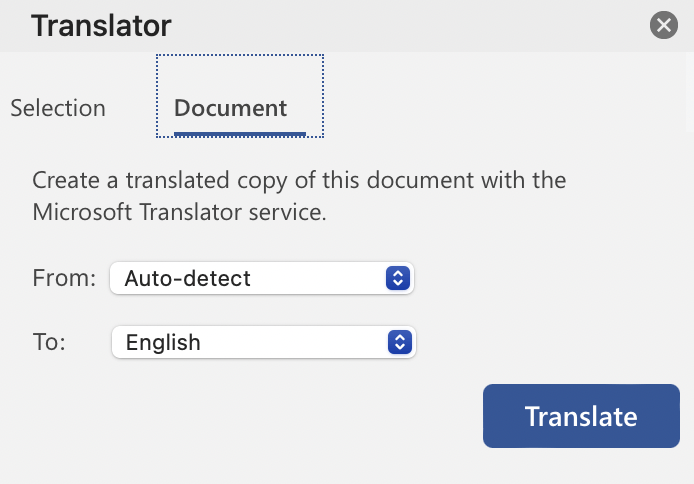
Microsoft Translator is a powerful tool that allows you to translate text, speech, and images in over 50 languages. It’s available as an app on your computer or mobile device.
- Features: Text, speech, and image translation
- Availability: Computer, Mobile (Android, iOS)
- Cost: Free
2. Google Translate
Google Translate is another popular option that offers text, speech, and image translation in over 100 languages. It’s available as a web service or app on your mobile device.
- Features: Text, speech, and image translation
- Availability: Web Service, Mobile (Android, iOS)
- Cost: Free
3. Reverso
Reverso is a powerful tool that offers text and speech translation in over 20 languages. It’s available as an app on your computer or mobile device.
- Features: Text and speech translation
- Availability: Computer, Mobile (Android, macOS)
- Cost: Free (with limitations), Premium subscription available
4. Babylon
Babylon is a popular software that offers text and speech translation in over 50 languages. It’s available as an app on your computer or mobile device.
- Features: Text and speech translation
- Availability: Computer, Mobile (Android, iOS)
- Cost: Free (with limitations), Premium subscription available
How to Use Automatic Translation
Using automatic translation is easy! Here are some step-by-step guides for popular software and services:
1. Translating With Google Translate
To translate a text using Google Translate, follow these steps:
- Go to the Google Translate website or open the app on your device
- Select the language you want to translate from (source) and the target language
- Enter the text you want to translate into the source language box
- Click the “Translate” button to get the translated text
2. Translating With Microsoft Translator
To translate a text using Microsoft Translator, follow these steps:
- Open the Microsoft Translator app on your device or access it through the web service
- Select the language you want to translate from (source) and the target language
- Enter the text you want to translate into the source language box
- Click the “Translate” button to get the translated text
3. Translating a Pdf With Google Translate
To translate a PDF using Google Translate, follow these steps:
- Go to the Google Translate website or open the app on your device
- Select the option for document translation (PDF)
- Upload the PDF file you want to translate
- Choose the language of the original text and the target language
- Click the “Translate” button to get the translated PDF
Conclusion
Automatic translation is a powerful tool that can save you time and effort when dealing with foreign languages. With popular software options like Microsoft Translator, Google Translate, Reverso, Babylon, and others, you can quickly grasp the meaning of foreign texts and communicate effectively with people from diverse linguistic backgrounds.
Whether you’re a student, researcher, or business professional, automatic translation is an essential tool to have in your digital toolkit. Try it out today!
Frequently Asked Questions (FAQs)
Q: What are the benefits of using automatic translation?
A: Automatic translation can save you time and effort when dealing with foreign languages.
Q: Which software options are available for automatic translation?
A: Popular options include Microsoft Translator, Google Translate, Reverso, Babylon, and others.
Q: How do I use automatic translation with Google Translate?
A: To translate a text using Google Translate, select the language you want to translate from (source) and the target language, enter the text into the source language box, and click the “Translate” button.
Q: Can I translate a PDF using Google Translate?
A: Yes! You can upload the PDF file to Google Translate and choose the language of the original text and the target language.
Q: Are there any costs associated with using automatic translation software?
A: Some software options are free, while others require a premium subscription or purchase.
Q: Can I use automatic translation on my mobile device?
A: Yes! Many software options offer mobile apps that you can download to your smartphone or tablet.
Q: Is automatic translation 100% accurate?
A: While automatic translation has come a long way in recent years, it’s not always 100% accurate. However, with popular software options like Microsoft Translator and Google Translate, the accuracy is high.
Q: Can I use automatic translation for other languages besides English?
A: Yes! Many software options offer support for over 50 languages, including Spanish, French, German, Chinese, Japanese, Korean, and many more.
Table of Contents
- How to Translate Automatically
- Software Options
- Step-by-Step Guides
- Conclusion
- Software For Automatic Translation
- Microsoft Translator
- Google Translate
- Reverso
- Babylon
- Frequently Asked Questions (FAQs)


