
Are you struggling to translate PDF files from one language to another? Don’t worry, we’ve got you covered! With the advancement of technology, there are numerous online tools and services that can help you translate PDF files with ease. In this article, we’ll explore two popular options: Google Translate and DeepL.
Why Use Online Translation Services?
Traditional methods of translating PDF files involve manually copying and pasting text from one language to another, which is not only time-consuming but also prone to errors. With online translation services, you can upload your PDF file, select the desired language, and receive a translated copy in minutes.
Google Translate: A Powerful Translation Tool
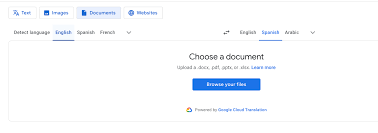
Google Translate is one of the most popular online translation tools available. Its simplicity and accuracy make it an ideal choice for translating PDF files. Here’s how to use Google Translate:
- Access Google Translate: Visit the Google Translate website and click on “Documents” at the top left corner.
- Select Language: Choose the language of your PDF file from the dropdown menu or select “Detect language” if you’re unsure.
- Upload File: Click on “Search for files on your computer” and select the PDF file you want to translate.
- Translate: Wait for the file to be uploaded and translated. You’ll receive a notification when it’s ready.
- Download Translated File: Click on “Save translation” to download the translated PDF file.
Deepl: A Reliable Alternative
DeepL is another reliable online translation service that can help you translate PDF files with ease. Here’s how to use DeepL:
- Access Deepl: Visit the DeepL website and click on “Translate file” at the top right corner.
- Select Language: Choose the language of your PDF file from the dropdown menu or select “Detect language” if you’re unsure.
- Upload File: Drag and drop the PDF file into the browser window or click on “Select file from computer” to upload it.
- Translate: Wait for the file to be uploaded and translated. You’ll receive a notification when it’s ready.
- Download Translated File: Click on “Save translation” to download the translated PDF file.
How to Translate Large Pdf Files
If you have large PDF files that you want to translate, don’t worry! Both Google Translate and DeepL can handle large files with ease. Here are some tips:
- Reduce File Size: If your PDF file is too large, consider reducing its size before uploading it.
- Use Cloud Storage: Consider using cloud storage services like Google Drive or Dropbox to upload your large PDF files.
Conclusion
Translating PDF files has never been easier! With Google Translate and DeepL, you can quickly and accurately translate PDF files from one language to another. Whether you’re a student, researcher, or business owner, these online translation services are perfect for anyone who needs to communicate in multiple languages.
Faqs
- What is The Best Way to Translate Pdf Files?
The best way to translate PDF files is to use online translation services like Google Translate and DeepL. - Can I Translate Large Pdf Files?
Yes, both Google Translate and DeepL can handle large PDF files with ease. - How Long Does it Take to Translate a Pdf File?
The time it takes to translate a PDF file depends on the size of the file and the language being translated. Generally, it takes around 5-10 minutes. - Is Google Translate Free?
Yes, Google Translate is free to use. - Do I Need to Create an Account to Use Deepl?
No, you don’t need to create an account to use DeepL. - Can I Translate Pdf Files on my Mobile Device?
Yes, both Google Translate and DeepL have mobile apps that allow you to translate PDF files on-the-go. - What is The Quality of The Translated Text?
The quality of the translated text depends on the accuracy of the translation service used. However, both Google Translate and DeepL are highly accurate and reliable. - Can I Edit or Modify The Translated Text?
Yes, you can edit or modify the translated text if needed.
I hope this article has helped you learn how to translate PDF files with ease!


