
How to Resynchronize Digital Terrestrial Channels on Your TV or Decoder
Are you experiencing problems viewing your favorite digital terrestrial channels? Have you missed an episode of your preferred series because the channel was no longer visible on your television? Don’t worry, this guide is here to help you resynchronize your digital terrestrial channels and get back to watching your favorite programs.
Understanding Digital Terrestrial Channels
Digital terrestrial channels are broadcast using a digital signal, which provides better picture and sound quality compared to analog signals. The channels are transmitted by various emitters, such as Rai, Mediaset, and others, and can be received through an antenna connected to your TV or decoder.
Why Resynchronize Digital Terrestrial Channels?
Resynchronizing digital terrestrial channels is necessary when the frequencies of transmission change, which can happen due to changes in the broadcasting schedule or technical issues with the emitters. If you’ve missed a channel because it’s no longer visible on your TV, resynchronizing may help restore access to that channel.
How to Resynchronize Digital Terrestrial Channels
Resynchronizing digital terrestrial channels is a relatively simple process that can be done using your TV or decoder settings. Here’s how to do it:
Automatic Resynchronization
Most modern TVs and decoders come with an automatic resynchronization feature, which allows you to update the channel list without manual intervention.
- Light up your TV or decoder.
- Access the menu by pressing the “Menu” button on your remote control.
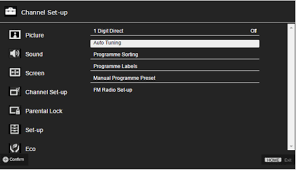
- Select the option for resynchronizing digital terrestrial channels.
- Choose the resynchronization method (automatic or manual).
- Follow the prompts to complete the process.
Manual Resynchronization
If you prefer a more manual approach, here’s how to do it:
- Light up your TV or decoder.
- Access the menu by pressing the “Menu” button on your remote control.
- Select the option for resynchronizing digital terrestrial channels.
- Choose the manual resynchronization method.
- Enter the frequency, channel, and other relevant details of the emitter you want to add to your list.
- Follow the prompts to complete the process.
Specific Instructions For Popular Tvs And Decoders
If you’re using a specific TV or decoder model, here are some additional instructions:
-
Samsung Tv: To resynchronize digital terrestrial channels on a Samsung TV, follow these steps:
- Light up your TV.
- Access the menu by pressing the “Menu” button on your remote control.
- Select the option for settings.
- Choose the option for transmission settings.
- Select the option for channel resynchronization.
- Follow the prompts to complete the process.
-
LG Tv: To resynchronize digital terrestrial channels on an LG TV, follow these steps:
- Light up your TV.
- Access the menu by pressing the “Menu” button on your remote control.
- Select the option for settings.
- Choose the option for channel settings.
- Select the option for resynchronization.
- Follow the prompts to complete the process.
-
Telesystem Decoder: To resynchronize digital terrestrial channels on a Telesystem decoder, follow these steps:
- Light up your decoder.
- Access the menu by pressing the “Menu” button on your remote control.
- Select the option for channel research.
- Choose the manual resynchronization method.
- Enter the frequency, channel, and other relevant details of the emitter you want to add to your list.
- Follow the prompts to complete the process.
-
Sky Decoder: To resynchronize digital terrestrial channels on a Sky decoder, follow these steps:
- Connect the Sky decoder to the antenna using the appropriate cable.
- Light up the Sky decoder and TV.
- Access the menu by pressing the “Menu” button on your remote control.
- Select the option for settings.
- Choose the option for terrestrial digital channels.
- Select the option for resynchronization.
- Follow the prompts to complete the process.
Troubleshooting Common Issues
If you’re experiencing problems with resynchronizing your digital terrestrial channels, here are some common issues and solutions:
- Frequency Changes: If the frequencies of transmission have changed, you may need to resynchronize your channels manually.
- Antenna Issues: If there’s a problem with your antenna, it may affect your ability to receive digital terrestrial channels. Check your antenna for any damage or corrosion.
- Decoder or TV Issues: If there’s an issue with your decoder or TV, you may need to restart them or update the software.
Ordering Channels on Your Tv
If you’ve successfully resynchronized your digital terrestrial channels but they’re not in the order you prefer, here are some tips:
- Use the settings on your TV to reorder the channels alphabetically.
- Create personalized lists of channels using the settings on your TV.
- Consult my guide for more detailed instructions.
By following these steps and troubleshooting common issues, you should be able to resynchronize your digital terrestrial channels and enjoy uninterrupted viewing of your favorite programs.


