
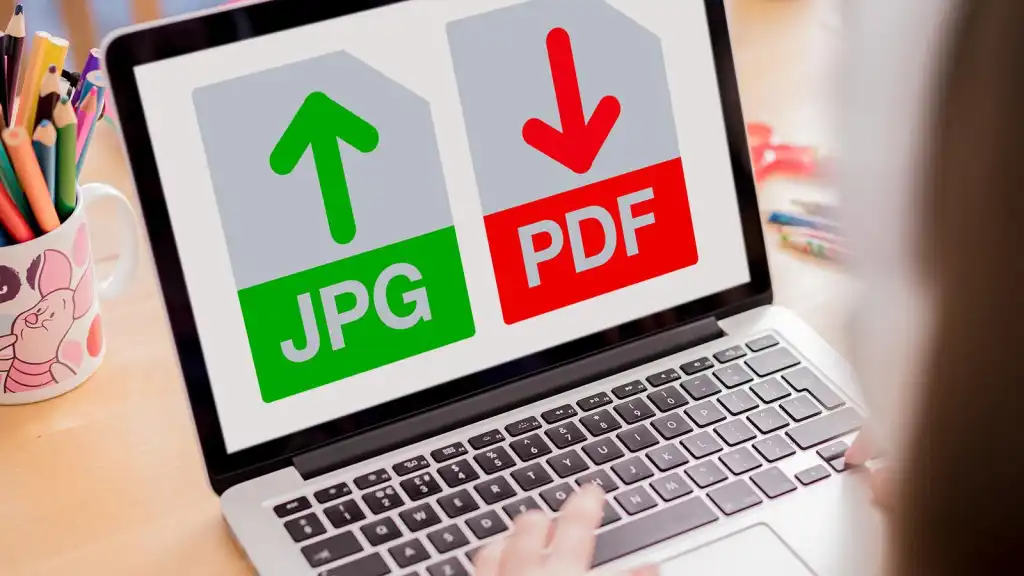
Transforming Pdfs Into Jpgs: A Step-by-step Guide
Are you tired of dealing with PDF files that won’t convert to JPG? Do you wish there was an easier way to transform these documents without having to spend hours figuring out how to do it? Well, you’re in luck! In this article, we’ll show you how to easily transform a PDF into a JPG using various methods.
Why Convert Pdfs to Jpgs?
Before we dive into the nitty-gritty of converting PDFs to JPGs, let’s talk about why you might want to do this. PDFs are great for sharing documents and preserving layout, but they can be bulky and difficult to edit. JPGs, on the other hand, are ideal for sharing images and are much smaller in file size.
Method 1: Using a Free Program on Windows
If you’re using a PC with Windows, you can easily convert PDFs to JPGs using a free program called PDFill PDF Editor. This program is available in both English and Italian languages.
To get started, download the PDFill PDF Editor from its official website. Once downloaded, follow these steps:
- Double-click on the installer file to start the installation process.
- Follow the prompts to install the software, accepting the terms of the license agreement.
- Launch the program by double-clicking on its icon.
- Click on “New Project” and then select “Open a New PDF”.
- Choose the PDF file you want to convert and click on “Export as Image”.
- Select the format as JPG and choose the desired quality level.
Method 2: Using The Built-in Preview App on Mac
If you’re using a Mac, you can use the built-in Preview app to convert PDFs to JPGs.
- Open the Preview app by clicking on its icon in the Applications folder.
- Click on “File” and then select “Open”.
- Choose the PDF file you want to convert and click on “Open”.
- Go to the menu bar and select “File” > “Export”.
- Select the format as JPG and choose the desired quality level.
Method 3: Using an Android App
If you’re using an Android device, you can download a third-party app called PDF to JPG Converter to convert PDFs to JPGs.
- Download and install the app from the Google Play Store.
- Open the app and grant it permission to access your files.
- Choose the PDF file you want to convert and click on “Convert”.
- Select the format as JPG and choose the desired quality level.
Method 4: Using an Iphone App
If you’re using an iPhone, you can use the built-in Files app to convert PDFs to JPGs.
- Open the Files app by clicking on its icon.
- Click on “Browse” and select the PDF file you want to convert.
- Go to the menu bar and tap on the share button.
- Select “PDF to JPG” from the sharing options.
Method 5: Using Adobe Photoshop
If you’re using Adobe Photoshop, you can open a PDF file and then export it as a JPG.
- Open Adobe Photoshop and click on “File” > “Open”.
- Choose the PDF file you want to convert.
- Click on “Image” > “Export” to export the image as a JPG.
Method 6: Using an Online Service
If you don’t have access to any of the above methods, you can use an online service like iLovePDF to convert PDFs to JPGs.
- Go to the iLovePDF website and click on the “PDF to JPG” button.
- Select the PDF file you want to convert and click on “Upload”.
- Choose the format as JPG and select the desired quality level.
Conclusion
Converting PDFs to JPGs is a simple process that can be achieved using various methods. Whether you’re using a PC, Mac, Android device, or iPhone, there’s an easy way to transform your PDF files into beautiful JPG images. We hope this article has been helpful in showing you how to do it!
Frequently Asked Questions
- Q: Can I Convert Multiple Pdf Files at Once?
A: Yes, most of the methods listed above allow you to convert multiple PDF files at once. - Q: What is The Quality Level of The Converted Jpg Image?
A: The quality level of the converted JPG image depends on the method used and can range from low to high quality. - Q: Can I Edit The Converted Jpg Image?
A: Yes, you can edit the converted JPG image using any image editing software or app. - Q: Is There a Limit to The Number of Pdf Files That Can be Converted at Once?
A: No, most methods listed above do not have a limit on the number of PDF files that can be converted at once. - Q: Can I Convert Pdfs to Other Image Formats Besides Jpg?
A: Yes, some methods listed above allow you to convert PDFs to other image formats like PNG or GIF. - Q: Is it Safe to Use Online Services to Convert Pdfs to Jpgs?
A: Yes, most online services that offer PDF-to-JPG conversion are safe and secure. - Q: Can I Convert Password-protected Pdf Files?
A: No, most methods listed above do not support converting password-protected PDF files. - Q: What is The File Size Limit For Converted Jpg Images?
A: The file size limit for converted JPG images depends on the method used and can range from a few kilobytes to several megabytes.


