
Transforming a Pdf Into Word: A Step-by-step Guide
Are you tired of dealing with uneditable PDF files? Do you want to transform them into Word documents, but don’t know where to start? Look no further! In this article, we’ll guide you through the process of converting a PDF into a Word document, using various software and online services.
Why Can’t I Just Edit a Pdf Like a Word Document?
Before we dive into the nitty-gritty, let’s understand why PDFs are not editable like Word documents. PDFs (Portable Document Format) are designed to preserve the layout and formatting of a document, making them ideal for printing and sharing. However, this also means that they cannot be easily edited or modified.
Software Solutions
Fortunately, there are several software solutions available that can help you transform a PDF into a Word document. Here are some of the most popular options:
Microsoft Word (Windows/macOS)
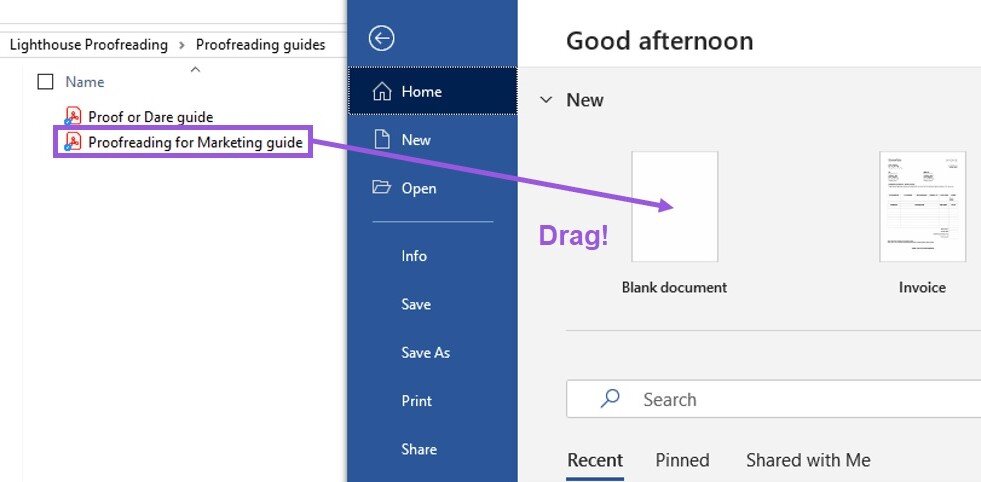
The first option is to use Microsoft Word itself. If you have the latest version of Word installed on your computer, you can open a PDF file directly within the program and convert it into a Word document.
How to Convert a Pdf to Word in Microsoft Word:
- Open Microsoft Word on your computer.
- Go to File > Open and select the PDF file you want to convert.
- Click on the “OK” button to accept any layout changes.
- Save the document as a Word file (DOC or DOCX).
Doxillion Document Converter (Windows/macOS)
Another software solution is Doxillion, a free document converter that can convert PDFs into various formats, including Word.
How to Convert a Pdf to Word Using Doxillion:
- Download and install Doxillion on your computer.
- Open the program and add the PDF file you want to convert.
- Select the output format as Word (DOC or DOCX).
- Choose any additional settings, if needed, and click on “Convert”.
Adobe Acrobat DC (Windows/macOS)
If you have Adobe Acrobat installed on your computer, you can use it to convert a PDF into a Word document.
How to Convert a Pdf to Word Using Adobe Acrobat:
- Open Adobe Acrobat on your computer.
- Go to File > Open and select the PDF file you want to convert.
- Click on the “Export” button and select Microsoft Word (DOC or DOCX) as the output format.
- Choose any additional settings, if needed, and click on “Export”.
Online Services
If you don’t have software installed on your computer or prefer an online solution, there are several services available that can help you convert a PDF into a Word document.
Docspal
One popular online service is DocsPal, which allows you to upload a PDF file and convert it into various formats, including Word.
How to Convert a Pdf to Word Using Docspal:
- Go to the DocsPal website.
- Click on “Browse” and select the PDF file you want to convert.
- Choose the output format as Microsoft Word (DOC or DOCX).
- Wait for the conversion process to complete, then download the resulting document.
Free Online Ocr
Another online service is Free Online OCR, which can help you transform a scanned PDF into an editable Word document.
How to Convert a Pdf to Word Using Free Online Ocr:
- Go to the Free Online OCR website.
- Click on “Select File” and choose the PDF file you want to convert.
- Select Microsoft Word (DOC or DOCX) as the output format.
- Wait for the conversion process to complete, then download the resulting document.
Smartphone And Tablet Apps
If you’re looking for a solution that can be used on your smartphone or tablet, there are several apps available that can help you convert a PDF into a Word document.
Converter Pdf to Word (Android/iOS/iPadOS)
One popular app is Converter PDF to Word, which allows you to transform PDFs into various formats, including Word.
How to Convert a Pdf to Word Using Converter Pdf to Word:
- Download and install the app on your device.
- Open the app and select the PDF file you want to convert.
- Choose the output format as Microsoft Word (DOC or DOCX).
- Wait for the conversion process to complete, then save the resulting document.
Pdf Conversion Suite (Android)
Another app is PDF Conversion Suite, which allows you to transform PDFs into various formats, including Word.
How to Convert a Pdf to Word Using Pdf Conversion Suite:
- Download and install the app on your device.
- Open the app and select the PDF file you want to convert.
- Choose the output format as Microsoft Word (DOC or DOCX).
- Wait for the conversion process to complete, then save the resulting document.
Conclusion
Converting a PDF into a Word document can be a daunting task, but with the right software or online service, it’s become much easier. Whether you use Microsoft Word, Doxillion, Adobe Acrobat, DocsPal, Free Online OCR, or one of the many smartphone and tablet apps available, you’ll be able to transform your PDFs into editable Word documents in no time.
Frequently Asked Questions
- Q: Can I Edit a Pdf Like a Word Document?
A: No, PDFs are designed to preserve their layout and formatting, making them uneditable. - Q: How do I Convert a Pdf to Word Using Microsoft Word?
A: Open Microsoft Word, go to File > Open, select the PDF file, click on “OK” to accept layout changes, and save as a Word document (DOC or DOCX). - Q: What is Doxillion Document Converter?
A: Doxillion is a free software that can convert PDFs into various formats, including Word. - Q: Can I Use Adobe Acrobat to Convert a Pdf to Word?
A: Yes, you can use Adobe Acrobat to export a PDF as a Microsoft Word document (DOC or DOCX). - Q: Are There Any Online Services That Can Help me Convert a Pdf to Word?
A: Yes, there are several online services available, including DocsPal and Free Online OCR. - Q: Can I Use my Smartphone or Tablet to Convert a Pdf to Word?
A: Yes, there are several apps available that allow you to transform PDFs into Word documents on your device. - Q: How do I Choose The Right Software or Online Service For Converting my Pdfs to Word?
A: Consider factors such as ease of use, speed, and the quality of the resulting document.
I hope this article has been helpful in guiding you through the process of converting a PDF into a Word document. If you have any further questions or need additional assistance, please don’t hesitate to ask!


