
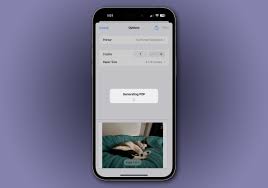
Transforming Photos Into Pdf on Your Mobile: A Comprehensive Guide
As we increasingly rely on our mobile devices for everyday tasks, the need to convert photos into PDF format has become more pressing than ever. Whether it’s for work, school, or personal projects, having a way to transform your images into a portable document format (PDF) can be incredibly useful.
In this article, we’ll explore various methods to turn your mobile photos into PDFs using different operating systems and devices. We’ll cover the most efficient and user-friendly approaches, ensuring you’re equipped with the knowledge to complete this task efficiently.
Understanding The Requirements
Before diving into the solutions, it’s essential to understand what’s required for converting a photo into a PDF on your mobile device:
- A mobile device (smartphone or tablet) running Android, iOS, or iPadOS
- The ability to access and use various apps or built-in features
Method 1: Using Built-in Features
One of the most straightforward methods is utilizing the built-in features of your operating system. Here’s how you can do it:
Android Devices
If you’re using an Android device, follow these steps:
- Open the Photos app (Gallery or another image management app).
- Select the photo you want to convert into a PDF.
- Tap on the three dots (⋮) at the top-right corner of the screen.
- Choose “Share” and then select “Save as PDF.”
- Name your file and choose where to save it.
Ios Devices
For iOS devices, follow these steps:
- Open the Photos app.
- Select the photo you want to convert into a PDF.
- Tap on the share icon (square with an arrow) at the bottom of the screen.
- Choose “Print” and then tap on the “PDF” option.
- Name your file and choose where to save it.
Method 2: Using Google Drive
Google Drive is another excellent solution for converting photos into PDFs. Here’s how you can use it:
- Open the Google Drive app (available on Android, iOS, and iPadOS).
- Tap on the “+” icon at the top-right corner of the screen.
- Choose “Scan” from the menu.
- Take a photo using your device’s camera or select an existing image from your gallery.
- Follow the prompts to add new pages, edit the image, and save the PDF.
Method 3: Using Microsoft Office
Microsoft Office is another powerful tool for converting photos into PDFs. Here’s how you can use it:
- Open the Microsoft Office app (available on Android, iOS, and iPadOS).
- Tap on the “+” icon at the top-right corner of the screen.
- Choose “Digitalize in PDF” or “Images in PDF.”
- Follow the prompts to take a photo using your device’s camera or select an existing image from your gallery.
Method 4: Using Swiftscan
SwiftScan is another excellent app for converting photos into PDFs. Here’s how you can use it:
- Download and install the SwiftScan app (available on Android, iOS, and iPadOS).
- Open the app and tap on the “+” icon at the top-right corner of the screen.
- Choose “Scan” from the menu.
- Take a photo using your device’s camera or select an existing image from your gallery.
Method 5: Using Tiny Scan
Tiny Scan is another app that can help you convert photos into PDFs. Here’s how you can use it:
- Download and install the Tiny Scan app (available on Android, iOS, and iPadOS).
- Open the app and tap on the “+” icon at the top-right corner of the screen.
- Choose “Scan” from the menu.
- Take a photo using your device’s camera or select an existing image from your gallery.
Other Solutions
If you’re still unsure about which method to use, here are some additional alternatives:
Microsoft Lens
Microsoft Lens is another app that can help you convert photos into PDFs.
Image to Pdf Converter
This Android-specific app can also be used to convert images into PDFs.
Online Converters
There are various online converters that can help you transform images into PDFs. However, please note that these solutions might require a computer or tablet with internet access.
Conclusion
Converting photos into PDFs on your mobile device is now easier than ever. With the methods outlined in this article, you should be able to accomplish this task efficiently and effectively. Whether it’s using built-in features, Google Drive, Microsoft Office, SwiftScan, Tiny Scan, or other solutions, you’re sure to find a method that suits your needs.
Faqs
- Q: Can I Use These Methods on my Tablet?
A: Yes, most of the methods mentioned in this article can be used on tablets running Android, iOS, or iPadOS. - Q: How do I Edit The Image Before Converting it Into a Pdf?
A: Each method has its own built-in editing features or allows you to use external apps for further editing. - Q: Can I Save Multiple Images as Separate Pdfs?
A: Yes, most of the methods allow you to save individual images as separate PDFs. - Q: What if my Device Doesn’t Support The Built-in Feature or App?
A: You can try using alternative apps like SwiftScan or Tiny Scan. - Q: Can I Convert Videos Into Pdfs?
A: No, most of these methods are designed for converting images into PDFs only. - Q: How do I Share my Converted Pdfs With Others?
A: Each method has its own sharing features or allows you to export the file externally. - Q: Can I Use These Methods on Devices Running Other Operating Systems?
A: Unfortunately, most of these methods are specific to Android, iOS, and iPadOS devices. - Q: Are There Any Additional Fees For Using These Methods?
A: Most of these methods are free or offer in-app purchases. However, some apps might require a subscription for premium features.
We hope this article has provided you with the necessary guidance to transform your photos into PDFs efficiently and effectively on your mobile device.


