
Transforming a File From Word to Pdf on Ipad: A Step-by-step Guide
Are you struggling to transform a file from Word to PDF on your iPad? Don’t worry, we’ve got you covered! In this article, we’ll walk you through the process of converting a Word document to PDF using various apps and online services.
Why Convert a Word Document to Pdf?
Converting a Word document to PDF is essential for several reasons:
- Preserving Formatting: PDFs preserve the original formatting of your document, including fonts, layouts, and graphics.
- Ensuring Compatibility: PDFs are compatible with most devices and platforms, making it easy to share and access your documents across different systems.
- Enhancing Security: PDFs can be password-protected, ensuring that only authorized individuals can access your sensitive information.
Method 1: Using The Ipad’s Built-in Functionality
The first method involves using the iPad’s built-in functionality to convert a Word document to PDF. Here’s how:
- Open the “Files” app on your iPad.
- Locate the Word document you want to convert and tap on it.
- Tap the three dots (*) in the top-right corner of the screen.
- Select “Share” from the menu.
- Choose the “Print” option.
- Select the “Save as PDF” option.
- Choose a location to save your PDF file.
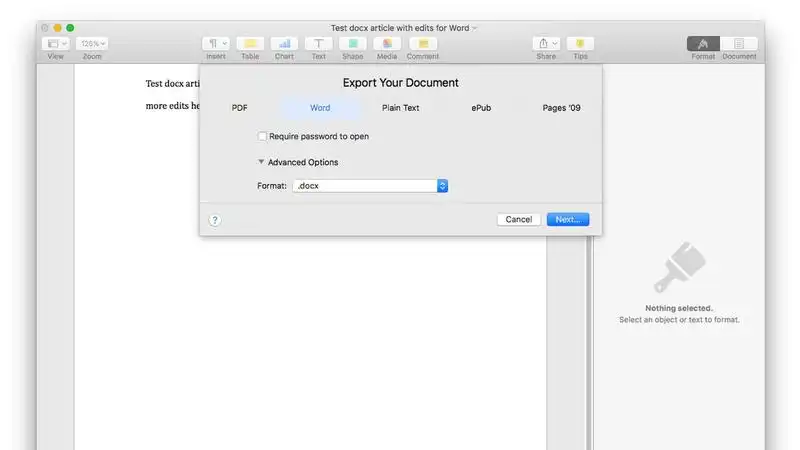
Method 2: Using The Pages App
The Pages app is another great way to convert a Word document to PDF on your iPad. Here’s how:
- Open the Pages app and create a new document or open an existing one.
- Tap the “File” menu and select “Open” from it.
- Locate the Word document you want to convert and tap on it.
- Tap the three dots (*) in the top-right corner of the screen.
- Select “Share” from the menu.
- Choose the “Export” option.
- Select the “PDF” format and choose a location to save your file.
Method 3: Using Online Services
If you don’t have access to an iPad or prefer not to use an app, there are online services that can help you convert a Word document to PDF. Here’s how:
- Open a web browser on your device (e.G., Safari, Chrome).
- Go to the website of an online service like iLovePDF or Convertio.
- Select the “Upload” option and choose the Word document you want to convert.
- Wait for the file to upload and be converted to PDF.
- Download your PDF file from the website.
Conclusion
Transforming a Word document to PDF on iPad is a straightforward process that can be accomplished using various apps and online services. By following these methods, you’ll be able to preserve the original formatting of your document, ensure compatibility across different devices, and enhance security through password protection.
Here are some frequently asked questions (FAQs) related to this topic:
Frequently Asked Questions
- Q: What is The Best Method For Converting a Word Document to Pdf on Ipad?
A: The best method depends on your personal preference. If you prefer using an app, Pages or Rows might be suitable options. However, if you prefer online services, iLovePDF or Convertio could work well. - Q: How do I Preserve The Original Formatting of my Word Document When Converting it to Pdf?
A: To preserve the original formatting, use a method that involves exporting your file in its original format (e.G., Using Pages) rather than printing or sharing it as a PDF. This will ensure that the formatting is preserved. - Q: Can I Convert Multiple Word Documents to Pdf at Once?
A: Yes, you can convert multiple Word documents to PDF at once using online services like iLovePDF or Convertio. Simply upload all the files and wait for them to be converted.
Conclusion
In conclusion, transforming a Word document to PDF on iPad is a simple process that involves various methods and tools. By choosing the best approach based on your preferences and needs, you’ll be able to preserve the original formatting of your document, ensure compatibility across different devices, and enhance security through password protection.


