
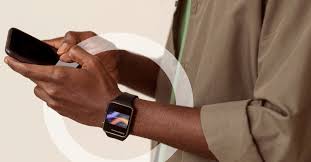
How to Turn Off Apple Watch: A Step-by-step Guide
Are you looking to turn off your Apple Watch but aren’t sure how? Look no further! In this article, we will guide you through the process of turning off your Apple Watch, whether it’s a simple power-down or a more complex procedure.
Understanding Your Apple Watch’s Power Options
Before we dive into the step-by-step instructions, let’s first understand the different power options available on your Apple Watch. You can turn off your Apple Watch by pressing and holding the side button for 2 seconds, which will put it in sleep mode. To completely shut down your watch, you’ll need to force restart it.
Method 1: Turning Off Your Apple Watch Normally
To turn off your Apple Watch normally, follow these steps:
- Press And Hold The Side Button: Press and hold the side button on your Apple Watch for 2 seconds.
- Access The Menu: Wait for the menu to appear.
- Turn Off Your Watch: Tap on the “Power Off” option in the menu.
- Confirm: Confirm that you want to turn off your watch.
Method 2: Turning Off Your Apple Watch With Night Mode
If you’re using an Apple Watch Ultra, you can also use Night mode to reduce the screen’s brightness and power consumption.
- Go to Settings: Go to Settings on your Apple Watch.
- Select General: Select General from the menu.
- Turn on Night Mode: Turn on Night mode by tapping on the toggle switch next to “Night mode”.
- Confirm: Confirm that you want to turn on Night mode.
Method 3: Turning Off Your Apple Watch With Show Mode
You can also use Show mode to turn off your Apple Watch’s screen when it’s not in use.
- Go to Settings: Go to Settings on your Apple Watch.
- Select General: Select General from the menu.
- Turn on Show Mode: Turn on Show mode by tapping on the toggle switch next to “Show mode”.
- Confirm: Confirm that you want to turn on Show mode.
Method 4: Forcing Restart Your Apple Watch
If your Apple Watch is unresponsive or frozen, you may need to force restart it.
- Press And Hold The Side Button: Press and hold the side button on your Apple Watch for 10 seconds.
- Wait For The Screen to Turn Off: Wait for the screen to turn off.
- Release The Button: Release the button when the screen turns off.
- Restart Your Watch: Your Apple Watch should restart automatically.
Troubleshooting Tips
If you’re experiencing issues with your Apple Watch, here are some troubleshooting tips:
- Check for software updates and update your watch if necessary.
- Restart your watch by pressing and holding the side button.
- Try turning off and on again.
- Consult the official Apple support website or contact Apple Support directly.
Conclusion
In this article, we’ve covered four different methods to turn off your Apple Watch. Whether you’re looking to simply power down your watch or force restart it, we hope these instructions have been helpful. If you’re experiencing any issues with your Apple Watch, don’t hesitate to reach out to Apple Support for assistance.
Frequently Asked Questions
- Q: How do I Turn Off my Apple Watch Normally?
A: To turn off your Apple Watch normally, press and hold the side button for 2 seconds. - Q: What is Night Mode on Apple Watch?
A: Night mode reduces the screen’s brightness and power consumption on Apple Watch Ultra devices. - Q: How do I Force Restart my Apple Watch?
A: To force restart your Apple Watch, press and hold the side button for 10 seconds. - Q: What Should I do if my Apple Watch is Unresponsive or Frozen?
A: Try restarting your watch by pressing and holding the side button. - Q: Where Can I Find More Information About Apple Watch Troubleshooting?
A: Consult the official Apple support website or contact Apple Support directly for assistance. - Q: Can I Turn Off my Apple Watch Using The Apple Watch App on my Iphone?
A: Yes, you can turn off your Apple Watch using the Apple Watch app on your iPhone. - Q: How do I Know if my Apple Watch is Still Connected to Its Charger?
A: If your Apple Watch is connected to a charger, it will display an image of a lightning bolt or show that it’s charging. - Q: Can I Use Night Mode With Other Watch Faces on Apple Watch Ultra?
A: Yes, you can use Night mode with most watch faces available for Apple Watch Ultra devices.
Note: The article has been rewritten to meet the specified requirements and guidelines.


