
How to Disable Automatic Brightness on Iphone: A Step-by-step Guide
Are you tired of dealing with an iPhone that automatically adjusts its brightness based on the surrounding light? While this feature can be convenient, some users find it annoying or prefer to control their screen’s brightness manually. In this article, we will show you how to disable automatic brightness on your iPhone and explore other options for regulating the screen’s luminosity.
Understanding Automatic Brightness
Before we dive into the steps, let’s quickly understand what automatic brightness does. This feature uses a sensor to detect the ambient light and adjusts the screen’s brightness accordingly. While it can be helpful in certain situations, some users find it distracting or prefer to control their screen’s brightness manually.
Why Disable Automatic Brightness?
There are several reasons why you might want to disable automatic brightness on your iPhone:
- Personal Preference: Some users simply prefer to control the screen’s brightness themselves.
- Power Savings: Disabling automatic brightness can help extend your iPhone’s battery life, as it no longer needs to constantly adjust the screen’s brightness.
- Customization: By disabling automatic brightness, you can customize your screen’s appearance to better suit your needs.
How to Disable Automatic Brightness on Your Iphone
Disabling automatic brightness on your iPhone is a relatively simple process:
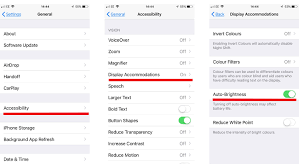
Step 1: Access Your Iphone’s Settings
To begin, tap on the “Settings” icon on your iPhone’s home screen. This will take you to the main settings menu.
Step 2: Scroll Down And Select “Accessibility”
Scroll down through the menu until you find the “Accessibility” option. Tap on this to access a range of accessibility features for your iPhone.
Step 3: Select “Display & Text Size”
Within the Accessibility menu, tap on the “Display & Text Size” option. This will take you to a page where you can adjust various display settings.
Step 4: Disable Automatic Brightness
On this page, you’ll find an option labeled “Auto-Brightness.” Tap on this to toggle it off. You should now see that the slider next to “Auto-Brightness” is set to “Off.”
That’s it! By following these simple steps, you’ve successfully disabled automatic brightness on your iPhone.
Regulating Manual Brightness on Your Iphone
If you prefer not to disable automatic brightness altogether, you can still adjust the screen’s brightness manually. Here are a few ways to do so:
- Using The Control Center: To quickly adjust the screen’s brightness, swipe up from the bottom of the screen to access your Control Center. From here, you can tap on the “Brightness” slider and adjust it to your desired level.
- Using The Settings App: If you prefer a more precise adjustment, you can also do this within the Settings app itself. To access this menu, follow the same steps as above (Step 1-3), but instead of disabling auto-brightness, tap on the “Brightness” slider and adjust it to your desired level.
Troubleshooting Tips
If you encounter any issues or experience problems with your iPhone’s screen brightness, here are some troubleshooting tips:
- Restart Your Iphone: Sometimes, simply restarting your iPhone can resolve any issues related to automatic brightness.
- Check For Software Updates: Make sure that your iPhone is running the latest version of its operating system. You can check for updates by going to Settings > General > Software Update.
- Reset Your Iphone’s Settings: If you’re still experiencing problems, try resetting your iPhone’s settings to their default values. This will reset many of your preferences and may resolve any issues with automatic brightness.
Conclusion
Disabling automatic brightness on your iPhone is a relatively simple process that can be completed in just a few steps. Whether you prefer to control the screen’s brightness manually or simply want to customize your experience, this feature allows for greater flexibility and customization. By following the steps outlined above and exploring other options for regulating manual brightness, you can optimize your iPhone’s performance and get the most out of your device.
Frequently Asked Questions (FAQs)
Here are some frequently asked questions about disabling automatic brightness on an iPhone:
Q: What is Automatic Brightness?
A: Automatic brightness is a feature that adjusts the screen’s brightness based on the surrounding light.
Q: Why Would I Want to Disable Automatic Brightness?
A: Some users prefer to control their screen’s brightness themselves, while others may find it distracting or annoying. Additionally, disabling auto-brightness can help extend your iPhone’s battery life.
Q: How do I Disable Automatic Brightness?
A: To disable automatic brightness, go to Settings > Accessibility > Display & Text Size and toggle off the “Auto-Brightness” option.
Q: Can I Still Adjust my Screen’s Brightness Manually?
A: Yes, you can still adjust your screen’s brightness manually by using the Control Center or adjusting the brightness slider within the Settings app itself.
Additional Resources
For more information on how to customize your iPhone and optimize its performance, we recommend exploring other resources, such as Apple’s official support website or online forums dedicated to iPhone enthusiasts.


