
How to Disable Calls on Your Phone: A Comprehensive Guide
Are you tired of receiving unwanted calls on your smartphone? Do you want to know how to disable calls on your phone in a temporary or permanent mode? Look no further! In this article, we will provide you with a step-by-step guide on how to disable calls on your Android and iOS device.
Why Disable Calls on Your Phone?
Before we dive into the instructions, let’s talk about why you might want to disable calls on your phone. Perhaps you’re experiencing annoying telemarketing calls or spam messages from unknown numbers. Maybe you just want some peace and quiet without being disturbed by unwanted calls. Whatever the reason, disabling calls can be a great way to regain control over your digital life.
Disabling Calls on Android
If you have an Android device, follow these steps to disable calls:
- Enable Do Not Disturb Mode: Go to Settings > Sound & Vibration > Do not disturb mode. Enable this feature by switching the toggle button to ON.
- Block Unknown Numbers: Go to Settings > Sound & Vibration > Block unknown numbers. Switch the toggle button to ON.
- Use Call Blocker Apps: There are several call blocker apps available on the Google Play Store, such as Truecaller and Call Blocker. These apps can help you block unwanted calls from specific numbers or categories.
Disabling Calls on Ios
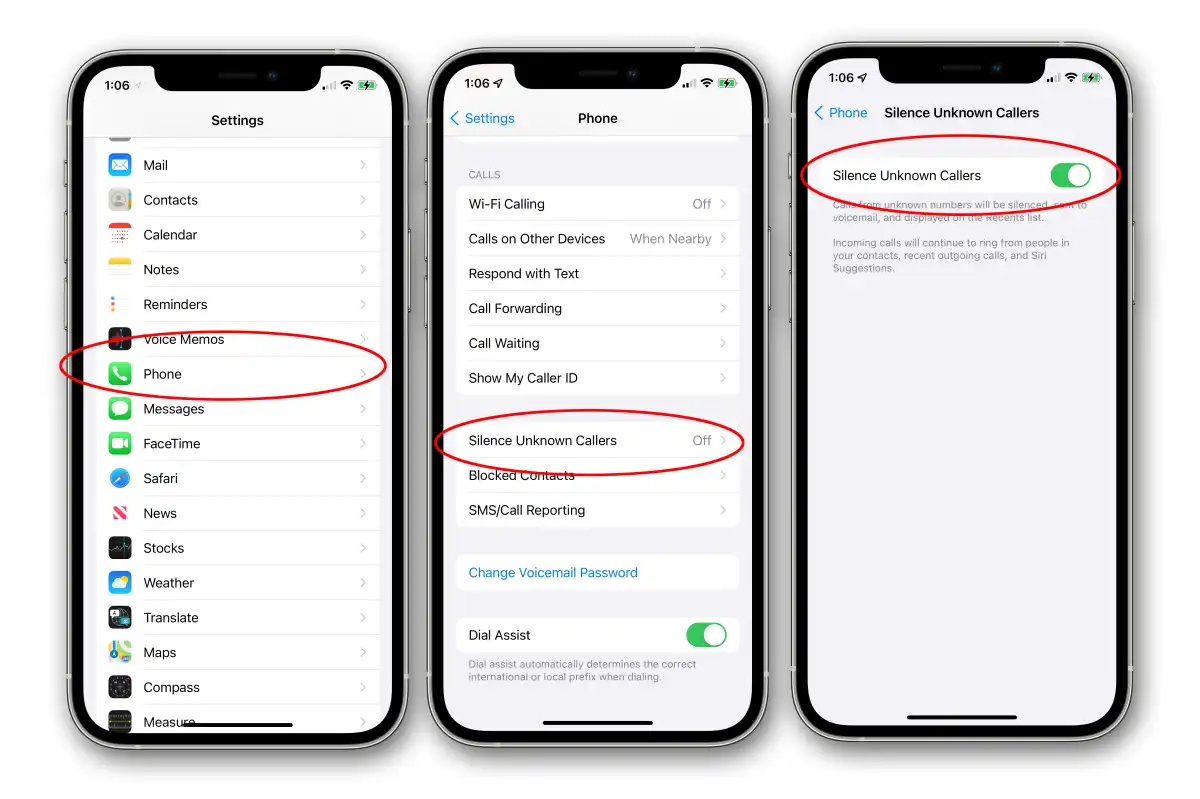
If you have an iOS device, follow these steps to disable calls:
- Enable Do Not Disturb Mode: Go to Settings > Sounds & Haptics > Do not disturb mode. Enable this feature by switching the toggle button to ON.
- Block Unknown Numbers: Go to Settings > Sounds & Haptics > Block unknown numbers. Switch the toggle button to ON.
- Use Call Blocker Apps: There are several call blocker apps available on the App Store, such as Hiya and Truecaller.
Disabling Calls on Whatsapp
If you want to disable calls from specific contacts or groups on WhatsApp, follow these steps:
- Open Whatsapp: Open the WhatsApp app on your device.
- Go to Settings: Tap on the three dots in the top-right corner of the screen and select Settings.
- Select Account: Select Account from the menu.
- Enable Call Blocker: Switch the toggle button next to “Block calls” to ON.
Disabling Calls on Messenger
If you want to disable calls from specific contacts or groups on Messenger, follow these steps:
- Open Messenger: Open the Messenger app on your device.
- Go to Settings: Tap on the three dots in the top-right corner of the screen and select Settings.
- Select Account: Select Account from the menu.
- Enable Call Blocker: Switch the toggle button next to “Block calls” to ON.
Disabling Calls on Telegram
If you want to disable calls from specific contacts or groups on Telegram, follow these steps:
- Open Telegram: Open the Telegram app on your device.
- Go to Settings: Tap on the three dots in the top-right corner of the screen and select Settings.
- Select Account: Select Account from the menu.
- Enable Call Blocker: Switch the toggle button next to “Block calls” to ON.
Disabling Calls on Desktop Devices
If you want to disable calls on your desktop device, follow these steps:
- Open Messenger: Open the Messenger app on your desktop device.
- Go to Settings: Click on the three dots in the top-right corner of the screen and select Settings.
- Select Account: Select Account from the menu.
- Enable Call Blocker: Switch the toggle button next to “Block calls” to ON.
Frequently Asked Questions
-
Can I Disable Calls on my Phone Permanently?
Yes, you can disable calls on your phone permanently by following the steps mentioned above. -
Will Disabling Calls Affect my Phone’s Functionality?
No, disabling calls will not affect your phone’s functionality in any way. -
Can I Block Specific Numbers From Calling Me?
Yes, you can block specific numbers from calling you by adding them to your blocked contacts list. -
Will I Still Receive Messages From Blocked Numbers?
No, you will not receive messages from blocked numbers. -
How do I Unblock a Number That Has Been Blocked?
To unblock a number that has been blocked, go to the blocked contacts list and tap on the “Unblock” button next to the number you want to unblock. -
Can I Block Calls From Specific Apps?
Yes, you can block calls from specific apps by going to Settings > Sound & Vibration > Block unknown numbers. -
Will Disabling Calls Affect my Phone’s Battery Life?
No, disabling calls will not affect your phone’s battery life in any way. -
Can I Disable Calls on my Tablet or Laptop?
Yes, you can disable calls on your tablet or laptop by following the same steps mentioned above.
By following these simple steps, you can regain control over your digital life and disable unwanted calls on your device. Remember to always check your device’s settings for any updates or changes to the process. Happy disabling!


