
How to Disable Find My Iphone: A Step-by-step Guide
Are you tired of being bombarded with requests to disable Find My iPhone, but unsure how to do it? Look no further! In this article, we will guide you through the process of disabling Find My iPhone on your device.
Why Disable Find My Iphone?
Before we dive into the steps, let’s quickly cover why you might want to disable Find My iPhone. While the service is incredibly useful for locating lost or stolen devices, there are some situations where you might need to temporarily disable it. Perhaps you’re having issues with your device and don’t want Apple to locate it while you’re trying to troubleshoot. Or maybe you’re selling your device and want to remove this feature altogether.
Whatever the reason, we’ve got you covered!
Step 1: Access Your Iphone Settings
To begin, open up your iPhone’s settings app. You can do this by tapping on the Settings icon, which looks like a cogwheel, on your Home screen.
Step 2: Tap on Your Name
Once in the settings app, tap on your name at the top of the screen. This will take you to a new page with several options.
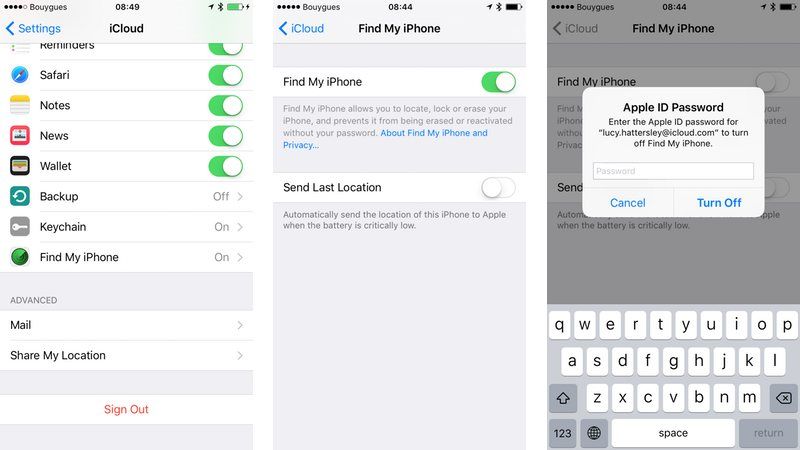
Step 3: Select Find My Iphone
Scroll down and select “Find My” from the list of options. You’ll then be taken to a new page where you can manage various features related to Find My iPhone.
Step 4: Toggle Off Find My Iphone
To disable Find My iPhone, simply toggle the switch next to “Find My iPhone” to the off position. This will turn off the feature and prevent Apple from locating your device.
Alternative Option: Disable Location Services
If you don’t want to completely disable Find My iPhone but still need to turn it off for a short time, you can also disable location services on your device. To do this:
- Go back to the settings app
- Tap on “Location Services”
- Toggle the switch next to “Find My iPhone” to the off position
What Happens When You Disable Find My Iphone?
When you disable Find My iPhone, several things happen:
- Your device will no longer be locatable by Apple or other devices with access to your iCloud account.
- The feature that allows you to remotely erase your device will also be disabled.
However, please note that disabling Find My iPhone does not affect any other features on your device. If you’re concerned about security or would like to explore other options, feel free to reach out to us for guidance.
Can I Disable Find My Iphone Without a Password?
Unfortunately, no. To disable Find My iPhone, you will need to enter your iCloud password. This is a security feature implemented by Apple to prevent unauthorized access to your device and account.
If you’re unable to remember your password or are experiencing issues with it, we recommend visiting our article on how to recover your Apple ID password for step-by-step instructions.
Conclusion
Disabling Find My iPhone is a relatively simple process that can be completed in just a few minutes. While the feature itself is incredibly useful for locating lost devices, there may be situations where you need to temporarily disable it. We hope this article has helped you understand how to do so safely and securely.
Frequently Asked Questions
Q: What happens if I forget my Apple ID password?
A: If you’re unable to remember your Apple ID password, don’t worry! You can visit our article on recovering your password for step-by-step instructions.
Q: Can I disable Find My iPhone on an older device?
A: Yes! The steps above apply to all devices running iOS 10 or later. However, if you have an older device with an earlier operating system version, please consult the user manual or contact Apple support directly.
Q: Will disabling Find My iPhone affect any other features on my device?
A: No! Disabling Find My iPhone will only turn off this feature and will not impact any other functions on your device.
We hope you’ve enjoyed reading about how to disable Find My iPhone. As always, feel free to reach out if you have any further questions or concerns!


