
How to Disable Google Notifications on Android, Ios, Ipados, And Computer
Are you tired of receiving notifications from Google on your device? Look no further! In this comprehensive guide, we will walk you through the step-by-step process of disabling Google notifications on various platforms, including Android, iOS, iPadOS, and computer.
Introduction
Google notifications can be intrusive and distracting, especially when you’re trying to focus on something else. Disabling these notifications is a simple yet effective way to regain control over your digital experience. In this article, we will cover the process of disabling Google notifications across different devices and operating systems.
Disabling Google Notifications on Android
To disable Google notifications on Android, follow these steps:
- Open Settings: Go to the Settings app on your Android device.
- Tap on Notifications: Tap on the “Notifications” option in the Settings menu.
- Select Applications: Select the “Applications” or “Apps” option from the list of available settings.
- Find Google App: Scroll down and find the Google app in the list of installed applications.
- Block Google App: Tap on the three-dot icon next to the Google app and select the “Block” or “Unblock” option.
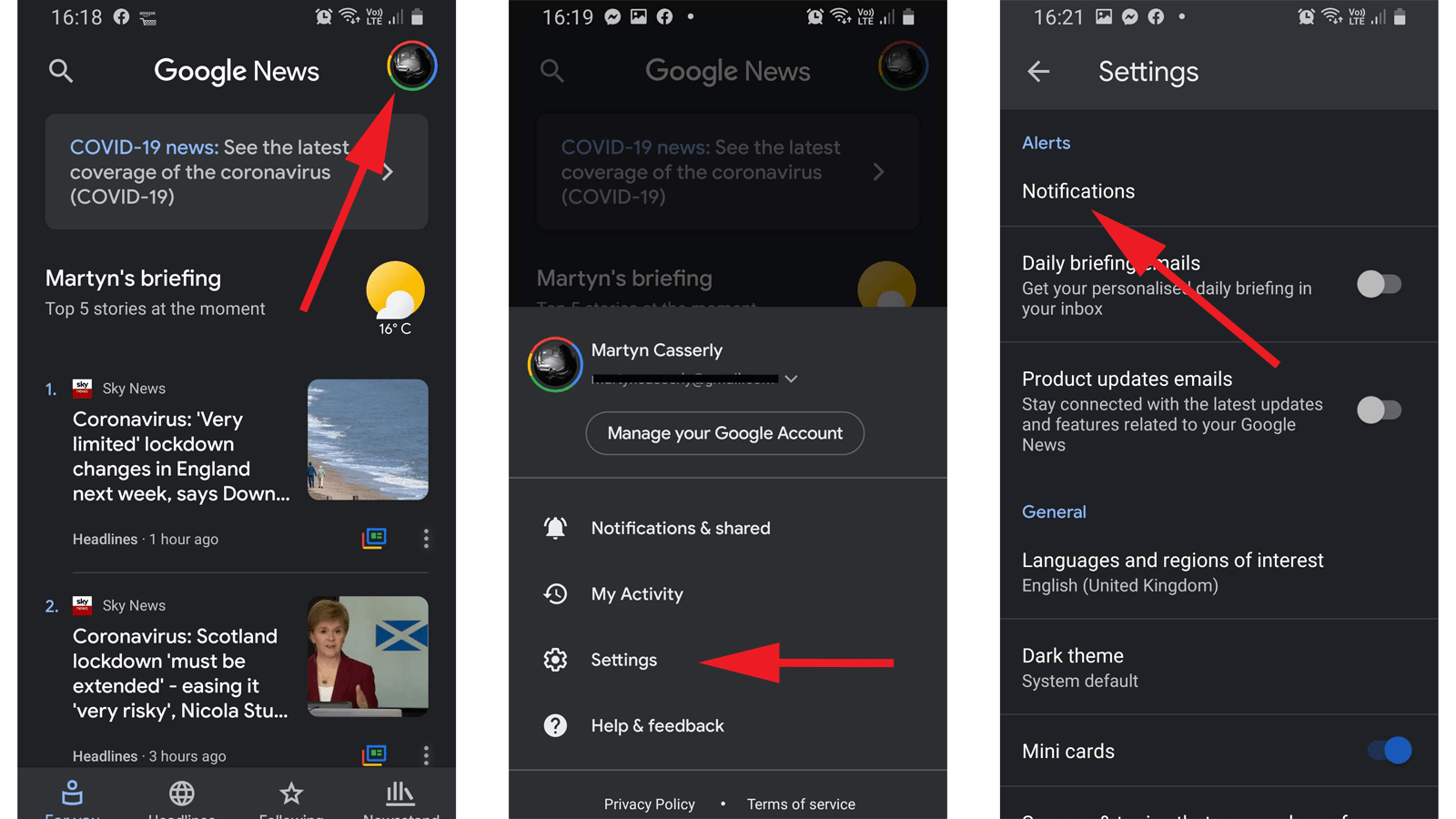
Disabling Google News Notifications on Android
To disable Google News notifications on Android, follow these steps:
- Open Google News App: Open the Google News app on your device.
- Tap on Profile Picture: Tap on your profile picture in the top-right corner of the screen.
- Select Settings: Select the “Settings” option from the menu.
- Toggle Off Email Notifications: Toggle off the email notifications for daily press and updates.
Disabling Google Chrome Notifications on Android
To disable Google Chrome notifications on Android, follow these steps:
- Open Google Chrome App: Open the Google Chrome app on your device.
- Tap on Three-dot Icon: Tap on the three-dot icon in the top-right corner of the screen.
- Select Settings: Select the “Settings” option from the menu.
- Toggle Off Notifications: Toggle off the notifications for Google Chrome.
Disabling Google Play Services Notifications
Unfortunately, it’s not possible to disable Google Play Services notifications directly. However, you can uninstall or disable Google Play Services on your device. Keep in mind that disabling Google Play Services may compromise the functionality of other Google apps and services.
Disabling Google Notifications on Ios And Ipados
To disable Google notifications on iOS and iPadOS, follow these steps:
- Open Settings: Open the Settings app on your iOS or iPadOS device.
- Tap on Notifications: Tap on the “Notifications” option in the Settings menu.
- Find Google App: Find the Google app in the list of available settings.
- Toggle Off Consent Notifications: Toggle off the consent notifications for Google.
Disabling Google News Notifications on Ios And Ipados
To disable Google News notifications on iOS and iPadOS, follow these steps:
- Open Settings: Open the Settings app on your iOS or iPadOS device.
- Tap on Notifications: Tap on the “Notifications” option in the Settings menu.
- Select Google News: Select the Google News app from the list of available settings.
- Toggle Off Consent Notifications: Toggle off the consent notifications for Google News.
Disabling Google Chrome Notifications on Ios And Ipados
Unfortunately, it’s not possible to disable Google Chrome notifications directly on iOS and iPadOS. However, you can block pop-ups in the Google Chrome app.
- Open Google Chrome App: Open the Google Chrome app on your device.
- Tap on Three-dot Icon: Tap on the three-dot icon in the top-right corner of the screen.
- Select Settings: Select the “Settings” option from the menu.
- Toggle Off Block Pop-ups: Toggle off the block pop-ups setting.
Disabling Google Notifications on Computer
To disable Google notifications on your computer, follow these steps:
- Open Chrome Browser: Open the Google Chrome browser on your computer.
- Click on Three-dot Icon: Click on the three-dot icon in the top-right corner of the screen.
- Select Settings: Select the “Settings” option from the menu.
- Scroll Down to Notifications: Scroll down and select the “Notifications” option from the settings list.
- Toggle Off Specific Websites: Toggle off notifications for specific websites, such as YouTube or Google News.
Conclusion
Disabling Google notifications on various platforms is a straightforward process that can greatly improve your digital experience. By following the steps outlined in this guide, you can regain control over your device and minimize distractions caused by unwanted notifications. Remember to disable notifications on each platform individually, as the process may vary slightly depending on the operating system or device.
Frequently Asked Questions
Q: Can I disable Google Play Services notifications?
A: Unfortunately, it’s not possible to disable Google Play Services notifications directly.
Q: How do I block pop-ups in Google Chrome on iOS and iPadOS?
A: To block pop-ups in Google Chrome on iOS and iPadOS, follow the steps outlined above.
Q: Can I disable Google Chrome notifications on computer?
A: Yes, you can disable Google Chrome notifications on your computer by following the steps outlined above.


