
How to Disable Location Services on Your Device
Are you tired of sharing your location with apps and services? Do you want to regain control over your personal data? Look no further! In this article, we’ll guide you through the process of disabling location services on various devices and platforms.
Why Disable Location Services?
Location services can be useful for certain applications, such as navigation or emergency response. However, they also raise significant concerns about privacy and security. By disabling location services, you can:
- Prevent apps from tracking your movements
- Reduce the risk of unauthorized access to your device
- Improve battery life by limiting background app activity
Disable Location Services on Android
To disable location services on an Android device, follow these steps:
- Go to Settings > Location
- Select Mode and choose Device Only or Gps Only
- Tap on Restrict Access and select the apps that should not have access to your location
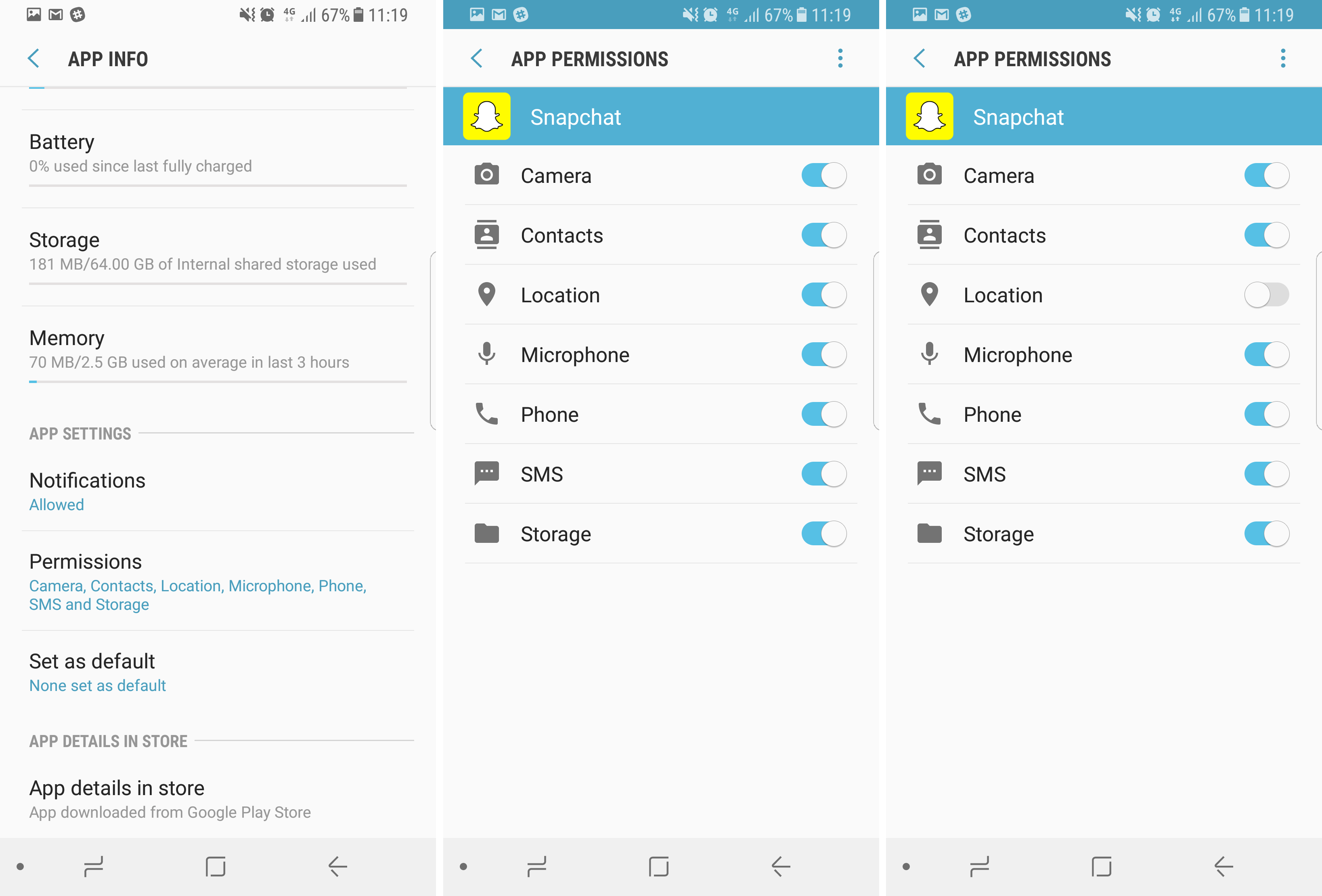
Alternatively, you can disable location services for specific apps by going to Settings > Apps > [App Name] > Permissions > Location
Disable Location Services on Samsung Devices
If you’re using a Samsung device, follow these steps:
- Go to Settings > Connections > Location
- Select Mode and choose Device Only or Gps Only
- Tap on Restrict Access and select the apps that should not have access to your location
Disable Location Services on Huawei Devices
To disable location services on a Huawei device, follow these steps:
- Go to Settings > Connections > Location
- Select Mode and choose Device Only or Gps Only
- Tap on Restrict Access and select the apps that should not have access to your location
Disable Location Services on Iphone
To disable location services on an iPhone, follow these steps:
- Go to Settings > Privacy > Location Services
- Select System Services and toggle off Location Services
- Tap on Settings > Privacy > Location Services again and select the apps that should not have access to your location
Disable Location Services on PC
To disable location services on a Windows 10 or 11 device, follow these steps:
- Go to Settings > System > Location
- Toggle off Location Service and select Do Not Allow Any Apps to Use my Location
- Confirm the changes by clicking on Save
Alternatively, you can disable location services for specific apps by going to Settings > Apps > [App Name] > Permissions > Location
Disable Location Services on Mac
To disable location services on a Mac, follow these steps:
- Go to System Preferences > Security & Privacy
- Select the Privacy tab and choose Location Services
- Toggle off Enable Location Services and select Deny for any apps that should not have access to your location
Disable Location Services on Instagram
To disable location services on Instagram, follow these steps:
- Go to Settings > Account > Location Access
- Select Never or While Using The App to restrict Instagram’s access to your location
- Confirm the changes by clicking on Save Changes
Alternatively, you can disable location services for specific apps by going to Settings > Apps > [App Name] > Permissions > Location
Disable Location Services on Facebook
To disable location services on Facebook, follow these steps:
- Go to Settings > Account Settings > Location
- Select Off or While Using The App to restrict Facebook’s access to your location
- Confirm the changes by clicking on Save Changes
Alternatively, you can disable location services for specific apps by going to Settings > Apps > [App Name] > Permissions > Location
Disable Location Services on Google
To disable location services on Google, follow these steps:
- Go to My Account > Data & Personalization > Activity And Timeline
- Select Pause or Disable to restrict Google’s access to your location
- Confirm the changes by clicking on Save Changes
Alternatively, you can disable location services for specific apps by going to Settings > Apps > [App Name] > Permissions > Location
Disable Location Services on Life360
To disable location services on Life360, follow these steps:
- Go to Settings > Life360 > Location
- Select Off or While Using The App to restrict Life360’s access to your location
- Confirm the changes by clicking on Save Changes
Alternatively, you can disable location services for specific apps by going to Settings > Apps > [App Name] > Permissions > Location
Disable Location Services on Airpods
Unfortunately, it is not possible to disable location services on AirPods. However, you can take steps to protect your device and data:
- Keep your AirPods updated with the latest software
- Use a passcode or biometric authentication to secure your device
- Regularly review your app permissions and restrict access to sensitive information
Conclusion
Disabling location services on various devices and platforms can help you regain control over your personal data and reduce the risk of unauthorized access. By following these simple steps, you can protect yourself and your loved ones from potential security threats.
Frequently Asked Questions (FAQs)
- What is Location Services?
Location services refer to the ability of apps and devices to determine your physical location using GPS, Wi-Fi, or other technologies. - Why Should I Disable Location Services?
You should consider disabling location services if you want to protect your personal data from unauthorized access or if you’re concerned about security risks. - How do I Disable Location Services on my Android Device?
To disable location services on an Android device, go to Settings > Location, select Mode, and choose Device Only or Gps Only. - Can I Disable Location Services For Specific Apps on my Iphone?
Yes, you can disable location services for specific apps on your iPhone by going to Settings > Privacy > Location Services and selecting the apps that should not have access to your location. - How do I Disable Location Services on my Pc?
To disable location services on a Windows 10 or 11 device, go to Settings > System > Location, toggle off Location Service, and select Do Not Allow Any Apps to Use my Location. - Can I Disable Location Services on Mac?
Yes, you can disable location services on a Mac by going to System Preferences > Security & Privacy, selecting the Privacy tab, and choosing Location Services. - How do I Disable Location Services on Instagram?
To disable location services on Instagram, go to Settings > Account > Location Access, select Never or While Using The App, and confirm the changes by clicking on Save Changes.
By answering these questions, we hope you have a better understanding of how to disable location services on various devices and platforms. Remember to always take steps to protect your personal data and security!


