
How to Turn Off Iphone Blocked: A Step-by-step Guide
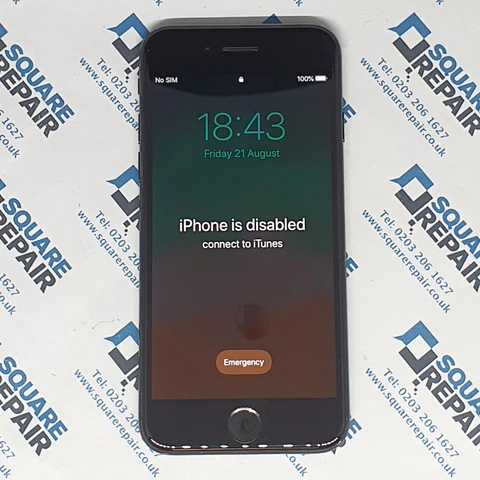
Are you tired of dealing with a blocked iPhone? Do you want to know how to turn it off without using the touchscreen or home button? Look no further! In this article, we’ll show you step-by-step how to turn off your iPhone blocked using various methods.
What is an Iphone Block?
An iPhone block occurs when your device becomes unresponsive and refuses to turn on. This can happen due to a software glitch, hardware failure, or other technical issues. Don’t worry; we’re here to help you resolve the problem.
Method 1: Turn Off Iphone Blocked Without Touchscreen
If your iPhone’s touchscreen is not responding, don’t panic! You can still turn it off using the following combination of buttons:
- Iphone X And Later: Press and quickly release the volume up button, then press and quickly release the volume down button. Hold down the side button until you see the “Slide to Power Off” option.
- Iphone 8 And Earlier: Press and quickly release the Sleep/Wake button, then press and quickly release the volume down button. Hold down the Sleep/Wake button until you see the “Slide to Power Off” option.
Method 2: Turn Off Iphone Blocked Without Home Button
If your iPhone doesn’t have a home button or is malfunctioning, you can use the following method:
- Assistivetouch: Go to Settings > Accessibility > Touch > AssistiveTouch. Tap on the AssistiveTouch icon and select “Device” from the menu. Then, tap on the “Turn Off” option.
- Iphone 8 And Later: Press and quickly release the Sleep/Wake button, then press and quickly release the volume down button. Hold down the side button until you see the “Slide to Power Off” option.
Method 3: Turn Off Iphone Blocked Using Dfu Mode
If your iPhone is completely unresponsive, you can try using DFU (Device Firmware Update) mode:
- Connect Your Iphone to a Computer: Use the Lightning cable to connect your iPhone to a computer.
- Open Itunes or Finder: Open iTunes on Windows or Finder on macOS and select your iPhone from the top left corner of the screen.
- Put Your Iphone in Dfu Mode:
- For iPhone X and later, press and quickly release the volume up button, then press and quickly release the volume down button. Hold down the side button for at least 10 seconds until you see a “Connect to iTunes” message on your computer.
- For iPhone 8 and earlier, press and hold the Sleep/Wake button for 3 seconds, then press and hold the Volume Down button while still holding the Sleep/Wake button. Release the Sleep/Wake button but continue holding the Volume Down button for at least 10 seconds until you see a “Connect to iTunes” message on your computer.
Method 4: Turn Off Iphone Blocked Using Apple Support
If none of the above methods work, it’s time to contact Apple support:
- Visit The Apple Website: Go to the Apple Support page and click on “Contact Support.”
- Call Apple Support: Call Apple Support at 1-800-MY-APPLE (1-800-692-7753).
- Chat With Apple Support: Use the chat feature on the Apple Support website.
Conclusion
Turning off an iPhone blocked can be a frustrating experience, but it’s not impossible. By following these step-by-step guides, you should be able to resolve the issue and get your device up and running again. Remember to always contact Apple support if none of the above methods work.
Frequently Asked Questions (FAQs)
- What is an Iphone Block?
An iPhone block occurs when your device becomes unresponsive and refuses to turn on. - How do I Turn Off my Iphone Blocked Without Using The Touchscreen?
Use one of the combinations listed in Method 1 or Method 2. - Can I Use Assistivetouch to Turn Off my Iphone Blocked?
Yes, you can use AssistiveTouch to turn off your iPhone blocked if it doesn’t have a home button or is malfunctioning. - What is Dfu Mode And How do I Put my Iphone in Dfu Mode?
DFU Mode (Device Firmware Update) allows you to restore your iPhone’s software. To put your iPhone in DFU Mode, follow the steps listed in Method 3. - Can I Contact Apple Support For Help With Turning Off my Iphone Blocked?
Yes, you can contact Apple support for assistance.
Hope this article helped!


