
How to Turn Off Your Ps4 Controller: A Step-by-step Guide
Are you tired of dealing with a PS4 controller that won’t turn off? Do you want to know how to reset your DualShock 4 without restarting your console or computer? Look no further! In this article, we’ll show you how to turn off your PS4 controller manually, automatically, and even on your PC.
Why Turn Off Your Ps4 Controller?
Before we dive into the nitty-gritty, let’s talk about why turning off your PS4 controller is important. Leaving it on for extended periods can waste battery life, and in some cases, it may cause issues with pairing or connectivity. By following our guide, you’ll be able to turn off your controller safely and efficiently.
How to Turn Off Your Ps4 Controller Manually
To turn off your PS4 controller manually, follow these steps:
- Hold Down The PS Button: Press and hold the PS button on your controller for a few seconds.
- Access The Audio/devices Menu: Go to the Audio/Devices menu by pressing the X button on your controller.
- Select Turn Off Device: Choose the Turn off device option from the list of available devices.
- Choose Dualshock 4: Select the DualShock 4 as the device you want to turn off.
That’s it! Your PS4 controller should now be turned off.
How to Turn Off Your Ps4 Controller Automatically
If you want your PS4 controller to turn off automatically after a certain period of inactivity, follow these steps:
- Go to Settings: Access the Settings menu on your PS4 console.
- Select Devices: Choose the Devices option from the settings menu.
- Turn Off Device: Select the Turn off device option and choose the DualShock 4 as the device you want to turn off automatically.
- Choose a Time Interval: Select one of the three options for turning off your controller: After 10 minutes, After 30 minutes, or After 60 minutes.
By following these steps, your PS4 controller will turn off automatically when it’s been inactive for the specified period.
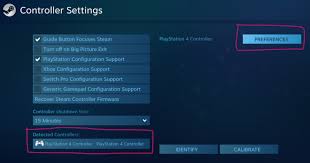
How to Turn Off Your Ps4 Controller on PC
If you’ve connected your PS4 controller to your computer using a USB cable, follow these steps to turn it off:
- Press And Hold The PS Button: Press and hold the PS button on your controller for around 10-15 seconds.
- Release The PS Button: Release the PS button when the light on your controller turns off.
That’s it! Your PS4 controller should now be turned off on your PC.
How to Reset Your Ps4 Controller
If your PS4 controller is not turning off or is malfunctioning, you may need to reset it. To do this:
- Turn Off Your Ps4 Console: Make sure your PS4 console is turned off.
- Use a Pin or Thin Object: Use a pin or thin object to press the small concave button on the back of your controller.
- Hold For 10 Seconds: Hold the button down for around 10 seconds.
- Turn on Your Ps4 Console: Turn on your PS4 console and pair your controller again.
By following these steps, you should be able to reset your PS4 controller and get it working properly again.
How to Turn Off Your Ps4 Without a Controller
If you want to turn off your PS4 without using the controller, follow these steps:
- Press The Power Button: Press the power button on the front of your PS4 console.
- Hold For 5 Seconds: Hold the button down for around 5 seconds until the console turns off.
That’s it! Your PS4 should now be turned off without using a controller.
Conclusion
Turning off your PS4 controller can seem like a daunting task, but with these simple steps, you’ll be able to do it safely and efficiently. Whether you want to turn it off manually, automatically, or on your PC, we’ve got you covered. Remember to always follow the manufacturer’s instructions for resetting your controller if it becomes malfunctioning.
Faqs
- Q: Why Won’t my Ps4 Controller Turn Off?
A: If your PS4 controller is not turning off, try resetting it by following the steps outlined above. - Q: How do I Reset my Ps4 Controller?
A: To reset your PS4 controller, follow the steps outlined in the “How to Reset Your PS4 Controller” section of this article. - Q: Can I Turn Off my Ps4 Without a Controller?
A: Yes, you can turn off your PS4 without using a controller by following the steps outlined in the “How to Turn Off Your PS4 Without a Controller” section of this article. - Q: How do I Pair my Ps4 Controller With my Pc?
A: To pair your PS4 controller with your PC, follow the steps outlined in our tutorial on connecting your PS4 controller to your computer using Bluetooth.
We hope you found this guide helpful! If you have any further questions or need additional assistance, don’t hesitate to ask.


