
How to Turn Off a Samsung Phone: A Comprehensive Guide
Are you struggling to find out how to turn off your new Samsung phone? Don’t worry, it’s easier than you think! In this article, we’ll walk you through the simple steps to shut down your device, as well as some advanced methods for specific scenarios.
Why is Turning Off Your Phone Important?
Before we dive into the nitty-gritty of turning off your Samsung phone, let’s quickly discuss why it’s essential to do so. Turning off your phone regularly can help:
- Save battery life: By shutting down your device, you’re preventing unnecessary power consumption.
- Prevent overheating: When your phone is on for an extended period, it can get hot. Shutting it down can help prevent this issue.
- Maintain performance: Regular shutdowns can help keep your phone running smoothly and efficiently.
The Standard Procedure to Turn Off Your Samsung Phone
To turn off your Samsung phone using the standard procedure:
- Find The Power Button: Locate the power button on your device, usually found on the right side or top of the phone.
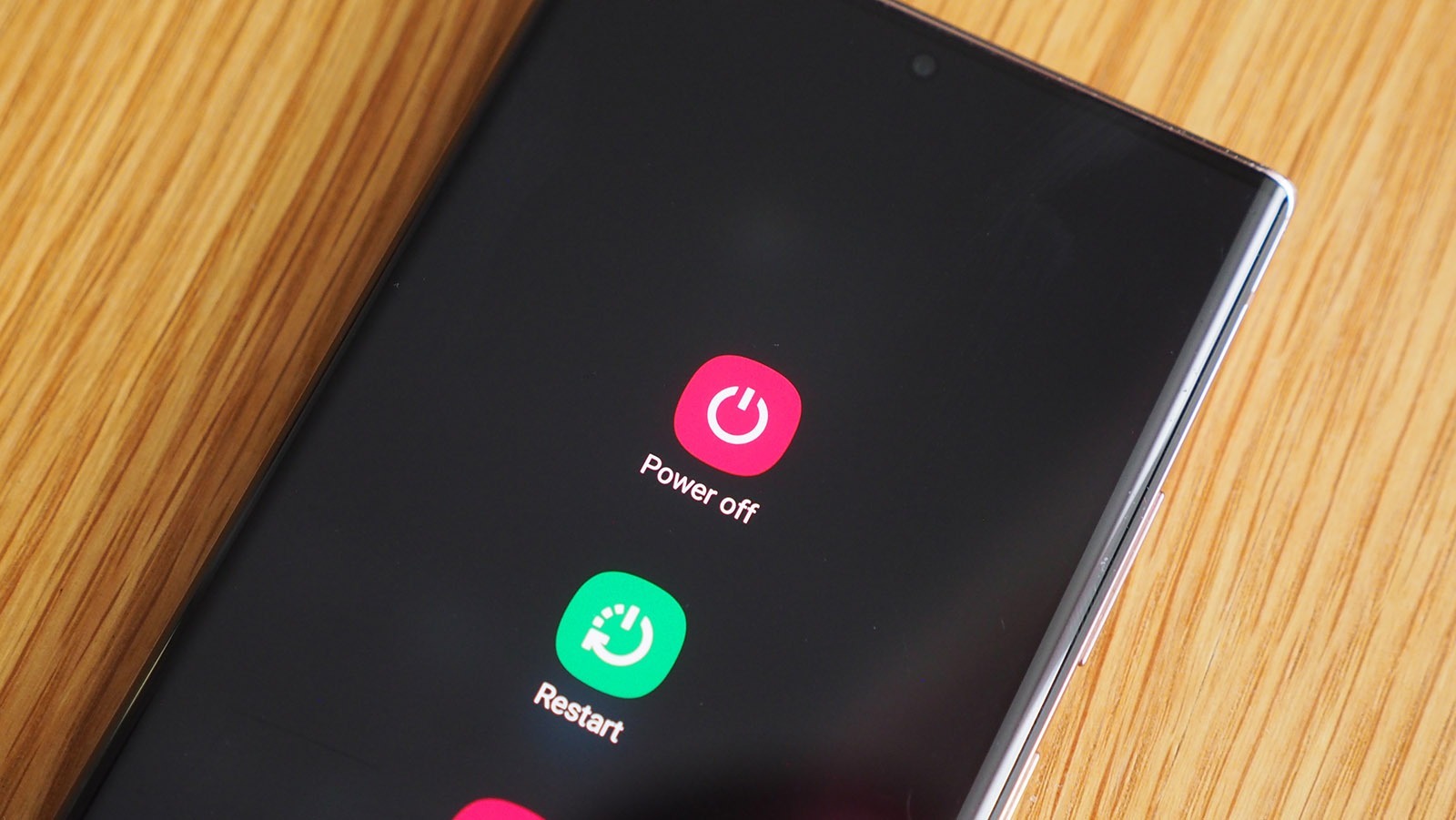
- Press And Hold The Power Button: Hold down the power button for a few seconds until you see the shutdown menu appear on the screen.
- Select “Turn Off”: Choose the “Turn off” option from the menu to shut down your device.
What If My Power Button is Broken?
If your power button is damaged or not functioning, don’t worry! You can still turn off your Samsung phone using other methods:
- Use The Shutdown App: Download a third-party app like Shutdown that allows you to turn off your phone without pressing the power button.
- Utilize The Settings Menu: Go to Settings > Advanced features > Motions and gestures, and enable the “Power off” option. You can then turn off your phone by double-tapping the screen.
What If My Phone is Frozen or Locked?
If your Samsung phone becomes frozen or locked:
- Press And Hold The Power Button: Hold down the power button for 10-15 seconds to force shutdown your device.
- Use The Volume Buttons: Press and hold the Volume Down button and the Power button simultaneously for 10-15 seconds. This should force shutdown your phone.
What If I Have a Samsung Phone With a Damaged Screen?
If your screen is damaged, you can still turn off your Samsung phone using:
- The Settings Menu: Go to Settings > Advanced features > Motions and gestures, and enable the “Power off” option. You can then turn off your phone by double-tapping the screen.
- A Third-party App: Download a shutdown app that allows you to turn off your phone without pressing the power button.
Conclusion
Turning off your Samsung phone is a straightforward process, but it’s essential to know the various methods available in case of specific scenarios. Whether you’re using the standard procedure or an alternative method, always ensure your device is properly shut down to prevent potential issues and maintain its performance.
Frequently Asked Questions (FAQs)
Here are some frequently asked questions related to turning off a Samsung phone:
- Q: How do I Turn Off my Samsung Phone if The Power Button is Not Working?
A: You can use the shutdown app, utilize the Settings menu, or force shutdown your device using the volume buttons. - Q: What if my Phone is Frozen or Locked?
A: Press and hold the power button for 10-15 seconds to force shutdown your device. Alternatively, press and hold the Volume Down button and the Power button simultaneously for 10-15 seconds. - Q: Can I Turn Off my Samsung Phone With a Damaged Screen?
A: Yes, you can use the settings menu or download a third-party app to turn off your phone without pressing the power button. - Q: Why is it Essential to Regularly Shut Down my Samsung Phone?
A: Regular shutdowns help save battery life, prevent overheating, and maintain performance.
I hope this article has provided you with a comprehensive guide on how to turn off your Samsung phone. If you have any further questions or concerns, feel free to ask!


