
How to Turn Off Your Pos System: A Step-by-step Guide
Are you tired of dealing with a malfunctioning Point of Sale (POS) system? Do you want to know how to turn off your POS system safely and efficiently? Look no further! In this article, we will guide you through the process of turning off various types of POS systems, including Ingenico, SumUp, Nexi, D210, and Verifone.
Understanding Your Pos System
Before we dive into the step-by-step guide, it’s essential to understand your POS system. Each type of POS system has its unique features and procedures for turning them off. Some POS systems may have a simple procedure, while others may require more technical knowledge.
Ingenico Pos Systems
If you own an Ingenico POS system, there are two common patterns: Move 2500 and Desk 3200. To turn off the Move 2500, simply press and hold the yellow button and the dot symbol button for around five seconds. This will shut down your POS system.
Desk 3200
To turn off the Desk 3200, press and hold the red button for around five seconds. This will also shut down your POS system. If you’re having trouble with this procedure, check the official website or contact customer support for assistance.
Sumup Pos Systems
If you own a SumUp POS system, there are two types: Air and Only. To turn off the Air, press and hold the lighting/sleep button along the right side for around three seconds. This will put your POS system in standby mode.
Nexi Pos Systems
To turn off the Nexi Mobile Pos, simply press and hold the lighting/sleep button on the right side of the terminal for around five seconds. This will shut down your POS system. If you’re having trouble with this procedure, check the official manual or contact customer support for assistance.
D210 Pos System
To turn off the D210 POS system, locate the red X button and press and hold it for around five seconds. This will shut down your POS system.
Verifone Pos Systems
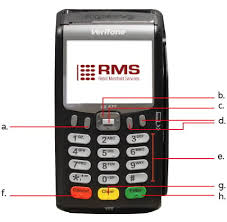
If you own a Verifone POS system, there are three types: VX 520, VX 820, and VX 675. To turn off these systems, follow these steps:
- VX 520: Press and hold the red button in low to sinister for around five seconds while disconnecting the power cable.
- VX 820: Press and hold the red button in low to left on the terminal for around five seconds while disconnecting the power cable.
- VX 675: Press and hold the red button in low to left on the terminal for around five seconds while disconnecting the power cable.
Conclusion
Turning off your POS system is a relatively simple process, but it’s essential to follow the correct procedure to avoid any damage or malfunction. Remember to always refer to your user manual or contact customer support if you’re unsure about the procedure.
Faqs
- What Happens if I Don’t Turn Off my Pos System?
If you don’t turn off your POS system, it may continue to consume power and cause wear and tear on the components. - How Often Should I Turn Off my Pos System?
You should turn off your POS system at the end of each day or when not in use for an extended period. - Can I Reset my Pos System if I Forget to Turn it Off?
Yes, you can try resetting your POS system by pressing and holding the power button for around 10 seconds. - What Are Some Common Issues With Pos Systems?
Common issues include malfunctioning buttons, faulty displays, and connectivity problems. - Can I Fix my Pos System if It’s Not Turning Off?
It’s recommended to contact customer support or a professional technician if you’re experiencing issues with your POS system. - How Can I Prevent Damage to my Pos System?
Regular maintenance, proper handling, and following the manufacturer’s instructions can help prevent damage to your POS system. - What Should I do if my Pos System is Not Responding?
Try restarting your POS system by pressing and holding the power button for around 10 seconds. - Can I Upgrade or Update my Pos System?
Yes, you may be able to upgrade or update your POS system, but it’s essential to check with the manufacturer or a professional technician first.
We hope this article has provided you with valuable information on how to turn off your POS system and troubleshoot common issues.


