
How to Disable Whatsapp Backup on Android, Iphone, And PC
Are you looking for ways to disable the automatic backup feature of WhatsApp on your smartphone or computer? Look no further! In this article, we will guide you through the process of disabling WhatsApp backup on Android, iPhone, and PC.
Why Disable Whatsapp Backup?
Before we dive into the steps, let’s first understand why you might want to disable WhatsApp backup. By default, WhatsApp automatically backs up your chats, photos, and videos every day to the cloud (Google Drive or iCloud). This means that even if you lose your device or switch to a new one, your conversations will still be safe.
However, there are some scenarios where disabling WhatsApp backup might be necessary:
- You want to save storage space on your device.
- You’re concerned about data security and privacy.
- You’ve experienced issues with WhatsApp backups in the past.
Disabling Whatsapp Backup on Android
Disabling Whatsapp Backup on Google Drive
To disable WhatsApp backup on Google Drive, follow these steps:
- Open the WhatsApp app on your Android device.
- Tap on the three dots on the top-right corner of the screen and select Settings.
- Scroll down to the Chats section and tap on Chat Backup.
- Select Google Drive as the backup location, then toggle off the switch next to Backup.
Disabling Whatsapp Backup Locally
To disable WhatsApp backup locally (i.E., On your device), follow these steps:
- Open the WhatsApp app on your Android device.
- Tap on the three dots on the top-right corner of the screen and select Settings.
- Scroll down to the Chats section and tap on Chat Backup.
- Toggle off the switch next to Backup Locally.
Deleting Whatsapp Backup on Android
To delete your existing WhatsApp backups on Android, follow these steps:
- Open the Google Drive app on your device.
- Tap on the menu icon (three horizontal lines) on the top-left corner of the screen and select Backup & Restore.
- Select the backup you want to delete and tap on the trash can icon.
Disabling Whatsapp Backup on Iphone
Disabling Whatsapp Backup on Icloud
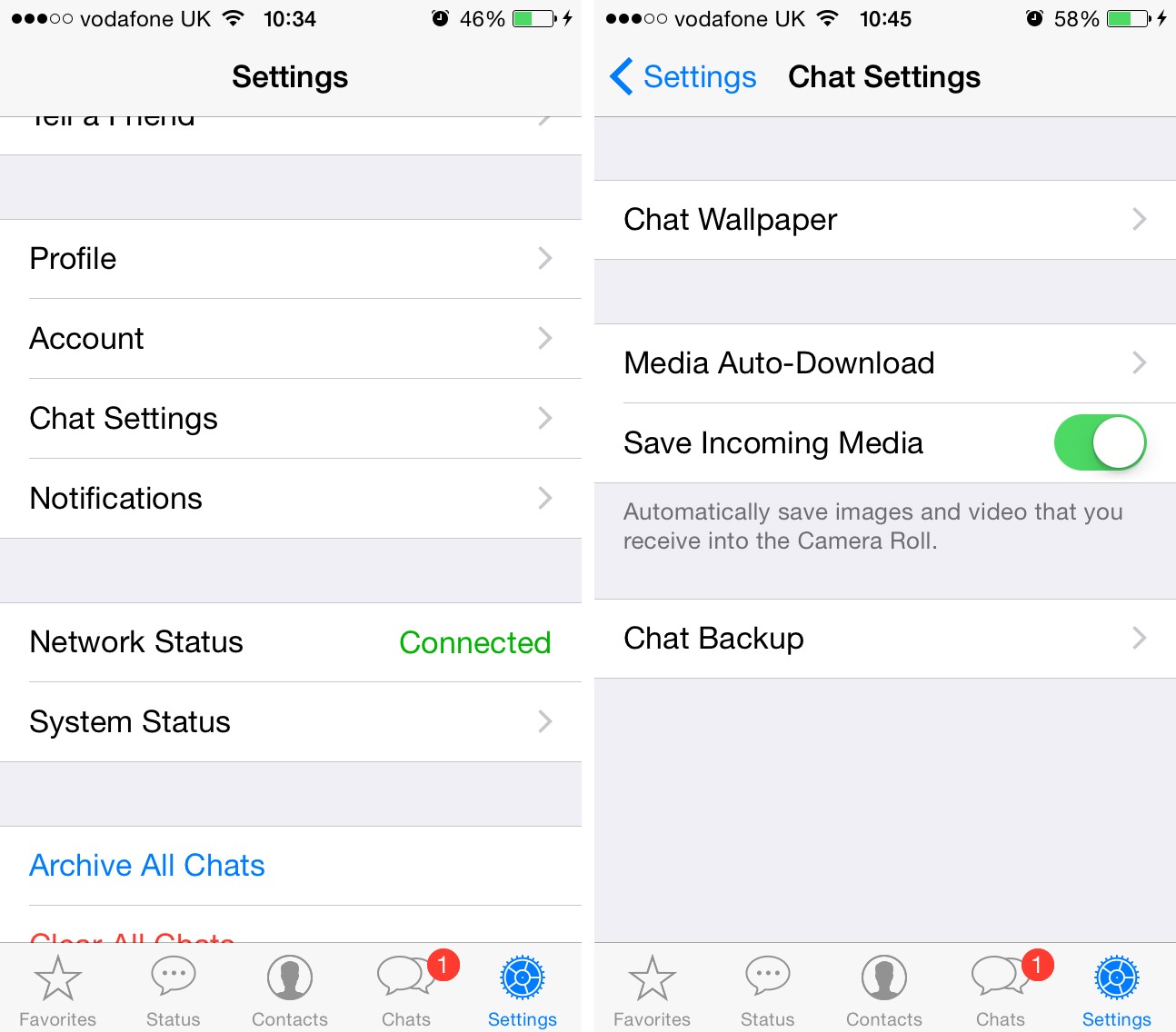
To disable WhatsApp backup on iCloud, follow these steps:
- Open the WhatsApp app on your iPhone.
- Tap on the Settings icon (a gear) on the top-right corner of the screen and select Settings.
- Scroll down to the Chats section and tap on Chat Backup.
- Select Icloud Drive as the backup location, then toggle off the switch next to Backup.
Disabling Whatsapp Backup Locally
Since WhatsApp doesn’t have a local backup feature for iOS devices (iPhone), you can skip this step.
Deleting Whatsapp Backup on Iphone
To delete your existing WhatsApp backups on iPhone, follow these steps:
- Open the iCloud app on your device.
- Tap on Settings and select Manage Storage.
- Scroll down to the Backups section and select the backup you want to delete.
- Tap on Delete Backup and confirm.
Disabling Whatsapp Backup on PC
Since WhatsApp doesn’t have a built-in backup feature for desktop devices, you can skip this step altogether. If you’re using WhatsApp Web or the official WhatsApp client for Windows or macOS, your conversations will be synced with your smartphone’s backups (if enabled).
However, if you’ve created local backups of your WhatsApp chats on PC using an external tool, you’ll need to delete those manually.
Conclusion
Disabling WhatsApp backup is a straightforward process that can help you save storage space, improve data security, or resolve issues with previous backups. By following the steps outlined in this article, you should be able to disable WhatsApp backup on Android, iPhone, and PC (if needed).
Frequently Asked Questions
Q: What Happens if I Disable Whatsapp Backup?
A: Disabling WhatsApp backup means that your conversations won’t be automatically backed up to the cloud or locally. If you need to recover your chats in case of a device loss or switch, you’ll need to restore from an existing backup.
Q: Can I Still Use Whatsapp Without Backing up my Chats?
A: Yes, you can still use WhatsApp without enabling backups. However, keep in mind that if you lose your device or switch to a new one, you might not be able to recover your conversations.
Q: How do I Enable Whatsapp Backup Again?
A: To re-enable WhatsApp backup, simply follow the same steps outlined above and toggle the switches back on.
Author Bio


