
How to Turn Off Your Computer From a Distance: A Step-by-step Guide
Are you tired of manually turning off your computer every time you leave the house? Do you want to save energy and reduce your electricity bill? Look no further! In this article, we will show you how to turn off your computer from a distance using various methods.
Understanding The Basics
Before we dive into the details, let’s understand the basics of turning off a computer. When you press the power button on your computer, it initiates a shutdown process that involves several steps:
- The operating system receives the shutdown signal and begins to shut down all running processes.
- The computer’s hardware components are powered down in sequence.
- The computer is turned off.
Method 1: Using Software
One way to turn off your computer from a distance is by using software that can remotely control your device. Here are some popular options:
Wise Car Shutdown (Windows)
If you’re using Windows, Wise Car Shutdown is an excellent option. This free program allows you to schedule the shutdown of your computer at a specific time or when it’s been idle for a certain period.
Step-by-step Guide:
- Download and install Wise Car Shutdown from the official website.
- Launch the program and create a new task by clicking on the “Add” button.
- Choose the shutdown option and select the date, time, and duration of inactivity.
- Save the task and click on the “OK” button.
Onyx (macOS)
If you’re using macOS, OnyX is another great option. This program allows you to schedule the shutdown of your Mac at a specific time or when it’s been idle for a certain period.
Step-by-step Guide:
- Download and install OnyX from the official website.
- Launch the program and click on the “Utility” menu.
- Select the “Planning” option and choose the shutdown type (turn off or state of stop).
- Set the date, time, and duration of inactivity.
- Save the settings and close the program.
Method 2: Using Remote Access Software
Another way to turn off your computer from a distance is by using remote access software that allows you to control your device remotely.
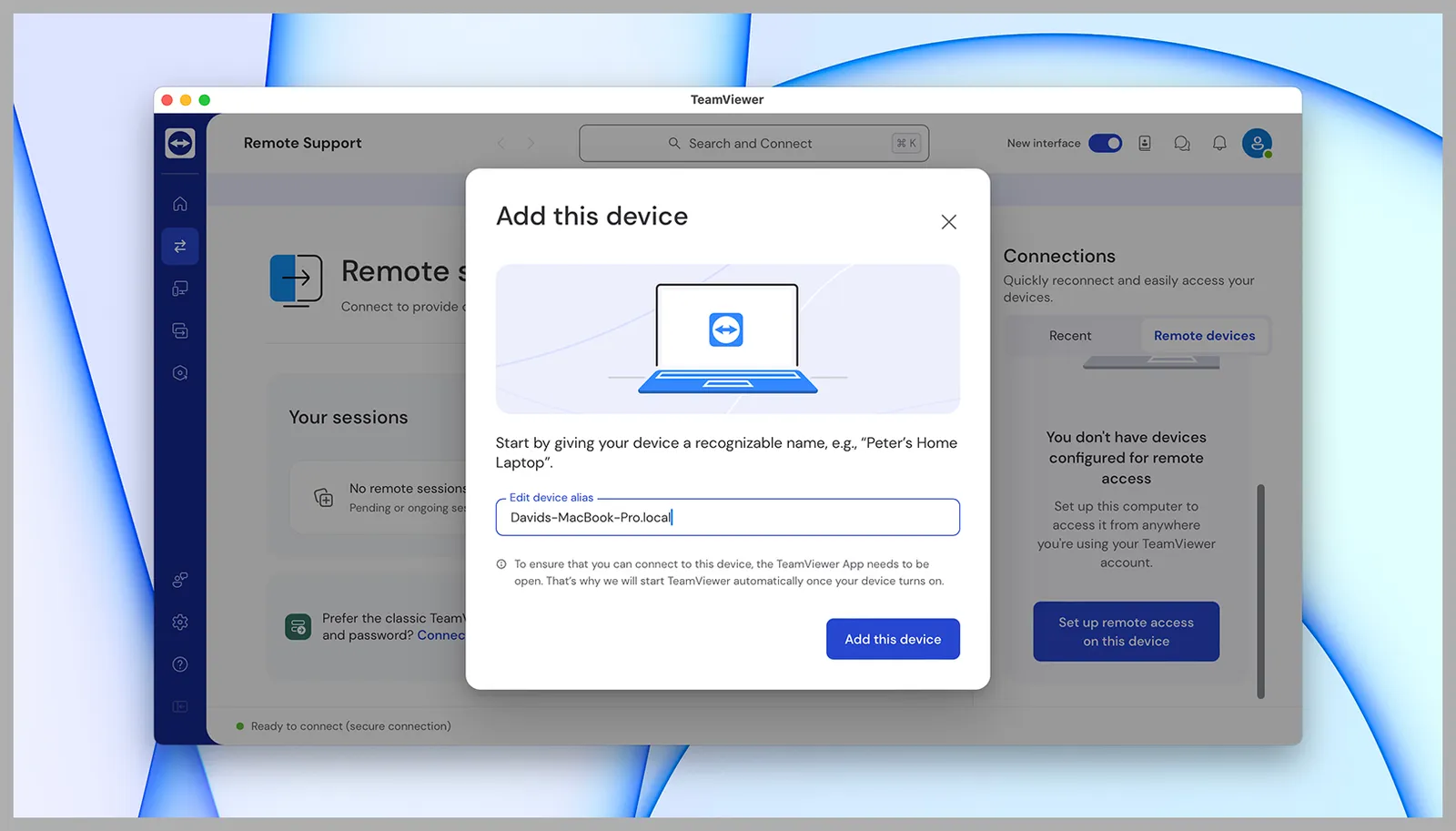
Teamviewer (Windows/macOS)
TeamViewer is one of the most popular remote access software available. It allows you to control and interact with your computer as if you were sitting in front of it.
Step-by-step Guide:
- Download and install TeamViewer from the official website.
- Launch the program on your computer and click on the “Host” button.
- On the remote device, download and install the TeamViewer client.
- Connect to the host machine by entering the ID and password provided.
Method 3: Using Utilities
There are also utilities available that can help you turn off your computer from a distance. Here are some examples:
Amp Winoff (Windows)
AMP WinOFF is a utility that allows you to schedule the shutdown of your Windows PC at a specific time or when it’s been idle for a certain period.
Step-by-step Guide:
- Download and install AMP WinOFF from the official website.
- Launch the program and click on the “Settings” button.
- Choose the shutdown option and select the date, time, and duration of inactivity.
- Save the settings and close the program.
Utility of Planning (Windows)
The Utility of Planning is a built-in Windows feature that allows you to schedule tasks, including shutdowns.
Step-by-step Guide:
- Click on the Start menu and select the “Settings” icon.
- Click on the “Time & language” option.
- Select the “Scheduling tasks” option.
- Choose the shutdown type (turn off or state of stop).
- Set the date, time, and duration of inactivity.
Method 4: Using Terminal Commands
If you’re comfortable using terminal commands, you can also use them to turn off your computer from a distance.
Using Terminal Commands (macOS)
You can use the pmset command to schedule the shutdown of your macOS device.
Step-by-step Guide:
- Open the Terminal application.
- Type
pmset schedule on 10/20/2023 14:30And press Enter. - Type
pmset repeat onand press Enter. - Type
shutdown -h nowand press Enter.
Conclusion
In conclusion, there are various methods to turn off your computer from a distance using software, remote access software, utilities, or terminal commands. By following the step-by-step guides provided in this article, you can save energy, reduce your electricity bill, and enjoy the convenience of remotely controlling your computer.
Frequently Asked Questions
- What Are The Benefits of Turning Off my Computer From a Distance?
- Turning off your computer from a distance saves energy, reduces your electricity bill, and provides convenience.
- Which Software Can I Use to Turn Off my Windows PC From a Distance?
- Wise Car Shutdown is an excellent option for Windows users.
- How do I Schedule The Shutdown of my Macos Device Using Terminal Commands?
- Use the
pmsetcommand to schedule the shutdown of your macOS device.
- Use the
- Can I Use Remote Access Software to Control my Computer From a Distance?
- Yes, you can use remote access software like TeamViewer to control and interact with your computer as if you were sitting in front of it.
Disclaimer
The information provided in this article is for educational purposes only. It’s recommended that you consult the official documentation or manufacturer’s instructions for any specific method or software used.


