
How to Turn Off Your PC Automatically: A Step-by-step Guide
Are you tired of manually turning off your PC every hour? Do you want to automate the process without any hassle? Look no further! In this article, we’ll show you how to turn off your PC automatically using various methods.
Why Automate Your PC Turn-off?
Automating your PC turn-off can be beneficial in several ways. For instance, it can help you save energy consumption, reduce wear and tear on your hardware, and even prevent accidental shutdowns when you forget to shut down your computer.
Method 1: Using The Shutdown Command
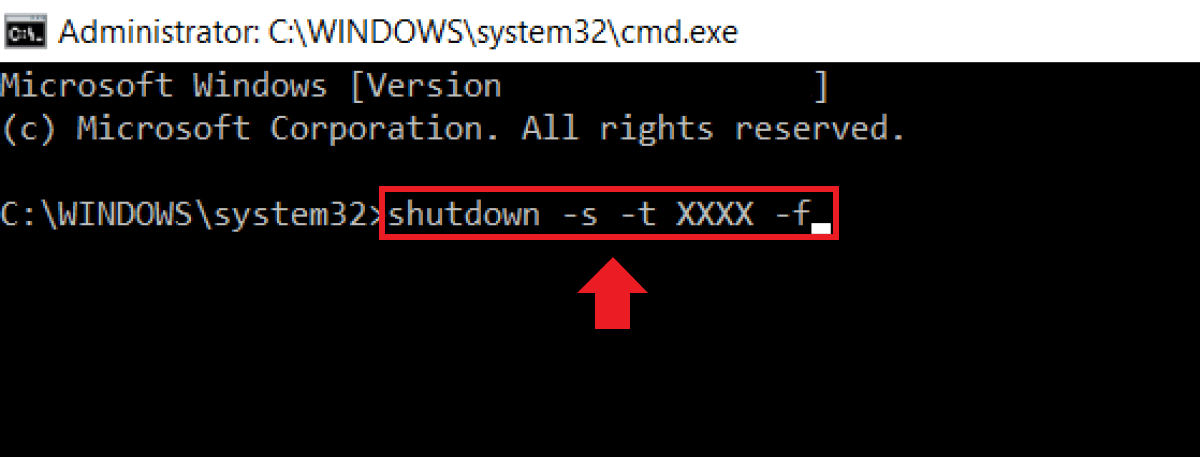
One of the easiest methods to automate your PC turn-off is by using the shutdown command. Here’s how:
- Open The Run Dialog Box: Press the Windows key + R to open the Run dialog box.
- Type
shutdownAnd Press Enter: Typeshutdownin the Run dialog box and press Enter to open the shutdown window. - Choose Your Options: Select your desired options, such as turning off your PC after a certain period or immediately shutting down.
- Schedule Your Shutdown: Click on “Schedule” to schedule your shutdown for a specific date and time.
Method 2: Using Task Scheduler
Another method to automate your PC turn-off is by using the Task Scheduler. Here’s how:
- Open Task Scheduler: Search for Task Scheduler in the Start menu and open it.
- Create a New Task: Click on “Create Basic Task” to create a new task.
- Name Your Task: Give your task a name, such as “Turn off PC.”
- Set Your Options: Set your desired options, such as turning off your PC after a certain period or immediately shutting down.
- Schedule Your Shutdown: Click on “Start” to schedule your shutdown for a specific date and time.
Method 3: Using a Script
You can also automate your PC turn-off using a script. Here’s how:
- Open Notepad: Search for Notepad in the Start menu and open it.
- Create a New Document: Click on “File” > “New” to create a new document.
- Type Your Script: Type your desired script, such as
shutdown /s /f(which will shut down your PC immediately). - Save Your Script: Save your script with a
.Batextension, such asturn_off_pc.Bat. - Schedule Your Shutdown: Schedule your shutdown using the Task Scheduler or by creating a new task.
Method 4: Using a Link on Your Desktop
You can also create a link on your desktop to automate your PC turn-off. Here’s how:
- Right-click on Your Desktop: Right-click on your desktop and select “New” > “Shortcut.”
- Type Your Shortcut: Type the path to your shutdown script, such as
shutdown /s /f. - Save Your Shortcut: Save your shortcut with a name, such as “Turn off PC.”
Method 5: Using Power Management
You can also automate your PC turn-off using power management. Here’s how:
- Open Power Options: Search for Power Options in the Start menu and open it.
- Choose Your Options: Select your desired options, such as turning off your PC after a certain period or immediately shutting down.
- Schedule Your Shutdown: Schedule your shutdown for a specific date and time.
Conclusion
Automating your PC turn-off can be beneficial in several ways. Whether you use the shutdown command, Task Scheduler, a script, a link on your desktop, or power management, there are various methods to choose from. By following these steps, you can easily automate your PC turn-off and enjoy the benefits that come with it.
Faqs
- Q: How do I Automate my PC Turn-off Using The Shutdown Command?
A: To automate your PC turn-off using the shutdown command, follow Method 1. - Q: Can I Schedule my Shutdown Using Task Scheduler?
A: Yes, you can schedule your shutdown using Task Scheduler. Follow Method 2 to do so. - Q: How do I Create a Script to Automate my PC Turn-off?
A: To create a script to automate your PC turn-off, follow Method 3. - Q: Can I Create a Link on my Desktop to Automate my PC Turn-off?
A: Yes, you can create a link on your desktop to automate your PC turn-off. Follow Method 4 to do so. - Q: How do I Use Power Management to Automate my PC Turn-off?
A: To use power management to automate your PC turn-off, follow Method 5.
I hope this article has been helpful in showing you how to automate your PC turn-off using various methods. If you have any further questions or need clarification on any of the steps, feel free to ask!


