
How to Turn Off Your PC Automatically: A Step-by-step Guide
Are you tired of manually turning off your computer every time you’re done using it? Do you want to save energy, reduce wear and tear on your machine, or simply simplify your daily routine? If so, then learning how to turn off your PC automatically is a great idea.
In this article, we’ll show you how to use various methods to schedule the shutdown of your computer, ensuring that it turns off at a specific time or after a certain period of inactivity. We’ll cover three main approaches: Using software like Wise Car Shutdown, leveraging Windows’ built-in features, and creating a script to automate the process.
Method 1: Using Wise Car Shutdown Software
Wise Car Shutdown is a user-friendly program that allows you to schedule the shutdown of your computer with ease. Here’s how to use it:
Installing Wise Car Shutdown
To get started, download the software from the official website and follow these steps:
- Download And Install the program by clicking on the “Free Download” button.
- Click on the “Next” button in the installation window.
- Choose the destination folder for the program and click “Install.”
- Follow the prompts to complete the installation process.
Setting Up Wise Car Shutdown
Once installed, follow these steps to set up the software:
- Launch Wise Car Shutdown by double-clicking on its icon.
- Click on “Yes” in the User Account Control window to allow the program to make changes to your computer.
- In the Wise Car Shutdown window, select “Turn off” and choose when you want the shutdown to occur (e.G., Daily, weekly, or at a specific date and time).
- Enter the desired parameters for the shutdown (e.G., Delay before shutting down).
Confirming The Shutdown
After configuring Wise Car Shutdown, follow these steps:
- Click on “Activate” and then “Yes” in the confirmation window.
- Verify that the program is set up correctly by checking the schedule in the Wise Car Shutdown window.
Method 2: Using Windows’ Built-in Features
If you prefer not to install additional software, you can use Windows’ built-in features to automate the shutdown process. Here’s how:
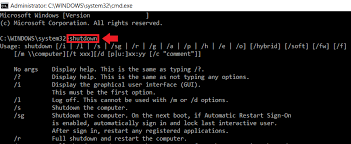
Using The Command Prompt
To shut down your computer using the command prompt, follow these steps:
- Press the Windows key + R to open the Run dialog box.
- Type “cmd” and press Enter to open the Command Prompt.
- Type the command
shutdown /s(orshutdown -s) followed by the desired parameters (e.G.,/T 1200for a 20-minute delay). - Press Enter to execute the command.
Using Windows Task Scheduler
Alternatively, you can use Windows Task Scheduler to schedule the shutdown of your computer:
- Open the Task Scheduler window.
- Click on “Create Basic Task” in the right-hand Actions panel.
- Follow the prompts to create a new task and set up the desired parameters (e.G., Trigger time, delay).
- Enter the command
shutdown /sfollowed by the desired parameters in the “Action” field.
Method 3: Creating a Script
You can also create a script using Notepad or any other text editor to automate the shutdown process:
- Open Notepad and create a new file.
- Type
@echo off(or@rem) followed by the commandshutdown /s. - Add any desired parameters (e.G., Delay, specific date and time).
- Save the file with a
.Batextension.
To run the script:
- Open the Task Scheduler window.
- Create a new task and select “Start a program” as the action.
- Choose the location of the script file.
- Select the desired trigger (e.G., Daily, weekly) and parameters.
Conclusion
Turning off your PC automatically is a simple yet effective way to conserve energy, reduce wear and tear on your machine, or simply simplify your daily routine. By using software like Wise Car Shutdown, leveraging Windows’ built-in features, or creating a script, you can schedule the shutdown of your computer with ease.
Frequently Asked Questions (FAQs)
Q1: What is The Benefit of Turning Off my PC Automatically?
A1: Turning off your PC automatically saves energy, reduces wear and tear on your machine, and simplifies your daily routine.
Q2: Can I Use Wise Car Shutdown on Any Operating System?
A2: No, Wise Car Shutdown is designed for Windows operating systems only.
Q3: How do I Modify The Shutdown Parameters in Wise Car Shutdown?
A3: To modify the shutdown parameters, launch Wise Car Shutdown and click on “Property.” Make the desired changes and click “OK” to confirm.
Q4: Can I Use a Script to Automate The Shutdown Process?
A4: Yes, you can create a script using Notepad or any other text editor to automate the shutdown process.
Q5: How do I Run The Script in Windows Task Scheduler?
A5: To run the script, open the Task Scheduler window and create a new task. Select “Start a program” as the action and choose the location of the script file.
Additional Resources
For more information on Wise Car Shutdown or Windows’ built-in features for automating shutdowns, refer to the following resources:
- Wise Car Shutdown official website
- Microsoft’s documentation on using Task Scheduler
By following these methods and tips, you can easily turn off your PC automatically, saving energy, reducing wear and tear, and simplifying your daily routine.


