
How to Light Apple Watch: A Step-by-step Guide
Are you one of the many people who have recently acquired an Apple Watch? Congratulations! You’ve taken the first step towards a more convenient and connected life. But, have you wondered how to light your Apple Watch for the first time? Or maybe you’re curious about lighting it without pairing it with your iPhone? Well, wonder no more!
In this article, we’ll guide you through the simple process of lighting your Apple Watch, both for the first time and subsequent times. We’ll also cover some advanced topics, such as lighting it in charging mode, without an iPhone, and using different display modes.
How to Light Apple Watch For The First Time
Lighting your Apple Watch for the first time is a straightforward process that requires just a few taps on the screen.
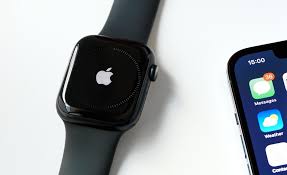
- Hold Down The Digital Crown: Press and hold the Digital Crown (the button on the right side of your Apple Watch) until you see the Apple logo appear on the screen.
- Wait For a Few Seconds: Wait for a few seconds, and then you’ll see a message asking you to approach your iPhone to Apple Watch.
- Match Your Apple Watch With Your Iphone: Approach your Apple Watch to your iPhone and press the Continuous button that appears on the screen of your iPhone in matching mode.
- Configure Your Apple Watch: Once matched, you’ll be taken through a configuration process where you can set up your Apple Watch, including setting the time, date, and other preferences.
How to Light Apple Watch Without Pairing
If you want to light your Apple Watch without pairing it with your iPhone, you can still do so. However, keep in mind that your Apple Watch will not be able to function properly until it’s paired with an iPhone and configured.
To light your Apple Watch without pairing:
- Hold Down The Digital Crown: Press and hold the Digital Crown (the button on the right side of your Apple Watch) until you see the Apple logo appear on the screen.
- Wait For a Few Seconds: Wait for a few seconds, and then you’ll see a message asking you to approach your iPhone to Apple Watch.
How to Light Apple Watch in Charging Mode
If you want to light your Apple Watch while it’s still charging, there are a few things to keep in mind:
- If your Apple Watch has been turned off for some time, it may take a few minutes for the battery to charge enough to light up.
- In this case, simply hold down the Digital Crown until you see the Apple logo appear on the screen.
How to Light Apple Watch Without an Iphone
While your Apple Watch is designed to work seamlessly with your iPhone, there are situations where you might need to use it without pairing. Here’s how:
- Hold Down The Digital Crown: Press and hold the Digital Crown (the button on the right side of your Apple Watch) until you see the Apple logo appear on the screen.
- Use Your Apple Watch in Limited Mode: Keep in mind that using your Apple Watch without an iPhone will limit its functionality.
Display Modes For Apple Watch
In addition to lighting your Apple Watch, there are various display modes available:
- Always On: This mode keeps the display of your Apple Watch always lit, even when you’re not looking at it. However, this feature can consume more battery life.
- Auto-on: Your Apple Watch will automatically turn on its display when you raise your wrist or touch the screen.
Conclusion
Lighting your Apple Watch is a simple process that requires just a few taps on the screen. By following these steps, you’ll be able to light your Apple Watch for the first time and subsequent times, as well as explore some advanced features like lighting it in charging mode, without an iPhone, or using different display modes.
Faqs
Q: How do I light my Apple Watch for the first time?
A: Press and hold the Digital Crown until you see the Apple logo appear on the screen.
Q: Can I light my Apple Watch without pairing it with my iPhone?
A: Yes, but keep in mind that your Apple Watch will not be able to function properly until it’s paired with an iPhone and configured.
Q: How do I light my Apple Watch while it’s charging?
A: Hold down the Digital Crown until you see the Apple logo appear on the screen. Keep in mind that it may take a few minutes for the battery to charge enough to light up.
Q: Can I use my Apple Watch without an iPhone?
A: Yes, but keep in mind that using your Apple Watch without an iPhone will limit its functionality.
Q: What are the different display modes available on my Apple Watch?
A: There are three display modes available: Always On, Auto-On, and manually turning on the screen by tapping it.


