
Lighting Your Iphone: A Step-by-step Guide
Are you tired of struggling to turn on your iPhone? Do you find yourself stuck in a situation where your device won’t light up, no matter how many times you press the power button? Look no further! In this article, we’ll take you through a step-by-step guide on how to light your iPhone, covering various scenarios and troubleshooting tips.
Understanding Your Iphone’s Power Button
Before we dive into the instructions, it’s essential to understand the purpose of the power button. The power button is designed to turn your iPhone on or off, as well as put it in sleep mode. However, if you’re experiencing issues with your power button, there are alternative methods to light your iPhone.
Procedura “Classic” to Light The Iphone
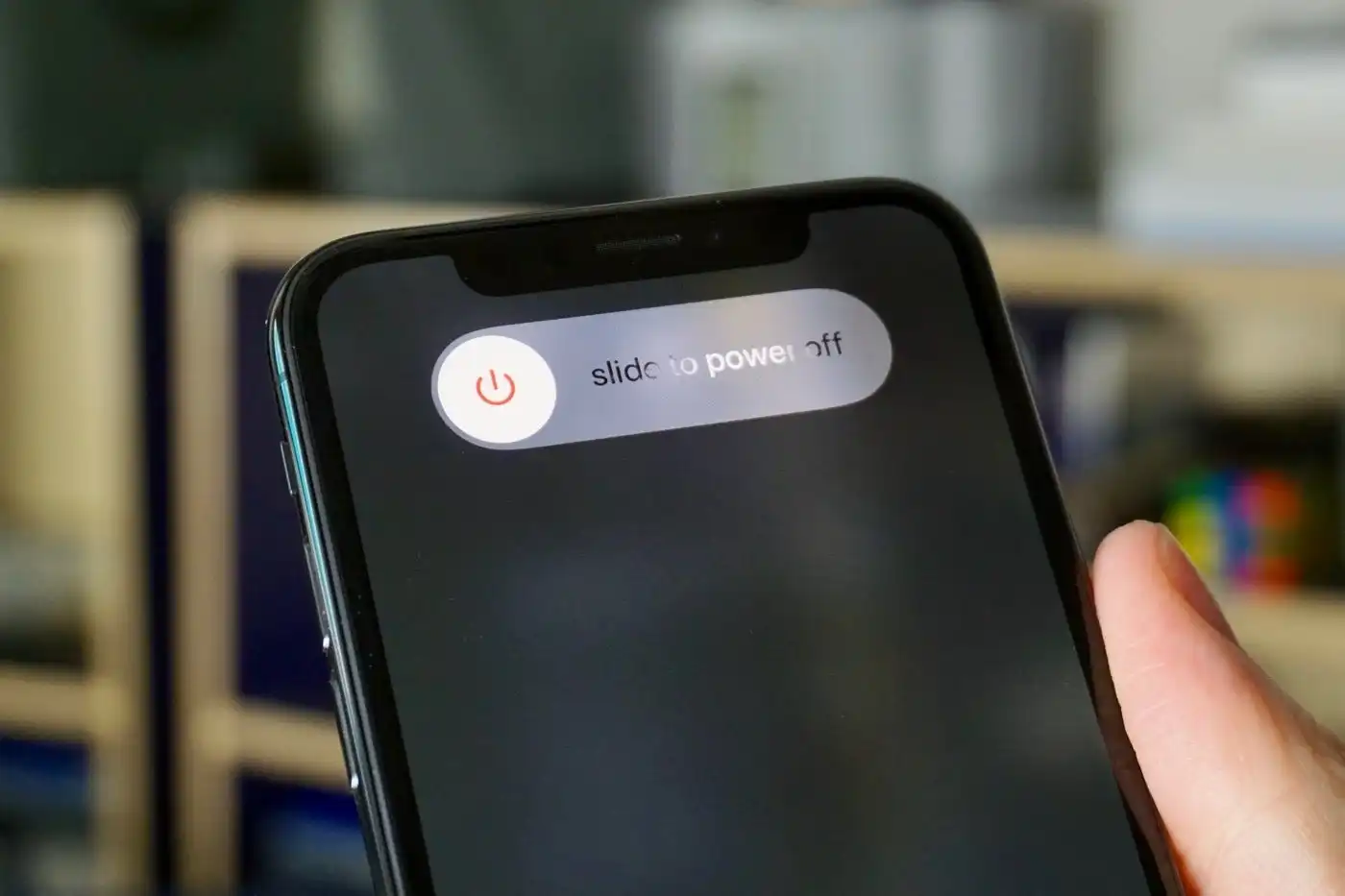
The most straightforward method to light your iPhone is by pressing and holding the power button for a few seconds. This should wake up your device from sleep mode or turn it on if it’s completely dead. To do this:
- Hold your iPhone in one hand.
- Locate the power button on the right side of your device (iPhone 6 and later) or on top (all other iPhones).
- Press and hold the power button for at least three seconds.
Step-by-step Guide:
- Lighting Your Iphone With a Dead Battery
- If your battery is completely dead, you won’t be able to light your iPhone using the usual method.
- To charge your iPhone, connect it to a power source using the included Lightning cable.
- Plug the other end of the cable into a USB port on your computer or a wall adapter.
- Lighting Your Iphone With a Broken Power Button
- If your power button is broken, you won’t be able to press and hold it to light your iPhone.
- Try connecting your iPhone to a power source using the included Lightning cable.
- Forcing The Lighting of The Iphone
- If your iPhone still refuses to light up, try forcing the lighting by pressing and holding the volume down button + the sleep/wake button simultaneously for 10 seconds (iPhone X, 8, or 8 Plus).
- For iPhone 7 or 7 Plus, press and hold both the power button and the volume down button simultaneously for at least 10 seconds.
- For iPhone 6s and earlier, press and hold both the sleep/wake button + the home button simultaneously for at least 10 seconds.
Troubleshooting Tips:
If none of these methods work, it’s possible that your iPhone has a more serious issue. In such cases, we recommend contacting Apple support for further assistance.
- Contacting Apple Support
- Call the Apple support hotline (800-915-904) from Monday to Friday, 8 am to 7:45 Pm.
- Visit the Apple support website and follow the instructions to contact them online.
- Download the Apple Support app on your iPhone or another device running iOS.
Conclusion:
Lighting your iPhone can be a straightforward process, but sometimes things don’t go as planned. By following this step-by-step guide, you should be able to light your iPhone in various scenarios. If you’re still having issues, don’t hesitate to contact Apple support for further assistance. Remember, their goal is to help you resolve any problems you may be facing with your device.
Frequently Asked Questions:
- Q: How Long Does it Take to Charge my Iphone?
A: The time it takes to fully charge your iPhone depends on various factors, such as the battery level and the charging method used. - Q: Can I Force Light my Iphone if It’s Dead?
A: Yes, you can try forcing the lighting by pressing and holding the volume down button + the sleep/wake button simultaneously for 10 seconds (iPhone X, 8, or 8 Plus). - Q: What Should I do if my Power Button is Broken?
A: Try connecting your iPhone to a power source using the included Lightning cable. - Q: How Can I Contact Apple Support?
A: You can call the Apple support hotline (800-915-904) or visit their website and follow the instructions to contact them online. - Q: Will my Data be Lost if I Force Light my Iphone?
A: No, your data should not be lost when forcing the lighting of your iPhone. - Q: Can I Use Any Other Method to Light my Iphone Besides Pressing And Holding The Power Button?
A: Yes, there are alternative methods to light your iPhone, such as using iTunes or a USB cable. - Q: Will I Lose Any Data if I Contact Apple Support For Assistance?
A: No, contacting Apple support will not result in any loss of data.
Disclaimer:
This article is intended for informational purposes only and should not be considered professional advice. If you’re experiencing issues with your iPhone, it’s always best to consult the official Apple documentation or contact Apple support directly.


