
Lighting Your Portable PC Without a Power Button: A Step-by-step Guide
Are you tired of fiddling with your portable PC’s power button? Do you wish there was an easier way to turn it on without having to press the tiny switch every time? Well, you’re in luck! In this article, we’ll show you how to light up your portable PC without a power button, using various methods that are sure to make your life easier.
Table 1: Overview of Solutions
| Method | Description |
|---|---|
| Suspension and Hibernation | Leave your portable PC in suspension or hibernation mode to conserve energy. |
| Combination of Keys | Use a combination of keys on an external keyboard to turn on your portable PC. |
| Scripting with Task Scheduler | Create a script using the Task Scheduler utility to automate the lighting process. |
Table 2:The Bolded Title**
Lighting Your Portable PC Without a Power Button: A Step-by-step Guide
Are you tired of fiddling with your portable PC’s power button? Do you wish there was an easier way to turn it on without having to press the tiny switch every time? Well, you’re in luck! In this article, we’ll show you how to light up your portable PC without a power button, using various methods that are sure to make your life easier.
Method 1: Suspension And Hibernation
Leaving your portable PC in suspension or hibernation mode can help conserve energy. This method is particularly useful if you’re using your device as a desktop substitute. To enter this mode:
- Close the lid of your portable PC (if it’s a laptop) or shut down the computer.
- Press the power button to wake up the device.
Your portable PC will now be in suspension mode, and you can use the keyboard to interact with it. If you want to go further, you can hibernate the device by:
- Closing the lid again (if it’s a laptop) or shutting down the computer.
- Pressing the power button to wake up the device.
Your portable PC will now be in hibernation mode, and you can use the keyboard to interact with it.
Method 2: Combination of Keys
Using a combination of keys on an external keyboard is another way to light up your portable PC without a power button. To do this:
- Open the BIOS or UEFI settings (usually by pressing F2, F12, or Del).
- Look for the “Power On By Keyboard” option.
- Select the desired key combination (e.G., Ctrl + Alt + Power).
Your portable PC will now respond to the specified key combination when you press it.
Method 3: Scripting With Task Scheduler
If you’re using Windows, you can create a script using the Task Scheduler utility to automate the lighting process. To do this:
- Open the Task Scheduler (usually by pressing Ctrl + Shift + Esc).
- Create a new task and select “Create Basic Task”.
- Set up the trigger for when you want the task to run (e.G., Every day at 8 am).
- Choose the action as “Start a program” and specify the executable file for your portable PC’s power button.
- Save the task and give it a name.
Your portable PC will now be turned on automatically according to the schedule you set up.
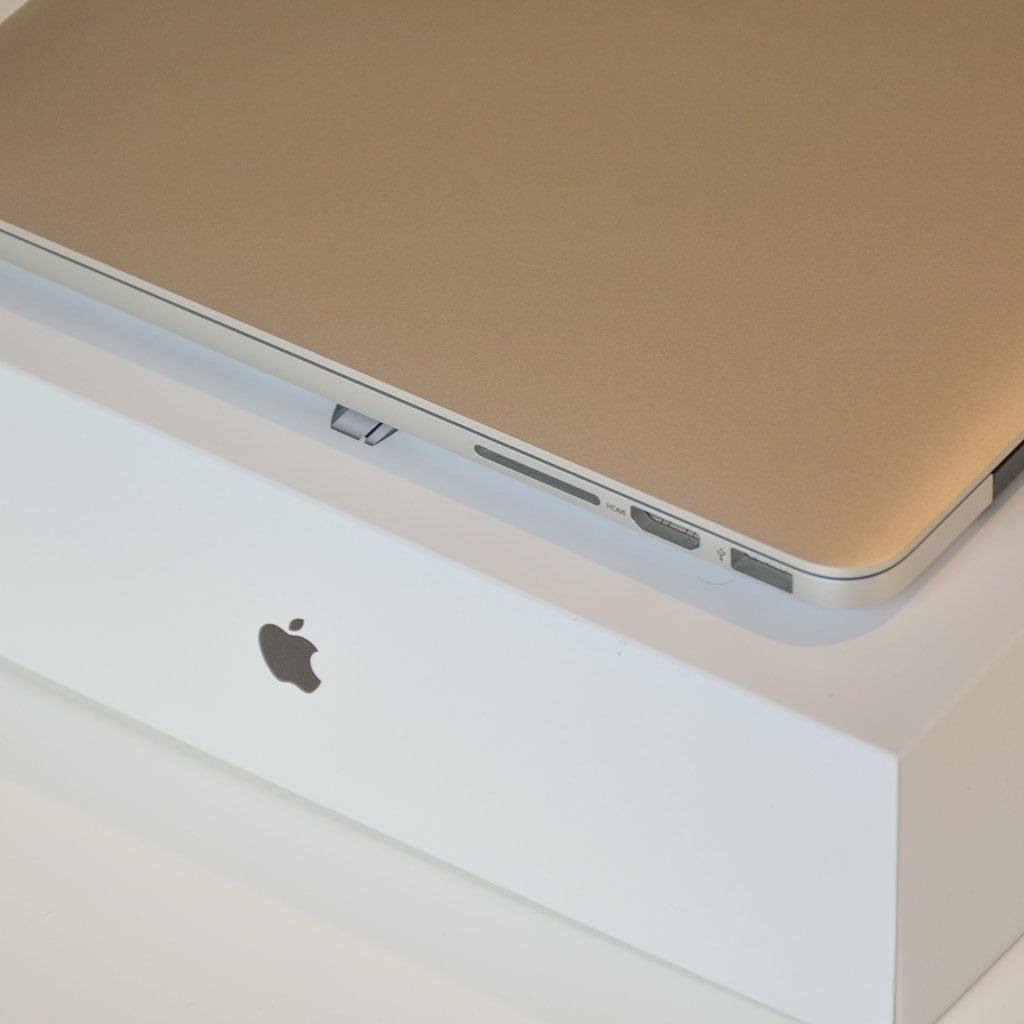
Method 4: Lighting Your Macbook Without a Power Button
If you’re using a MacBook, there are other ways to light it up without pressing the power button. To do this:
- Close the lid of your MacBook (if it’s closed).
- Press the power button to wake up the device.
- Alternatively, you can use the keyboard or trackpad to interact with your MacBook.
You can also configure your MacBook to automatically turn on and off at specific times using the Energy Saver preferences. To do this:
- Go to System Preferences > Energy Saver.
- Select “Turn off after” and choose a time.
- Click on “Program in low to right” and select the option for automatic stop.
Your MacBook will now be turned on and off automatically according to the schedule you set up.
Conclusion
Lighting your portable PC without a power button can seem daunting, but with these methods, it’s easier than ever. Whether you’re using suspension and hibernation mode, combination of keys, scripting with Task Scheduler, or configuring your MacBook for automatic turn on and off, we’ve got you covered. So next time you need to turn on your portable PC without fiddling with the power button, just follow these steps and enjoy the convenience.
Faqs
Q: What is suspension mode?
A: Suspension mode allows your portable PC to enter a low-energy state while still allowing it to be powered off by pressing the power button.
Q: How do I get out of hibernation mode?
A: Pressing the power button will wake up your portable PC from hibernation mode, and you can use the keyboard to interact with it.
Q: Can I customize my key combination for lighting up my portable PC?
A: Yes, in the BIOS or UEFI settings, you can select a different key combination that works best for you.
Q: How do I create a script using Task Scheduler to automate the lighting process?
A: Open the Task Scheduler and follow the steps we outlined earlier to create a new task and specify the executable file for your portable PC’s power button.
Q: Can I configure my MacBook to automatically turn on and off at specific times?
A: Yes, go to System Preferences > Energy Saver and select “Turn off after” and choose a time. Click on “Program in low to right” and select the option for automatic stop.
Q: What if my portable PC doesn’t have a power button or I’m using a different operating system?
A: Check your device’s manual or online resources specific to your OS to see if there are alternative methods available.
Q: Can I use these methods on multiple devices at once?
A: Yes, you can set up multiple tasks in the Task Scheduler and schedule them to run according to your needs.


