
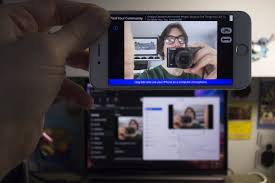
The Ultimate Guide to Spinning Your Iphone Camera While Recording Video
Are you tired of the limitations that come with recording videos on your iPhone? Do you wish you could capture more creative shots without having to switch between different cameras or modes? Look no further! In this comprehensive guide, we’ll show you how to spin your iPhone camera while recording video using various apps and settings.
Introduction
Recording videos on your iPhone is a breeze, but sometimes it can be frustrating when you want to capture something special. The default camera app doesn’t allow for much flexibility, making it difficult to get the shot you want. That’s where these innovative apps come in – they let you spin your camera while recording video, giving you more creative control over your shots.
Protake: The First App on Our List
Before we dive into other apps, let’s talk about Protake. This app is a must-have for anyone who wants to take their iPhone photography to the next level. With Protake, you can record videos with advanced settings like resolution, FPS, and more. It also has a geolocation feature that adds a timestamp to your video.
To use Protake, simply download it from the App Store (it’s free!), open it up, and give it the necessary permissions. Then, tap on the “Video” menu, press the red button to start recording, and use the ring-shaped button to spin your camera while filming.
Timestamp Chamber: The Ultimate Camera Control
Next up is Timestamp Chamber. This app takes Protake’s features to a whole new level by adding advanced settings like a counter for video length, an environmental volume indicator, and more. You can also switch between different modes, including a “Pro” mode that unlocks even more features.
To use Timestamp Chamber, download the free version from the App Store (there’s a paid Pro version too), open it up, and grant it the necessary permissions. Then, tap on the video icon, press the red button to start recording, and spin your camera using the ring-shaped button.
Basic Camera Settings
Now that you know about Protake and Timestamp Chamber, let’s cover some basic camera settings that can help you get better results from your iPhone camera.
- Resolutions: Make sure to record in 4K resolution for the best quality possible.
- Fps: Adjust the frames per second (FPS) according to what works best for your video. For smooth footage, try using 60 or 120 FPS.
- Iso: Lower ISO settings are better for low-light conditions.
Other Apps Worth Checking Out
There are several other apps that can help you spin your iPhone camera while recording video. Here are some of our top picks:
- Vhs Cam: This retro-style app is perfect for those who want a more nostalgic look to their videos.
- Videocam+: This app allows you to pause and resume video recording, as well as switch between front and back cameras.
- Nonstop Cam: Another innovative app that lets you switch between front and back cameras while recording video.
Conclusion
Recording videos on your iPhone has never been easier or more creative! With these apps and settings, you can take control of your camera and capture the perfect shot every time. Whether you’re a seasoned videographer or just starting out, we hope this guide has been informative and helpful in unlocking new possibilities with your iPhone camera.
Frequently Asked Questions (FAQs)
- Q: Can I Use These Apps to Record Video on my Older Iphone Models?
A: Yes! All of the apps mentioned in this guide are compatible with newer iPhone models, but some may not work with older models. - Q: Do I Need a Subscription to Use Protake And Timestamp Chamber?
A: No! Both apps offer free versions that you can download from the App Store. However, Protake’s Pro version requires a subscription. - Q: Can I Record Video in 4K Resolution With These Apps?
A: Yes! All of the apps mentioned in this guide allow for recording in 4K resolution or higher. - Q: Are There Any Tutorials Available to Help me Learn How to Use These Apps?
A: Yes! The developers of each app offer comprehensive guides and tutorials that can be accessed through their respective websites. - Q: Can I Share my Recorded Videos on Social Media Platforms Like Instagram And Facebook?
A: Yes! All of the apps mentioned in this guide allow for easy sharing of your recorded videos directly to social media platforms.
By following this guide, you’ll be well on your way to becoming a master videographer with your iPhone camera. Happy filming!


