
How to Spin Your Monitor: A Step-by-step Guide
Are you tired of dealing with a monitor that’s stuck in one orientation? Do you want to switch between horizontal and vertical views without having to restart your computer or use any complicated software? Look no further! In this article, we’ll show you how to spin your monitor on various devices, including Windows PC, Mac, and tablet.
Why Spin Your Monitor?
Spinning your monitor can be useful in several situations:
- When working with multiple monitors, it’s often easier to have them all in the same orientation.
- If you have a small laptop screen, spinning it to portrait mode can make scrolling through documents or web pages much more comfortable.
- Gamers may also find it helpful to switch between orientations while playing games that require different views.
How to Spin Your Monitor on Windows PC
Spinning your monitor on a Windows PC is relatively straightforward. Here’s how you can do it:
For Windows 11:
- Click the Start button and select Settings.
- In the Settings window, click on Display.
- Scroll down to the “Orientation” section and click on it.
- Select the desired orientation from the dropdown menu.
For Windows 10:
The process is similar for Windows 10:
- Click the Start button and select Settings.
- In the Settings window, click on Display.
- Scroll down to the “Orientation” section and click on it.
- Select the desired orientation from the dropdown menu.
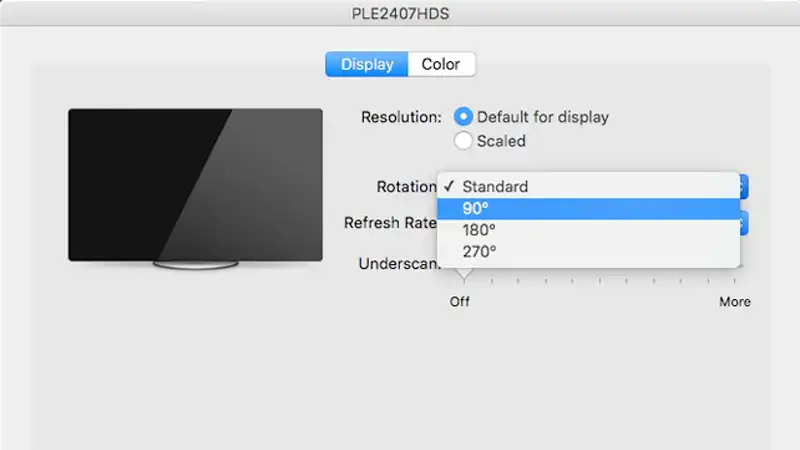
How to Spin Your Monitor on Mac
Spinning your monitor on a Mac is also relatively simple:
- Click on the Apple logo in the top left corner of the screen.
- Select System Preferences.
- Click on Displays.
- In the Display preferences window, click on the “Rotation” tab.
- Select the desired orientation from the dropdown menu.
How to Spin Your Monitor on Tablet
Spinning your monitor on a tablet is slightly different:
For Android:
- Swipe down from the top of the screen to open the notification shade.
- Look for the “Auto-rotate” toggle and make sure it’s enabled.
- Now, you can swipe left or right to rotate your screen.
For Ipados:
- Swipe up from the bottom of the screen to open the Control Center.
- Look for the “Rotate” option and select it.
- Your screen will now rotate accordingly.
Conclusion
Spinning your monitor can be a useful feature, especially when working with multiple monitors or playing games that require different views. By following these simple steps, you can easily switch between horizontal and vertical orientations on various devices, including Windows PC, Mac, and tablet.
Faqs
Here are some frequently asked questions about spinning your monitor:
-
What is The Purpose of Spinning a Monitor?
Spinning a monitor allows users to switch between horizontal and vertical orientations, which can be useful in various situations such as working with multiple monitors or playing games that require different views.
-
How do I Spin my Monitor on Windows Pc?
To spin your monitor on a Windows PC, follow these steps: For Windows 11, click the Start button and select Settings. In the Settings window, click on Display. Scroll down to the “Orientation” section and click on it. Select the desired orientation from the dropdown menu.
-
How do I Spin my Monitor on Mac?
To spin your monitor on a Mac, follow these steps: Click on the Apple logo in the top left corner of the screen. Select System Preferences. Click on Displays. In the Display preferences window, click on the “Rotation” tab. Select the desired orientation from the dropdown menu.
-
How do I Spin my Monitor on Tablet?
To spin your monitor on a tablet, follow these steps: For Android, swipe down from the top of the screen to open the notification shade. Look for the “Auto-rotate” toggle and make sure it’s enabled. Now, you can swipe left or right to rotate your screen.
-
Can I Customize my Screen Orientation Settings?
Yes, users can customize their screen orientation settings on various devices. For example, on Windows PC, users can go to Settings > Display > Orientation and select the desired orientation from the dropdown menu. On Mac, users can click on Displays in System Preferences and select the desired rotation from the dropdown menu.
-
What Are Some Common Use Cases For Spinning a Monitor?
Some common use cases for spinning a monitor include working with multiple monitors, playing games that require different views, or scrolling through documents or web pages more comfortably on small laptop screens.


