
How to Activate or Deactivate The Touchpad on Your Laptop
Are you tired of using your laptop’s touchpad, only to have it get in the way? Or perhaps you’re looking to disable it altogether because it’s causing more problems than it’s solving? Look no further! In this article, we’ll guide you through the steps to activate or deactivate the touchpad on your Windows 10/11, ASUS, Lenovo, and Mac laptops.
Understanding Your Laptop’s Touchpad
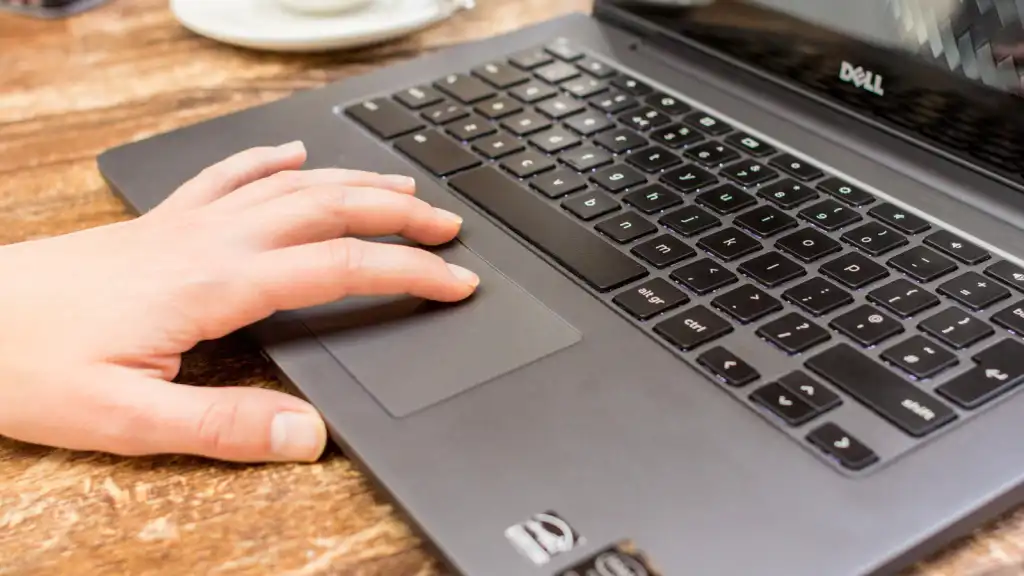
Before we dive into the nitty-gritty of activating or deactivating your laptop’s touchpad, it’s essential to understand how it works. The touchpad is a small pad located below the keyboard that allows you to navigate and interact with your computer using gestures and movements.
Why Would You Want to Deactivate Your Laptop’s Touchpad?
There are several reasons why you might want to deactivate your laptop’s touchpad:
- Accidental Clicks: If you’re prone to accidental clicks or taps on the touchpad, it can lead to unnecessary actions, such as opening programs or clicking on links.
- Delicate Operations: When working with delicate operations, like video editing or coding, a malfunctioning touchpad can be distracting and even cause errors.
- External Mouse Usage: If you prefer using an external mouse, deactivating the touchpad can help eliminate any interference between the two devices.
Activating or Deactivating Your Laptop’s Touchpad on Windows 10/11
To activate or deactivate your laptop’s touchpad on Windows 10/11:
- Click on The Start Button: Located at the bottom left corner of your screen, click on the Start button to open the menu.
- Type “Touchpad Settings”: In the search bar, type “touchpad settings” and select the result from the list.
- Open Touchpad Settings: This will take you to the Touchpad settings page, where you can adjust various options, such as sensitivity or gestures.
Activating or Deactivating Your Laptop’s Touchpad on Asus
To activate or deactivate your laptop’s touchpad on ASUS:
- Click on The Asus Smart Gesture Icon: Located in the notification area of your taskbar, click on the ASUS Smart Gesture icon to open the settings.
- Adjust Touchpad Settings: In the ASUS Smart Gesture window, you can adjust various options, such as sensitivity or gestures.
Activating or Deactivating Your Laptop’s Touchpad on Lenovo
To activate or deactivate your laptop’s touchpad on Lenovo:
- Click on The Elan Icon: Located in the notification area of your taskbar, click on the ELAN icon to open the settings.
- Adjust Touchpad Settings: In the ELAN window, you can adjust various options, such as sensitivity or gestures.
Activating or Deactivating Your Laptop’s Touchpad on Mac
To activate or deactivate your laptop’s touchpad on Mac:
- Click on The Apple Menu: Located at the top left corner of your screen, click on the Apple menu to open the preferences.
- Select Accessibility: In the preferences window, select “Accessibility” from the list.
- Open Trackpad Settings: This will take you to the Trackpad settings page, where you can adjust various options, such as sensitivity or gestures.
Conclusion
Activating or deactivating your laptop’s touchpad is a straightforward process that can be customized according to your preferences. By following these steps, you can ensure that your laptop’s touchpad works seamlessly with your external mouse or that it’s completely deactivated when not in use.
Faqs
-
Q: How do I Deactivate my Laptop’s Touchpad?
A: To deactivate your laptop’s touchpad, follow the steps outlined above for your specific operating system (Windows 10/11, ASUS, Lenovo, or Mac). -
Q: Can I Activate my Laptop’s Touchpad if It’s Been Deactivated?
A: Yes, you can reactivate your laptop’s touchpad by following the steps outlined above for your specific operating system.
-
Q: Will Deactivating my Laptop’s Touchpad Affect Any Programs or Applications?
A: Deactivating your laptop’s touchpad will not directly affect any programs or applications. However, if you’re using a program that relies on the touchpad for navigation, it may require adjustments to function properly. -
Q: Can I Adjust my Laptop’s Touchpad Settings After Deactivation?
A: Yes, you can adjust your laptop’s touchpad settings even after deactivating it. Follow the steps outlined above for your specific operating system to access and customize the touchpad settings.
-
Q: Will Deactivating my Laptop’s Touchpad Affect Its Performance or Battery Life?
A: Deactivating your laptop’s touchpad will not significantly impact its performance or battery life. -
Q: Can I Use an External Mouse With my Laptop if The Touchpad is Deactivated?
A: Yes, you can use an external mouse with your laptop even if the touchpad has been deactivated.
-
Q: How do I Reactivate my Laptop’s Touchpad After Deactivation?
A: To reactivate your laptop’s touchpad, follow the steps outlined above for your specific operating system. -
Q: Will Activating my Laptop’s Touchpad Affect Any Programs or Applications?
A: Activating your laptop’s touchpad will not directly affect any programs or applications. However, if you’re using a program that relies on the touchpad for navigation, it may require adjustments to function properly.


